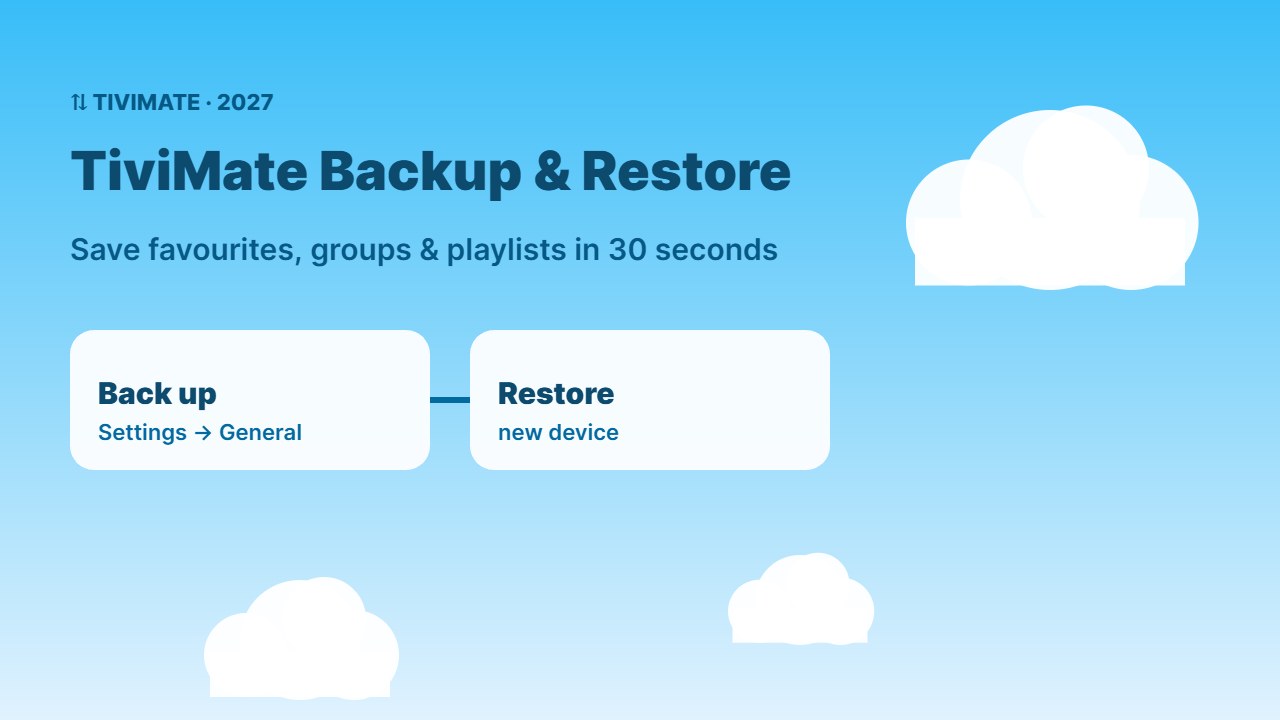
Spent hours sorting favourites, hiding groups and fixing the EPG? Don’t lose it. A TiviMate backup saves all your settings in one small file, so you can restore them after a reset or copy them to a new Firestick in minutes. Here is how to back up and restore TiviMate step by step.
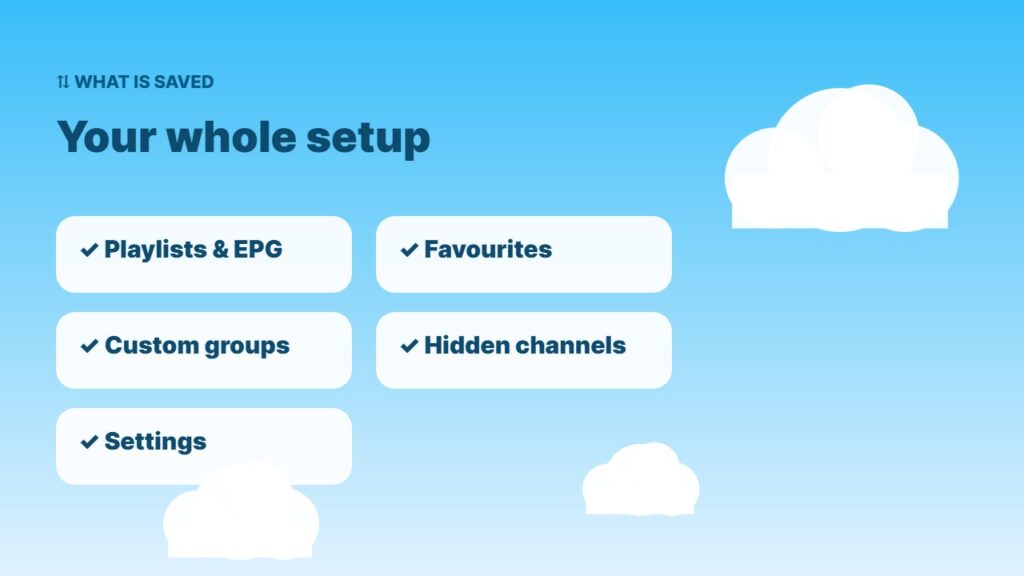
What a TiviMate backup saves
- Playlists and EPG sources
- Favourites and custom groups
- Hidden and sorted groups and channels
- Appearance and player settings
- Reminders and recording schedules (depending on version)
Backup and restore are TiviMate Premium features. Your Premium account itself is linked to your login, not to the backup file.
How to make a TiviMate backup
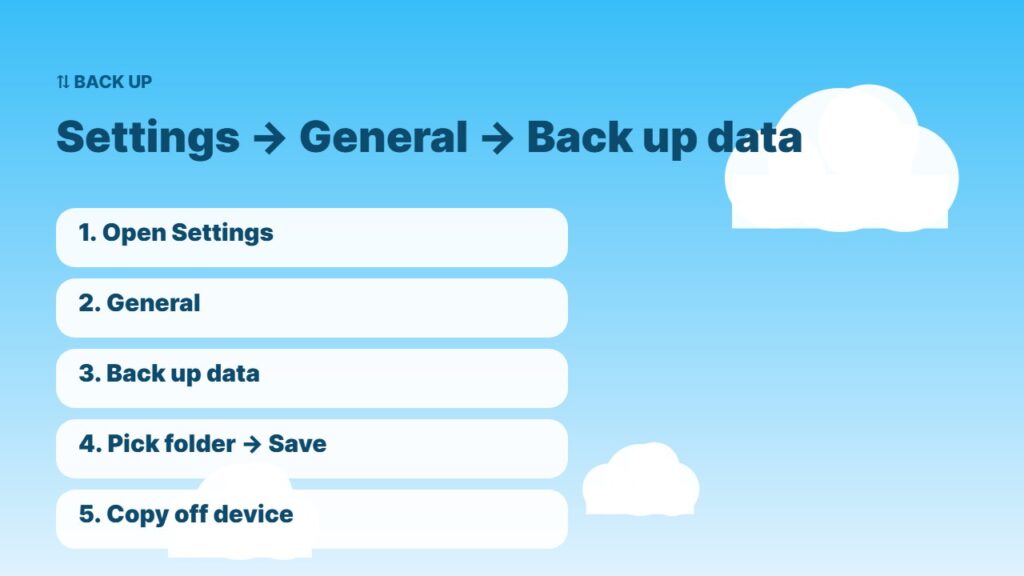
- Open TiviMate → Settings → General.
- Select Back up data.
- Choose a folder — internal storage or a USB drive.
- Select Save. A small backup file is created.
- Copy the file somewhere safe (USB drive, phone or cloud) so it survives a factory reset.
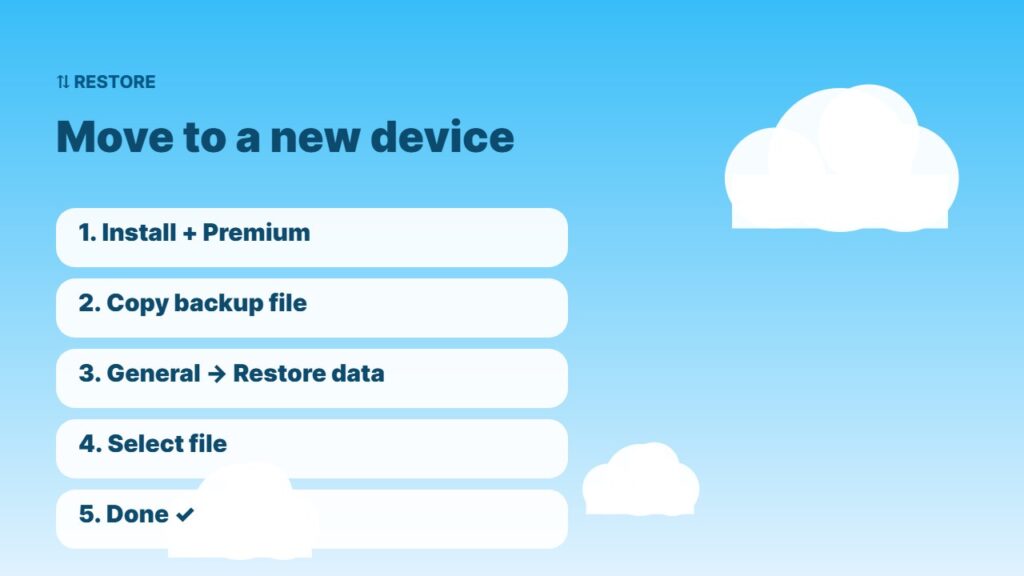
How to restore TiviMate on a new device
- Install TiviMate on the new device and log in to Premium. New Firestick? See how to set up a Firestick.
- Copy the backup file to the new device (USB drive, file manager or cloud).
- Open TiviMate → Settings → General → Restore data.
- Find and select the backup file, then choose Restore.
- TiviMate restarts with all your playlists, favourites and groups.
TiviMate backup file not showing? Fixes
- Some versions only show backup files in specific folders — move the file to the Download folder with a file manager.
- Give TiviMate permission to access storage in the device settings.
- Use a FAT32 or exFAT USB drive.
- If moving files between devices, use a file manager app that supports cloud storage or network shares.
- Still stuck? See TiviMate not working.
When should you back up?
| Situation | Why |
|---|---|
| Before a factory reset | Everything on the device is erased |
| Before switching devices | Copy your setup to the new box |
| After big changes | Keep your latest favourites and groups |
| Before clearing app data | Clear data removes all settings |
Planning a reset? Read how to factory reset a Firestick and clear cache vs clear data. Upgrading your stick? Compare Fire TV Stick 4K vs 4K Max. More TiviMate guides: setup and recording. General tips: backups.
Copy one TiviMate setup to every TV
Have several Firesticks or Android TV boxes at home? Set up TiviMate perfectly on one device, make a TiviMate backup, then restore the same file on each other device. Every TV gets the same favourites, groups and EPG in a few minutes, without repeating the setup by hand.
Frequently asked questions
How do I back up TiviMate?
Open Settings → General → Back up data, choose a folder and save. Then copy the file to a USB drive or cloud for safe keeping.
How do I restore TiviMate on a new Firestick?
Install TiviMate, log in to Premium, copy the backup file to the device and use Settings → General → Restore data.
Does a TiviMate backup include my playlists?
Yes. It includes playlists, EPG sources, favourites, groups and most settings.
Is backup available in the free version of TiviMate?
No. Backup and restore are Premium features.
Why can’t TiviMate find my backup file?
Move the file to the Download folder or the folder TiviMate saved to, and make sure TiviMate has storage permission.
Final thoughts
A TiviMate backup takes 30 seconds and saves hours of setup. Back up after every big change, keep a copy off the device, and restore it whenever you reset or upgrade your Firestick.