

Want a proper TV guide that shows what is on now and next? In this tutorial you will learn how to add EPG in IPTV Smarters Pro, whether you log in with Xtream Codes or an M3U playlist, plus how to fix the most common EPG problems such as an empty guide or programmes showing at the wrong time.
What is EPG?
EPG stands for Electronic Program Guide. It is the TV guide data (programme names, times and descriptions) that your IPTV app shows next to each channel. The data usually comes from your IPTV provider as an XMLTV file, often called an “EPG URL”.
Menu names can differ slightly between versions of IPTV Smarters Pro and between devices, but the steps below are the same on Firestick, Android TV and phones.
Which method do you need?
New to these terms? Our guide to M3U vs Xtream Codes explains the difference.
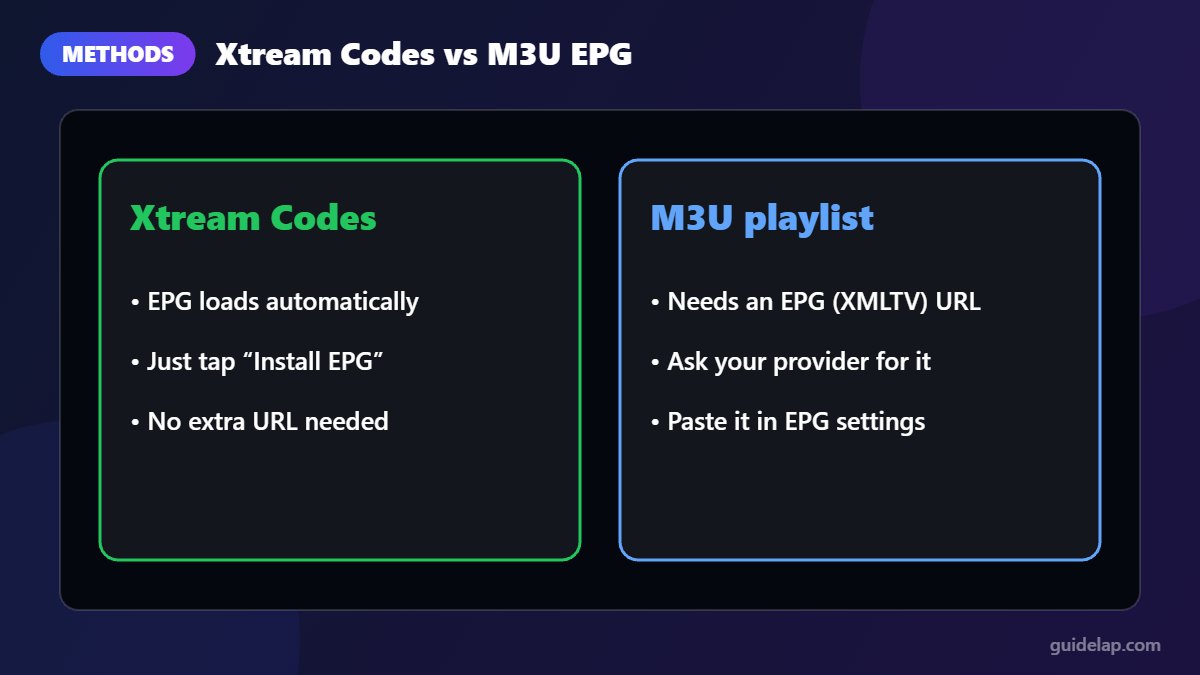
| Your login type | How EPG works | Extra URL needed? |
|---|---|---|
| Xtream Codes API | Loads automatically from your provider | No |
| M3U playlist | You add the EPG (XMLTV) URL yourself | Yes |
Method 1: Add EPG in IPTV Smarters Pro with Xtream Codes (automatic)
If you log in with Xtream Codes API (username, password and server URL), the guide is delivered together with your channels. You only need to load it once:
- Open IPTV Smarters Pro and log in with Xtream Codes.
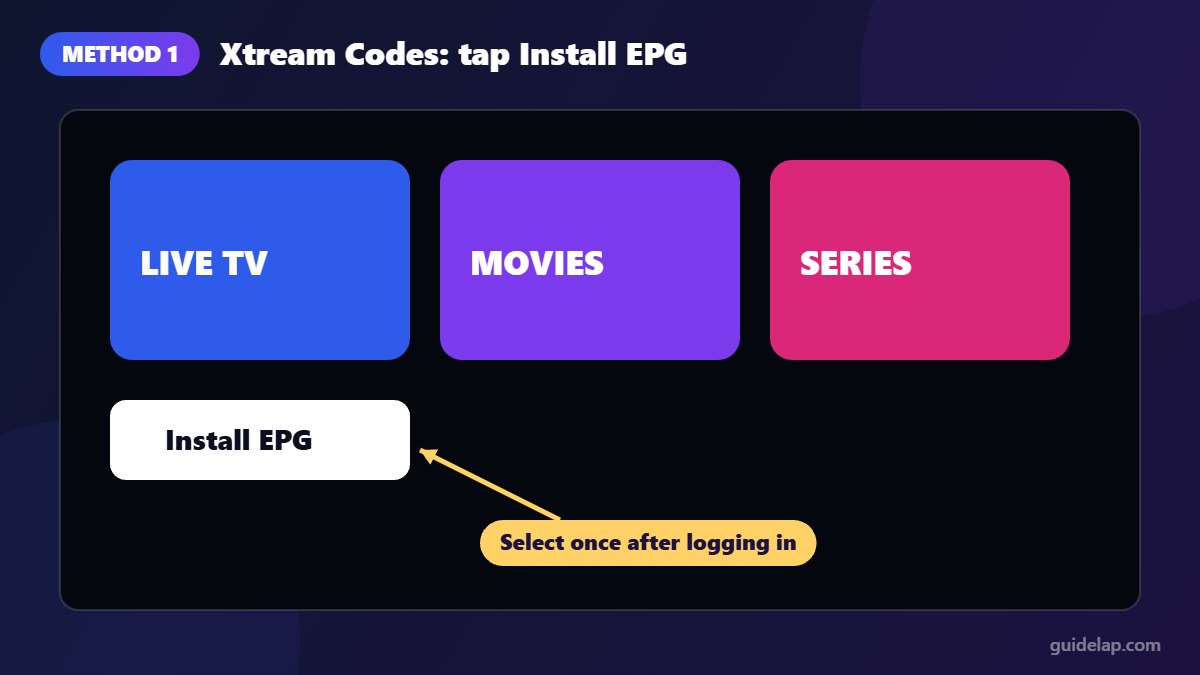
- On the home screen, select Install EPG (or Load EPG, depending on your version).
- Wait a few seconds while the guide downloads.
- Open Live TV: programme titles now appear next to each channel.
New to the app? First follow our guide to install IPTV Smarters Pro on Firestick or on Android TV.
Method 2: Add EPG in IPTV Smarters Pro with an M3U playlist
To add EPG in IPTV Smarters Pro with an M3U login, you need one extra link, because the app does not know where your guide is, so you need the EPG URL from your provider (it often ends in .xml or .xml.gz).
When adding a new playlist
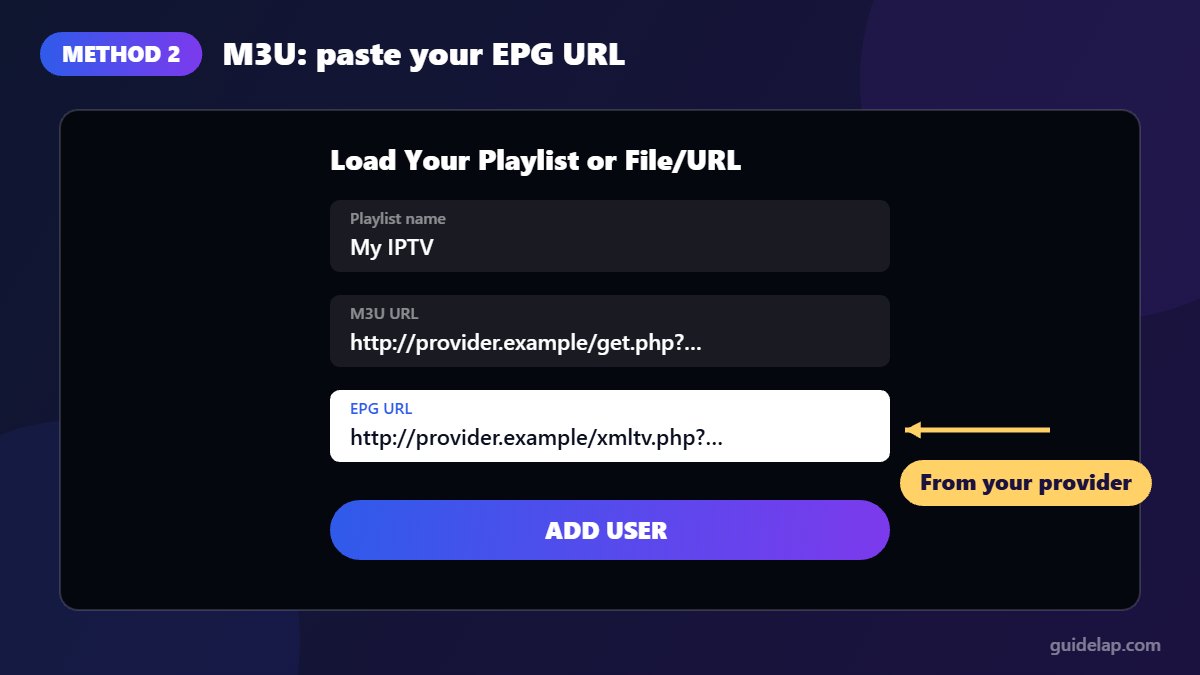
- Select Load Your Playlist or File/URL.
- Enter a playlist name and choose M3U URL.
- Paste your M3U link.
- If you see an EPG URL field, paste your XMLTV link there.
- Select Add User.
For an existing playlist
- Log in to your playlist and open the home screen.
- Select Install EPG or open Settings → EPG.
- Choose to add an EPG source and paste your XMLTV URL.
- Save, then load or refresh the EPG.
How to refresh or update the EPG
After you add EPG in IPTV Smarters Pro, remember that guide data covers a limited number of days, so it needs to be refreshed regularly:
- Use Install EPG / Refresh EPG on the home screen whenever the guide looks out of date.
- In Settings → Automation, enable automatic updates of channels and EPG if your version offers it.
- With Xtream Codes, logging out and back in also forces a fresh download.
Fix: EPG shows the wrong time
If programmes are shifted by one or more hours, the guide is fine but the time zone does not match:
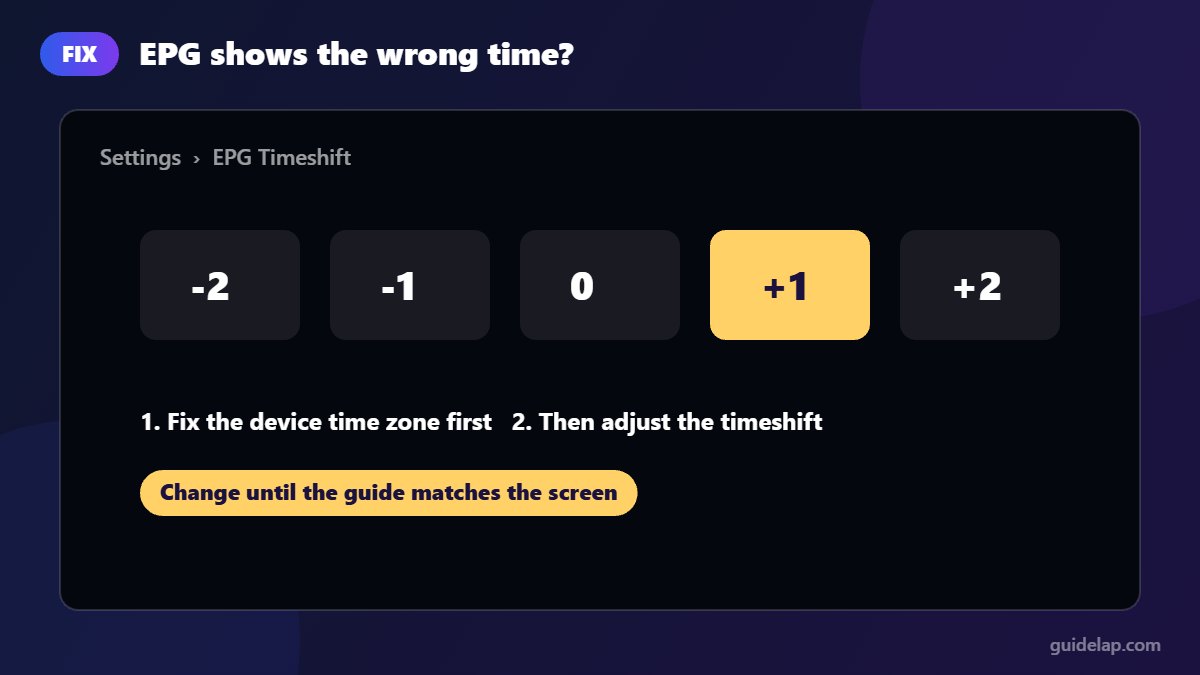
- Check that your device’s time zone and clock are correct (on Firestick: Settings → Preferences → Time Zone).
- In IPTV Smarters Pro, open Settings → EPG Timeshift (or Time Format / Time Shift).
- Adjust the shift by +1 or −1 hour until programmes match what is on screen.
Fix: EPG not working or empty
- Wrong or expired URL: ask your provider for the current EPG link and paste it again.
- No “Install EPG” step: with Xtream Codes, you still have to load the guide once after logging in.
- Channels without guide data: some channels (especially smaller or event channels) simply have no EPG from the provider.
- Corrupted cache: clear the app cache, then reload the EPG. See how to clear cache on Firestick.
- Slow loading: large guides take time on older devices. A wired connection helps; see our IPTV buffering guide.
Related guides
- Want an even better TV guide? TiviMate is famous for its EPG; read our TiviMate vs IPTV Smarters Pro comparison.
- New to TV guides? Read what is EPG in IPTV.
- EPG still empty? More fixes in IPTV Smarters not working.
Frequently asked questions
Where do I get an EPG URL?
From your IPTV provider. It is usually included in your welcome email or account dashboard, often ending in .xml or .xml.gz.
Do I need an EPG URL with Xtream Codes?
No. With Xtream Codes, IPTV Smarters Pro loads the guide automatically. Just select Install EPG after logging in.
Why is my EPG one hour off?
Your device time zone or the guide time zone does not match. Fix the device clock first, then use the EPG Timeshift setting in IPTV Smarters Pro.
How often should I refresh the EPG?
Every few days, or turn on automatic EPG updates in the app settings if available.
Can I use a free EPG source?
Yes, if it matches your channels’ IDs. In practice, the EPG from your own provider works best because it is built for your channel list.
Final thoughts
To add EPG in IPTV Smarters Pro, Xtream Codes users only need to tap Install EPG, while M3U users paste their provider’s XMLTV link. If the guide is empty or shifted, check the URL, refresh it and adjust the timeshift. A few minutes of setup gives you a TV guide that makes IPTV feel like real television.



