Is your Fire TV Stick slow, freezing or showing a “low storage” warning? Learning how to clear cache on Firestick is one of the quickest ways to make it feel fast again. It takes less than a minute per app, it is completely safe, and you do not lose your logins or settings.
In this guide you will learn how to clear the cache step by step, the difference between Clear cache and Clear data, which apps to clean first, and other tricks to free up space.
What is cache, and why clear it?
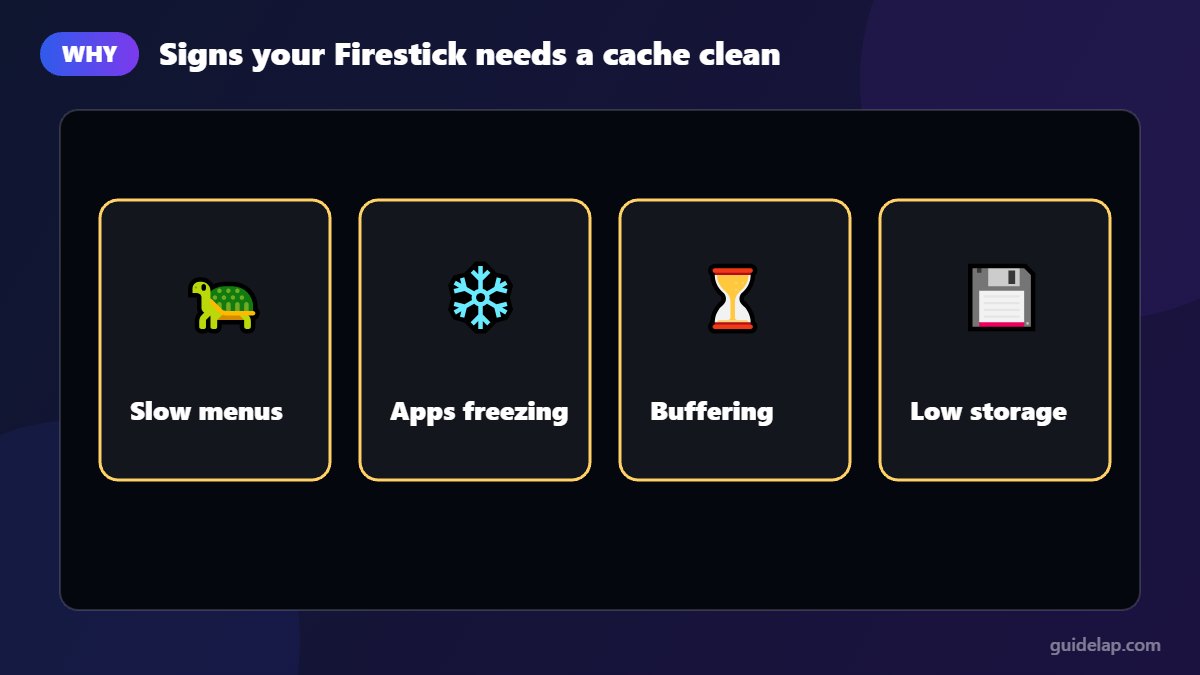
Every app on your Fire TV Stick stores temporary files, called cache, so it can load faster next time. Over weeks and months this cache grows, can become corrupted, and eats into the Firestick’s limited storage. Clearing it can fix:
- Apps that freeze, crash or will not open
- Buffering and slow menus in streaming and IPTV apps
- “Low storage” or “not enough space” messages
- A sluggish home screen
How to clear cache on Firestick (step by step)
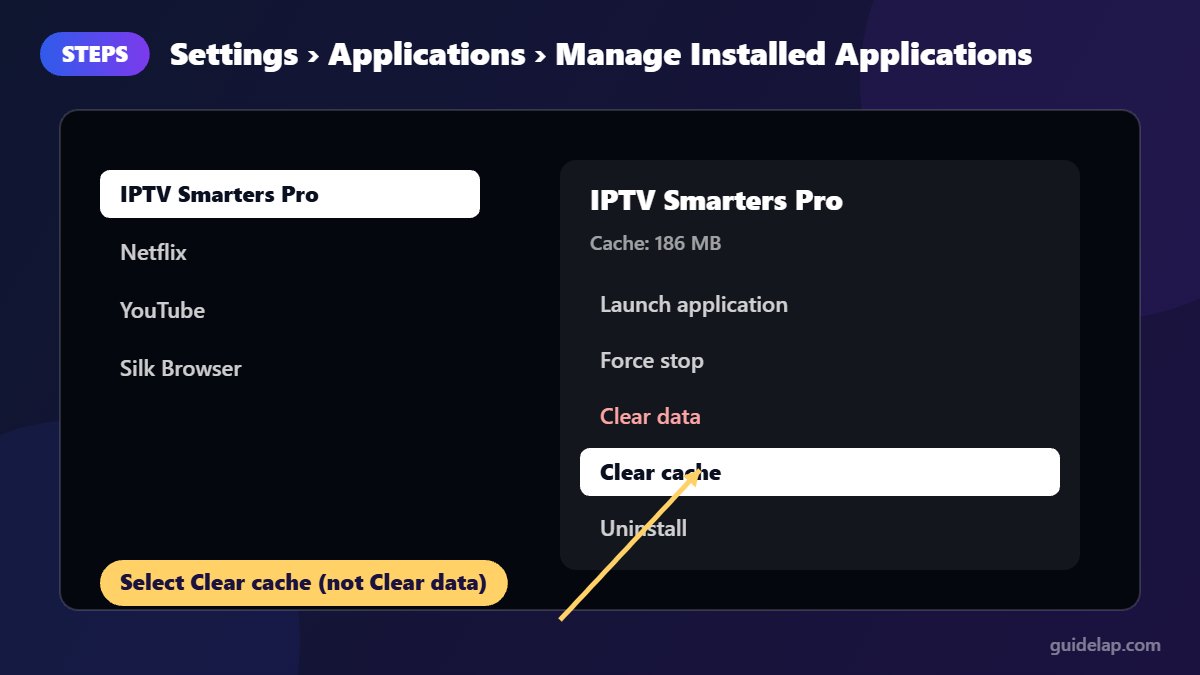
- From the Fire TV home screen, open Settings (the gear icon on the right).
- Select Applications.
- Select Manage Installed Applications. You will see every app with its size.
- Choose the app that is causing problems (for example your IPTV player, YouTube or Netflix).
- Scroll down and select Clear cache.
- Press Back and repeat for other apps if needed.
On some older Fire TV models and software versions the menu may be called Manage Applications or be under Device, but the steps are the same.
Clear cache vs clear data: what is the difference?
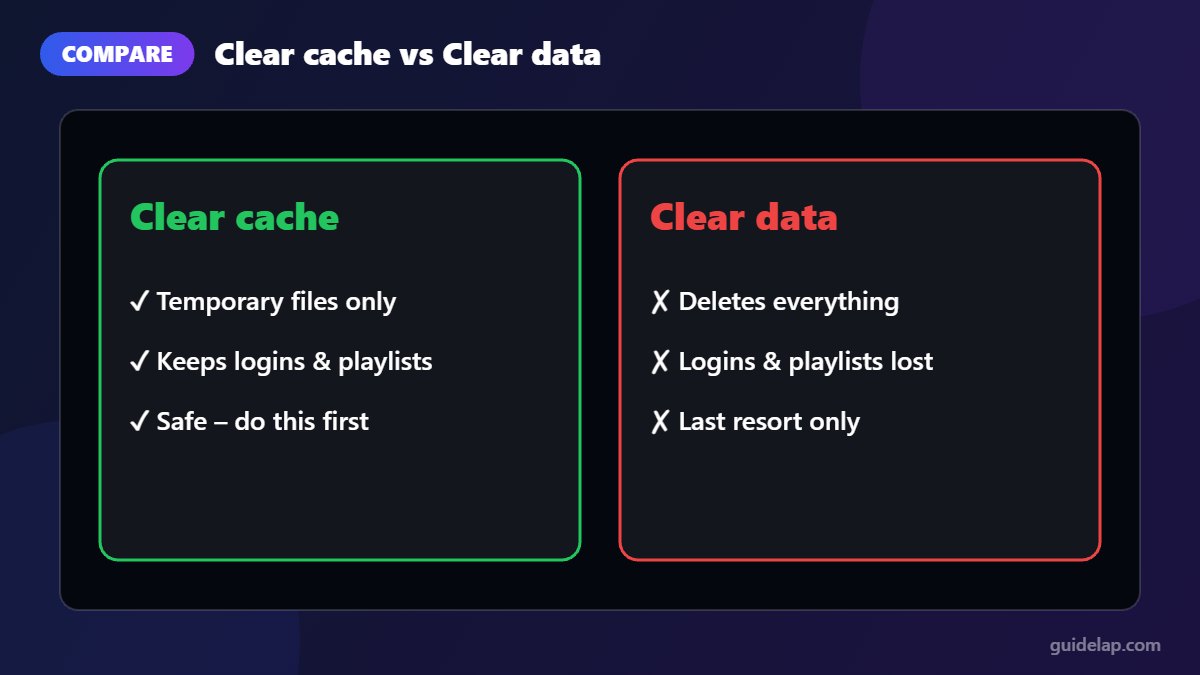
| Clear cache | Clear data | |
|---|---|---|
| What it deletes | Temporary files only | Everything: settings, logins, playlists, downloads |
| Do you need to log in again? | No | Yes |
| When to use it | First step for any slow or buggy app | Only if clearing the cache did not help |
| Risk | None | You must set the app up again |
Important for IPTV users: always try Clear cache first. Clear data resets apps such as IPTV Smarters Pro or TiviMate to factory state, deleting your playlists, login details, EPG sources and favourites.
Which apps should you clear first?
Start with the apps that usually store the most temporary data:
- IPTV players (IPTV Smarters Pro, TiviMate, OTT Navigator), especially after loading a large TV guide
- Video apps such as YouTube, Netflix, Prime Video and Disney+
- Web browsers such as Silk
- Kodi, which can build up a large cache from add-ons and thumbnails
Note: there is no built-in option to clear the cache of every app at once. You need to do it app by app (as Android Authority also confirms).
Other ways to free up space and speed up your Firestick
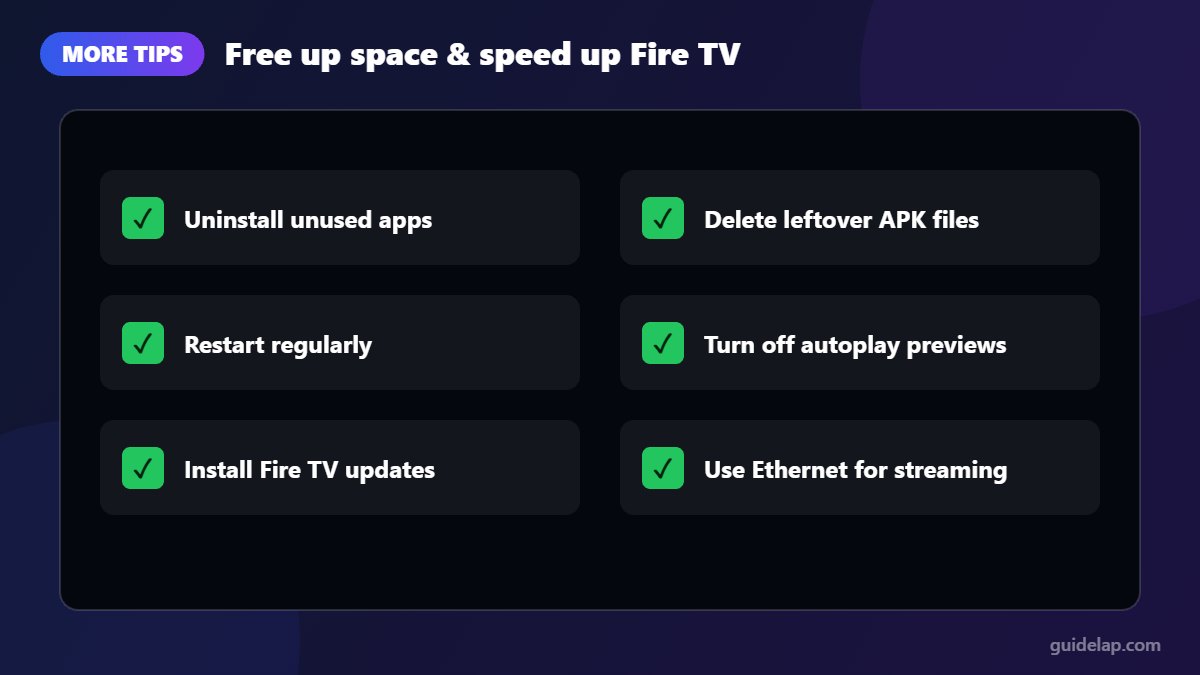
- Uninstall apps you never use: Settings → Applications → Manage Installed Applications → select the app → Uninstall.
- Delete leftover APK files in the Downloader app (Files tab) after installing apps (see our Downloader guide).
- Restart your Firestick regularly: Settings → My Fire TV → Restart.
- Turn off automatic video playback on the home screen in Settings → Preferences → Featured Content.
- Keep the Fire TV software updated: Settings → My Fire TV → About → Check for Updates (full update guide). If nothing helps, see how to factory reset Firestick.
Clear cache to fix IPTV problems
If an IPTV app freezes, will not load the TV guide or keeps buffering, clearing its cache is one of the first fixes to try. If buffering continues, work through our full guide on how to fix IPTV buffering. If the guide is still empty after clearing the cache, reload it using our EPG tutorial for IPTV Smarters Pro. If you need to reinstall an app afterwards, see how to install IPTV Smarters Pro on Firestick.
For more speed, change these Firestick settings.
Frequently asked questions
Is it safe to clear cache on Firestick?
Yes. Clearing the cache only removes temporary files. Your apps, logins and settings stay as they are.
How often should I clear the cache on my Firestick?
When an app becomes slow or buggy, or every few weeks for apps you use heavily, such as IPTV players and YouTube.
Can I clear the cache of all apps at once?
Not with the built-in Fire TV settings. You need to clear each app individually in Manage Installed Applications.
Will clearing cache delete my IPTV playlists?
No. Clear cache keeps your playlists and login details. Only Clear data deletes them.
Why is my Firestick still slow after clearing the cache?
Free up more storage by uninstalling unused apps, restart the device, and check your internet connection. Older models may simply struggle with newer apps.
Final thoughts
Now you know how to clear cache on Firestick in under a minute: Settings → Applications → Manage Installed Applications → choose the app → Clear cache. Make it a habit for your most-used apps, and save Clear data for the rare cases when nothing else works.