
Downloader is the most useful free app you can put on a Fire TV Stick. It lets you type a web address, a short code or a search, then download and install files with just your remote. In this guide you will learn how to install Downloader on Firestick, give it the permission it needs, and use every feature of the new Downloader 2.0 interface.
Note: only download apps from sources you trust. Downloader itself is a safe, official app from the Amazon Appstore, but the files you download are your responsibility.
What is the Downloader app?
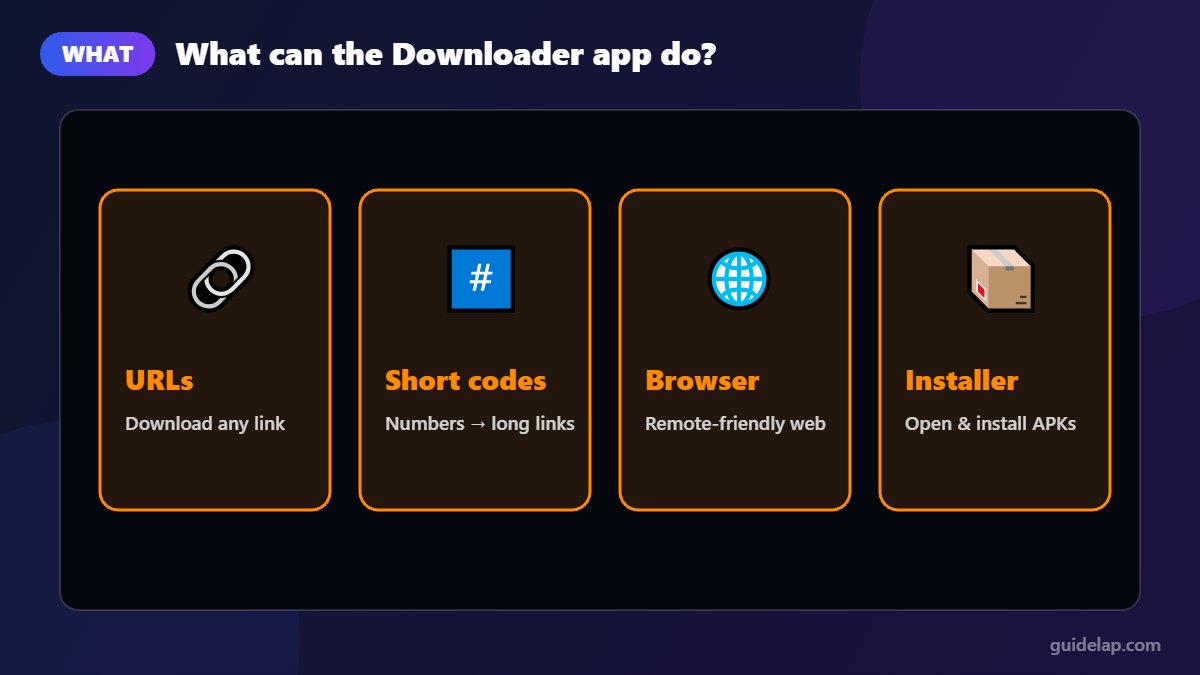
Downloader is made by AFTVnews, a long-running Fire TV news site. It combines a remote-friendly web browser with a file downloader and installer. With it you can:
- Download files by entering a URL or a numeric short code
- Browse websites with a cursor controlled by the remote
- Install APK apps you downloaded, then delete the files to save space
- Save favourite sites for quick access
Downloader is available in the Amazon Appstore for Fire TV and in Google Play for Google TV and Android TV devices.
Before you start: check your Fire TV model
You can install Downloader on Firestick models that run Fire OS, such as the Fire TV Stick 4K Max, 4K, 4K Plus, Lite and Fire TV Cube. The Fire TV Stick 4K Select and the 2026 Fire TV Stick HD run Vega OS, which does not support Downloader or sideloading. Our IPTV Smarters Firestick guide explains how to check your system version.
Step 1: Install Downloader on Firestick from the Appstore
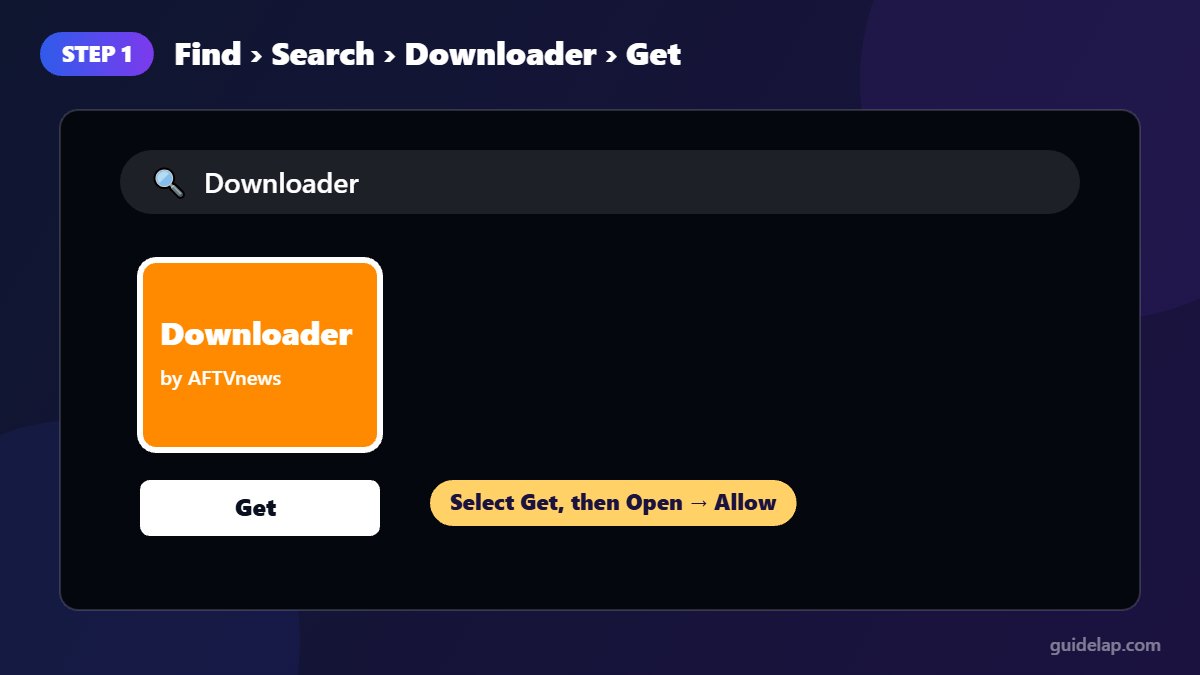
- Press the Home button on your remote.
- Select the Find / magnifying glass icon, then Search.
- Type Downloader and select it from the suggestions.
- Choose the orange Downloader app by AFTVnews.
- Select Get (or Download) and wait for it to install.
- Select Open. When asked, choose Allow so Downloader can save files.
Step 2: Allow Downloader to install apps
Fire TV blocks apps from outside the Appstore by default. To let Downloader install APK files:
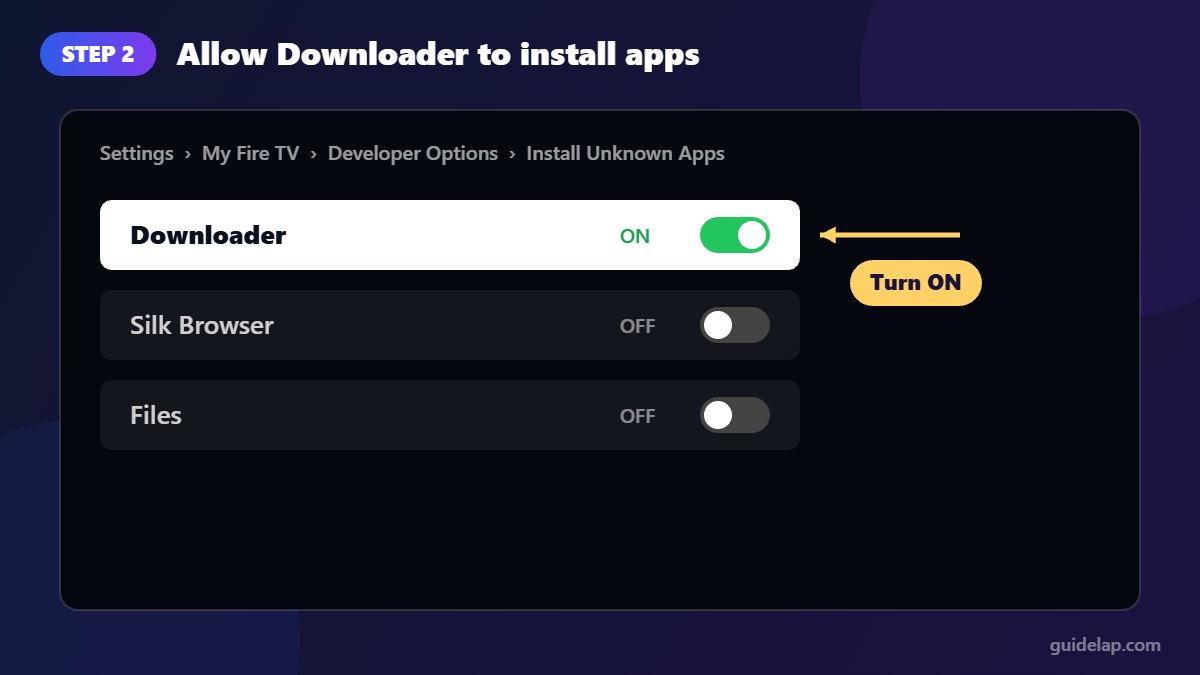
- Go to Settings → My Fire TV.
- If you do not see Developer Options, open About, highlight your device name and press Select 7 times. Press Back.
- Open Developer Options → Install Unknown Apps.
- Set Downloader to ON.
On older Fire OS versions the option is called Apps from Unknown Sources and is a single switch.
How to use Downloader (2.0 interface)
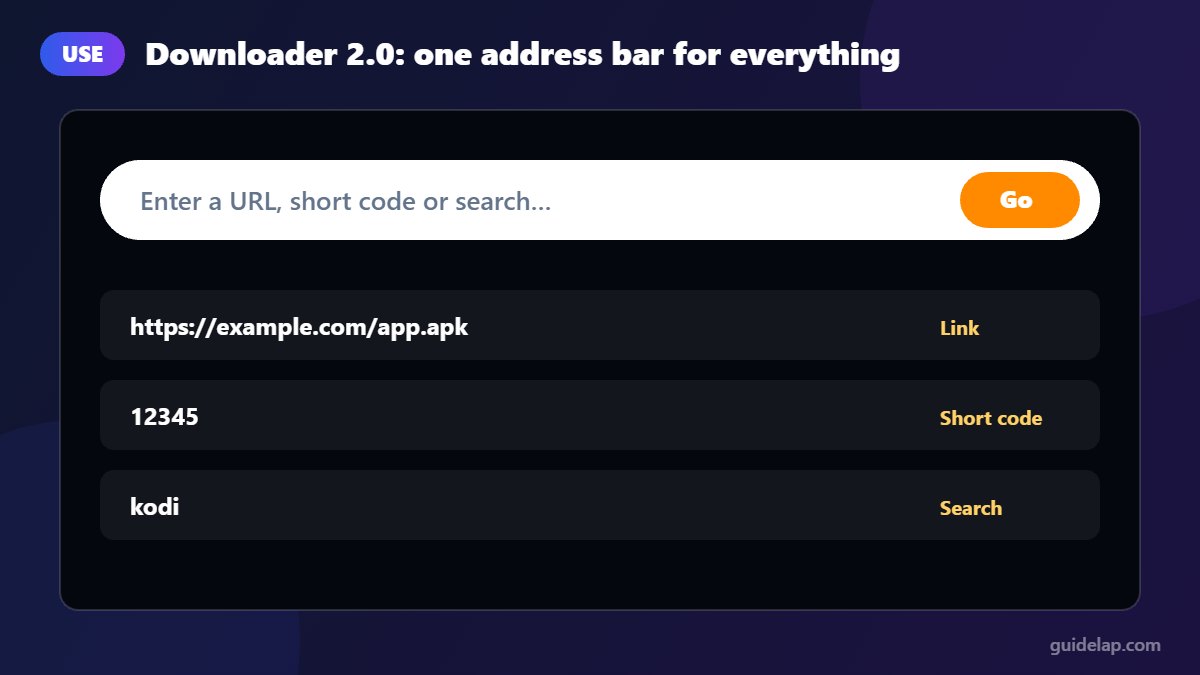
Downloader 2.0 brought a cleaner design (official release notes). The separate Browser tab is gone: there is now one address bar on the Home screen that accepts URLs, short codes and Google searches.
Download a file with a URL
- Open Downloader and select the address bar.
- Type the full link, for example
https://www.iptvsmarters.com/smarters.apk. - Select Go. If the link is an APK, the install screen opens automatically.
Use a short code
Some websites publish numeric short codes that point to a long link. Type the number in the address bar and select Go. Only use codes from websites you trust, because a code can point to any file.
Browse a website
Type a website address (or a search) and press Go. Use the arrow buttons to move the cursor, the centre button to click, and the menu button for zoom and full-screen options.
Manage files and favourites
- Files: open, install or delete downloaded files. Delete APKs after installing to save storage.
- Favorites: save sites you visit often.
- Settings: adjust browser options and clear Downloader’s own data.
What can you install with Downloader?
Popular uses include media players and utilities that are not in the Appstore in your region. For example, here is how to install IPTV Smarters Pro on Firestick, and our list of the best IPTV players for Firestick.
Troubleshooting
Downloader is not in the Appstore
Make sure you are searching the Amazon Appstore on a Fire OS device. On Vega OS models (4K Select, 2026 Stick HD) Downloader is not available.
“Install” button does nothing or is greyed out
Check that Install Unknown Apps is turned on for Downloader, then try again.
“There was a problem parsing the package”
The file is incomplete or corrupted. Delete it in Files, free up storage (see how to clear cache on Firestick) and download it again.
Downloads are very slow
Related guides
- Restart the Firestick and router, and use 5 GHz Wi-Fi or Ethernet. Our buffering guide has more network tips.
- Next, you can use Downloader to install Kodi on Firestick.
- Not sure if your Fire TV can sideload? Check Vega OS vs Fire OS.
- New device? Start with how to set up Firestick.
Frequently asked questions
Is Downloader safe to install on Firestick?
Yes. Downloader is an official app in the Amazon Appstore made by AFTVnews. Just be careful about which files you download with it.
Is the Downloader app free?
Yes, Downloader is free to install and use.
Do I need Developer Options to use Downloader?
You can browse and download without it, but to install APK files you must enable Developer Options and allow Downloader under Install Unknown Apps.
Can I install Downloader on Fire TV Stick 4K Select?
No. The 4K Select and the 2026 Fire TV Stick HD run Vega OS, which does not support Downloader.
Does Downloader work on Google TV?
Yes. Downloader is also available in Google Play for Google TV and Android TV devices.
Final thoughts
It only takes a couple of minutes to install Downloader on Firestick: get it from the Appstore, allow it under Install Unknown Apps, and you can download and install files using just your remote. Keep your device tidy by deleting APK files after each install.



