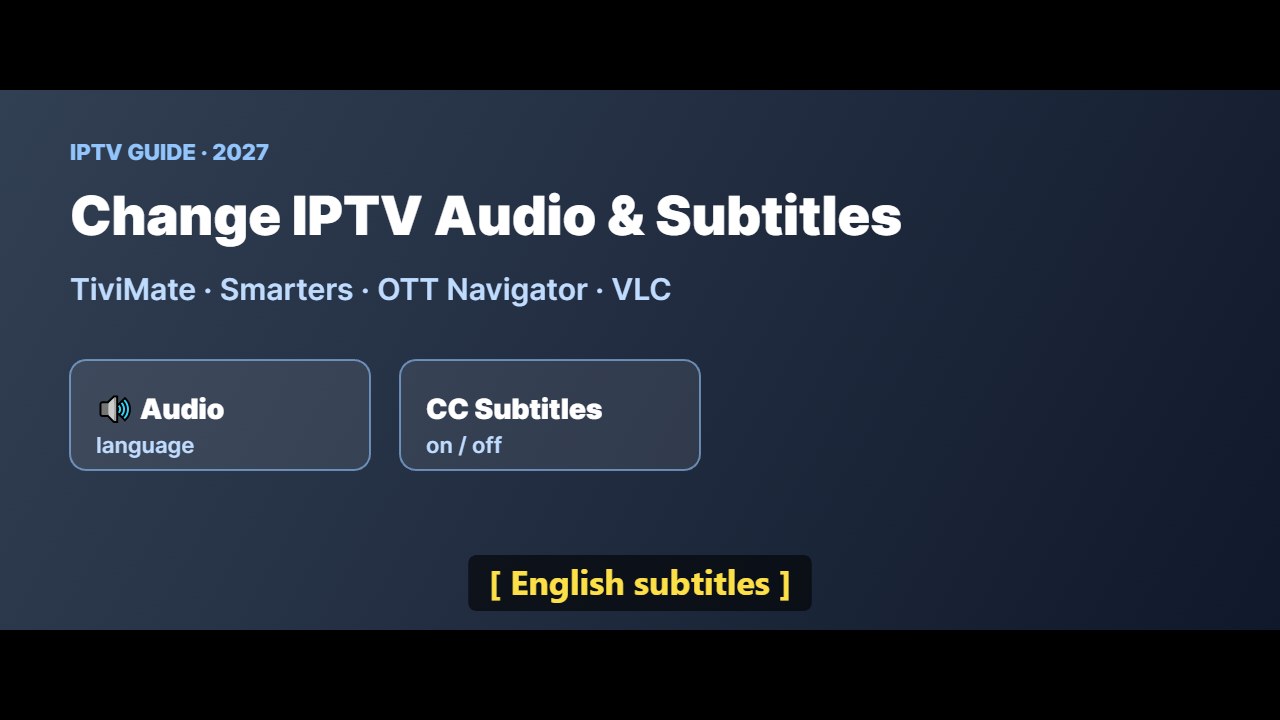
Watching a match with the wrong commentary or a film without subtitles? Many IPTV channels and VOD titles include several audio tracks and subtitle languages. This guide shows how to change IPTV audio and subtitles in TiviMate, IPTV Smarters, OTT Navigator and VLC — and what to do when no options appear.
Why audio and subtitle options vary
Each channel or film carries its own tracks. Some live channels have only one language, while many movies and series in VOD include several audio tracks and subtitles. If the stream does not include a language, no app can add it.
Change IPTV audio and subtitles in TiviMate
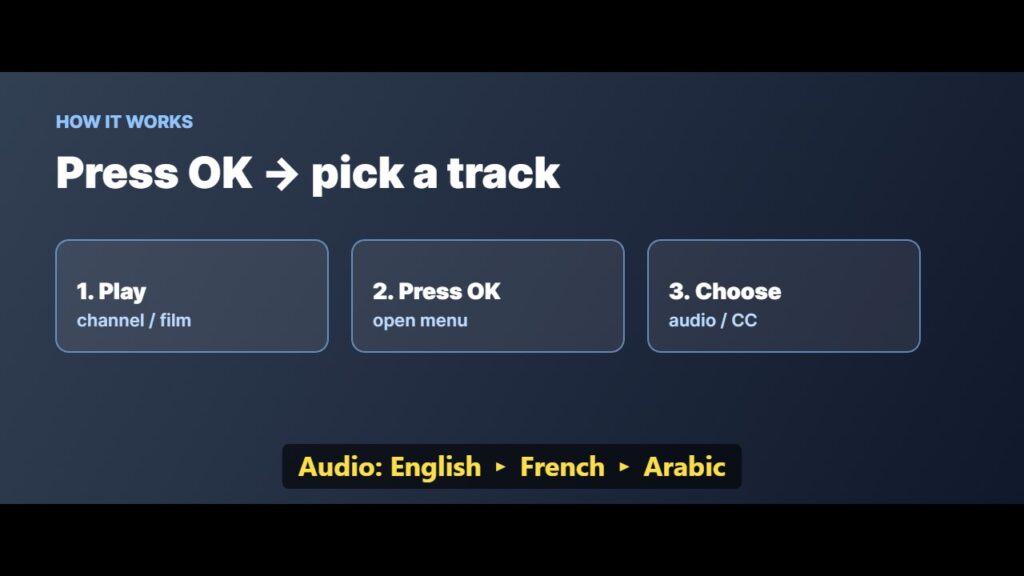
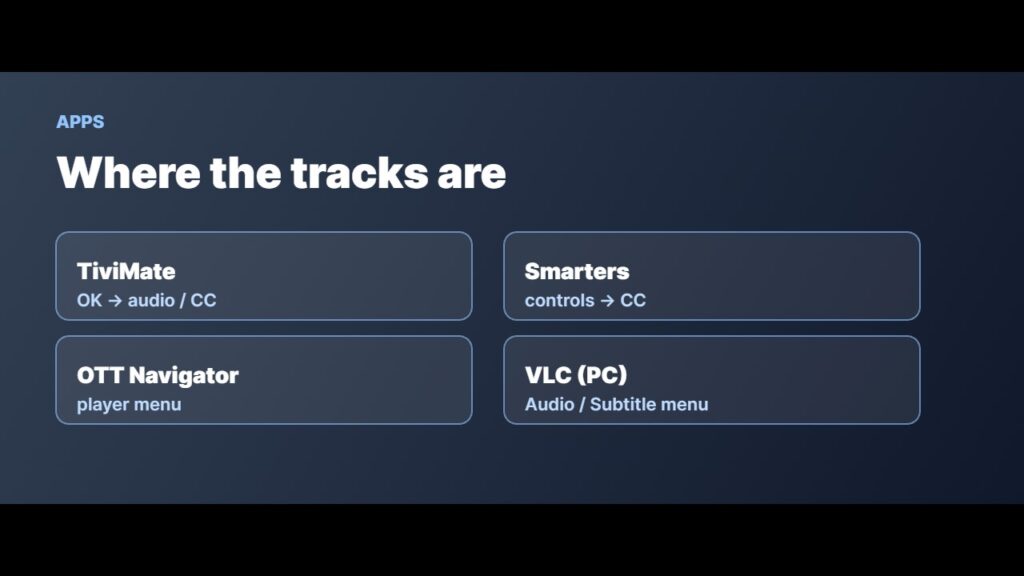
- While a channel or film is playing, press OK on the remote to open the playback menu.
- Look for the audio track icon and choose a language.
- Use the subtitles icon to turn subtitles on or pick a language.
- The exact icons can change between versions; long-press OK if the menu does not appear.
Change audio and subtitles in IPTV Smarters
- Start playback, then tap or press OK to show the player controls.
- Select the audio or subtitle icon (often shown as a speech bubble or “CC”).
- Choose the track you want.
OTT Navigator and VLC
- OTT Navigator: open the player menu during playback and choose audio or subtitle tracks — see OTT Navigator setup.
- VLC (PC): use the Audio → Audio Track and Subtitle → Sub Track menus. On TV and phone versions, open the playback controls and use the track icon. More in IPTV on VLC.
Subtitles in live TV are not always available. VOD movies and series usually have more language options than live channels.
No audio or subtitle options? Fixes
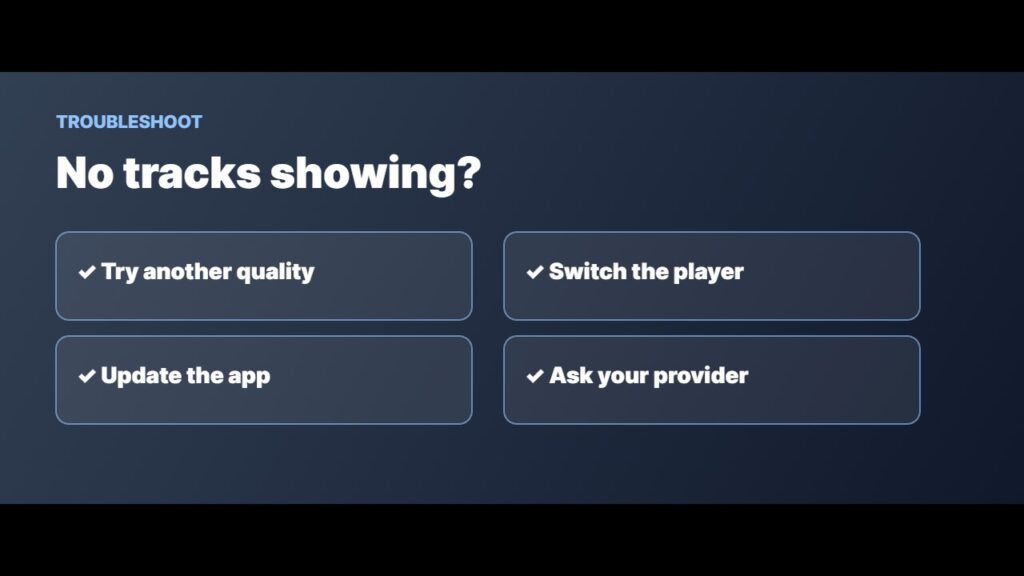
- Try another stream quality (FHD/HD/SD) of the same channel — tracks can differ.
- Switch the app’s player in settings; some players show more tracks.
- Update the IPTV app to the latest version.
- No sound at all? Check the TV audio output and HDMI, then read IPTV not working.
- Ask your provider which channels include multiple languages — a good question when you choose an IPTV provider.
Audio out of sync?
If the voice does not match the picture, many players have an audio delay option in the playback menu. Also turn off extra sound processing on the TV or soundbar. If it happens on every channel, see fix IPTV buffering and TiviMate not working. Learn more about subtitles.
Once you know where the menu is, IPTV audio and subtitles take only a few seconds to change on any device.
Watching late at night? Connect Bluetooth headphones to Firestick.
Frequently asked questions
How do I change the audio language on IPTV?
During playback, open the player menu (press OK) and choose the audio track icon. Pick the language you want if the stream includes it.
How do I turn on subtitles in TiviMate?
Press OK during playback to open the menu and choose the subtitles icon, then select a language.
Why are there no subtitles on my IPTV channel?
The stream itself may not include subtitles. VOD titles usually have more subtitle options than live channels.
Can I change the commentary language for sports?
Yes, if the channel offers more than one audio track. Open the audio track menu during playback.
How do I fix audio delay on IPTV?
Use the audio delay setting in your player, turn off extra TV sound processing, and restart the stream.
Final thoughts
To change IPTV audio and subtitles, open the playback menu and pick the audio or subtitle track — the steps are similar in TiviMate, IPTV Smarters, OTT Navigator and VLC. If no options appear, the stream probably does not include them.