
Want to watch IPTV on VLC? VLC Media Player is free, works on almost every device, and can open your IPTV M3U playlist in seconds. It is perfect for testing a playlist or watching on a laptop. Here is how to load IPTV in VLC on Windows, Mac, Android and iPhone — plus how to stop buffering.
Can VLC play IPTV?
Yes. VLC can open M3U and M3U8 playlists and single stream links from your IPTV provider. What it does not have is a real TV experience: there is no proper EPG grid, no channel categories like TiviMate, and no catch-up. Think of VLC as the quick, free way to watch or test IPTV.
VLC is only a player. Use the M3U link from a licensed IPTV provider and keep it private — it contains your login.
How to watch IPTV on VLC (Windows & Linux)
- Download VLC from the official VideoLAN website and install it.
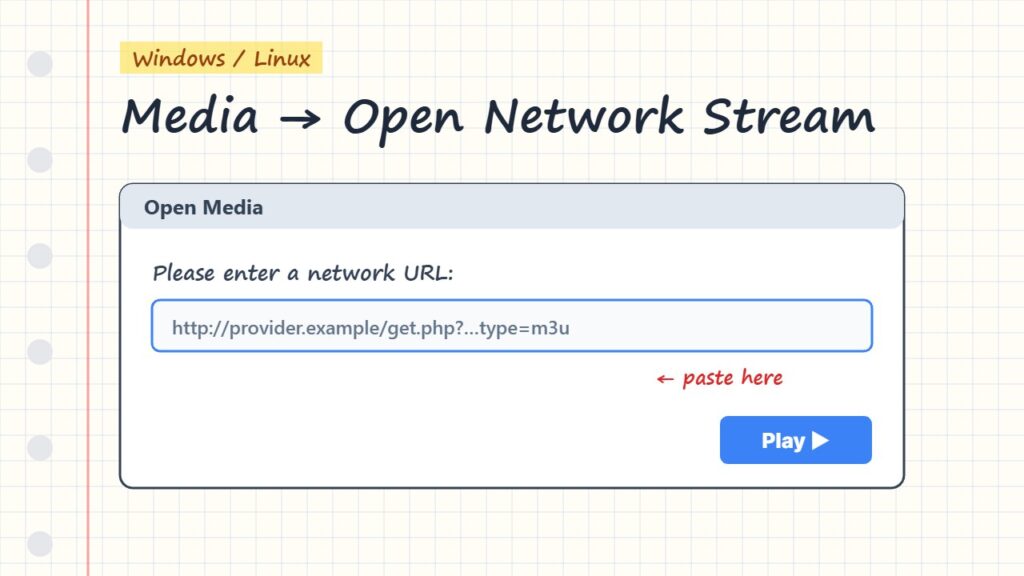
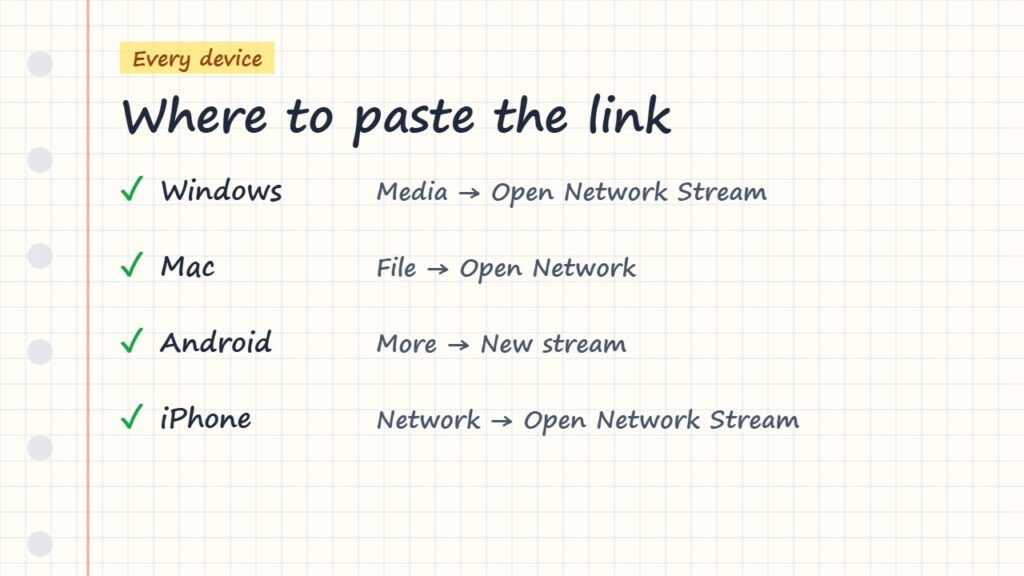
- Open VLC and go to Media → Open Network Stream (shortcut Ctrl + N).
- Paste your full M3U playlist URL. Check there is no space at the start or end.
- Click Play.
- Open the channel list with View → Playlist (Ctrl + L) and double-click a channel.
On a Mac
Open VLC, choose File → Open Network (Cmd + N), paste the M3U link and click Open.
Downloaded .m3u file?
If your provider sent a file instead of a link, use Media → Open File and select the .m3u file.
Watch IPTV on VLC for Android and iPhone
- Android: open VLC → More → New stream, paste the link and tap play.
- iPhone / iPad: open VLC → Network → Open Network Stream, paste the link and tap Open.
- Firestick: VLC is in the Amazon Appstore, but a real IPTV player is much easier — see best IPTV players for Firestick.
Fix VLC IPTV buffering
- Open Show more options in the Open Network Stream window.
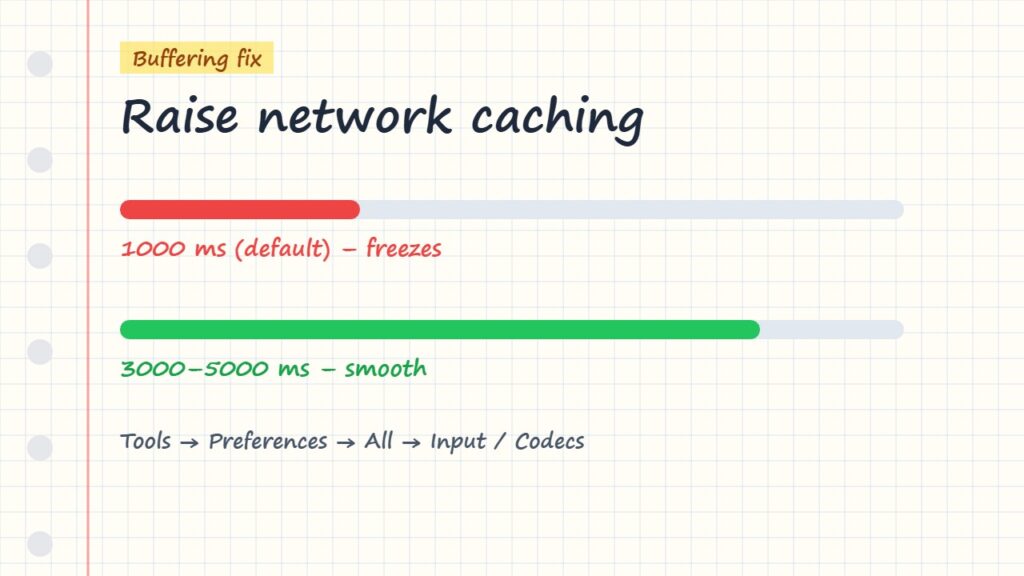
- Raise Caching to 3000–5000 ms, then play again.
- For all streams: Tools → Preferences → Show settings: All → Input / Codecs → Network caching → 3000.
- Use Ethernet and check your internet speed for IPTV.
- Still freezing? Follow how to fix IPTV buffering.
VLC vs a real IPTV player
| Feature | VLC | IPTV player (TiviMate, Smarters…) |
|---|---|---|
| Price | Free | Free or small fee |
| M3U playlists | Yes | Yes |
| Xtream Codes login | No | Yes |
| EPG TV guide | No real guide | Yes |
| Catch-up & favourites | Limited | Yes |
| Best for | Testing, laptops | Everyday TV watching |
If you watch every day, use a dedicated player: compare them in best IPTV player apps or read M3U vs Xtream Codes to understand your login. On PC, IPTV Smarters for PC & Mac gives you a full TV guide.
On a console? Read IPTV on Xbox.
Changing tracks in other apps: IPTV audio and subtitles.
Frequently asked questions
How do I watch IPTV on VLC?
Open VLC, go to Media → Open Network Stream, paste your M3U playlist link and click Play. Open the playlist view to switch channels.
Does VLC show the EPG for IPTV?
No. VLC does not have a real TV guide for IPTV playlists. Use an IPTV player like TiviMate or IPTV Smarters if you need an EPG.
Why does VLC only show one channel?
You probably pasted a single stream link instead of the full M3U playlist URL. Ask your provider for the M3U playlist link.
Can I use Xtream Codes in VLC?
Not directly. VLC needs an M3U link. Most providers can give you an M3U link for the same account.
Is VLC free and safe?
Yes. VLC is free, open-source software. Download it only from the official VideoLAN website to stay safe.
Final thoughts
To watch IPTV on VLC, just open a network stream, paste your M3U link and press play. It is the fastest free way to test a playlist or watch on a computer. For a full TV experience with EPG and catch-up, switch to a dedicated IPTV player.



