
IPTV not working? Don’t worry — most problems have a simple fix.
Black screen, “No channels”, endless loading or “Authorization failed”? When your IPTV is not working, the cause is usually one of a handful of simple things: the connection, the login, the app or the provider’s server. Work through these 15 fixes in order — most problems are solved in the first five.
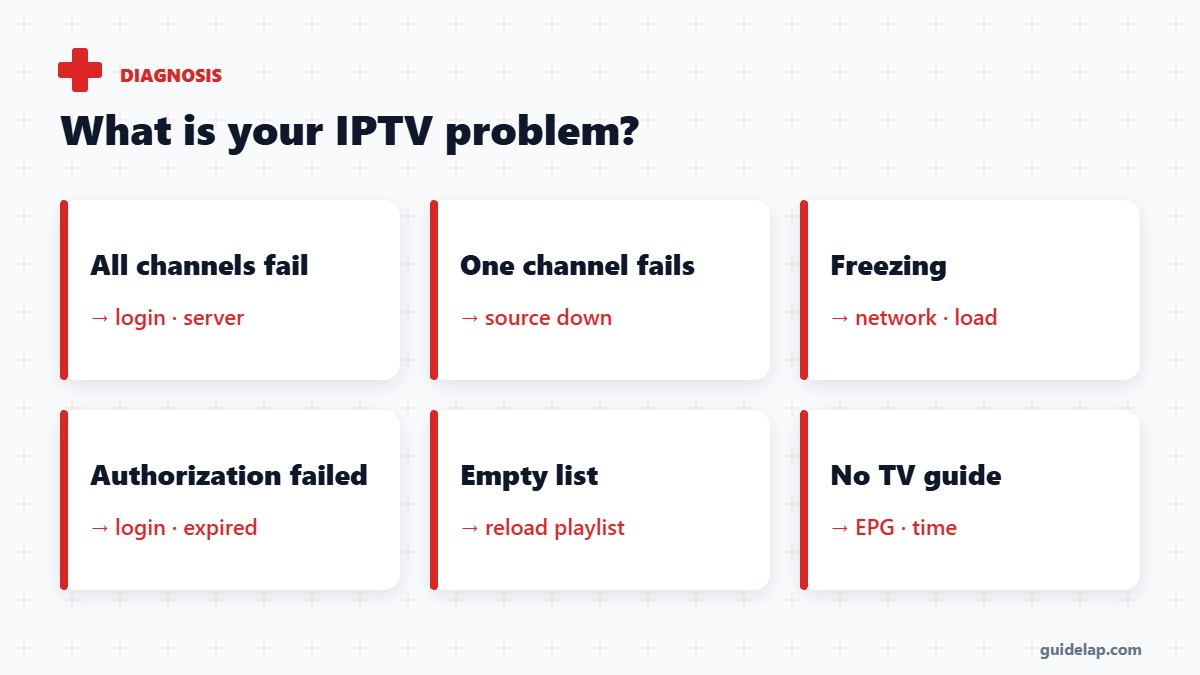
Quick diagnosis: what is your IPTV problem?
| Symptom | Most likely cause | Go to fix |
|---|---|---|
| All channels fail | Login, subscription or server | #3–5, #15 |
| One channel fails | That channel’s source is down | #1 |
| Freezing / buffering | Network or server load | #11–13 |
| “Authorization failed” / 401 | Wrong login or expired account | #4–5 |
| Empty channel list | Playlist not loaded | #7 |
| No TV guide | EPG not loaded or wrong time | #14 |
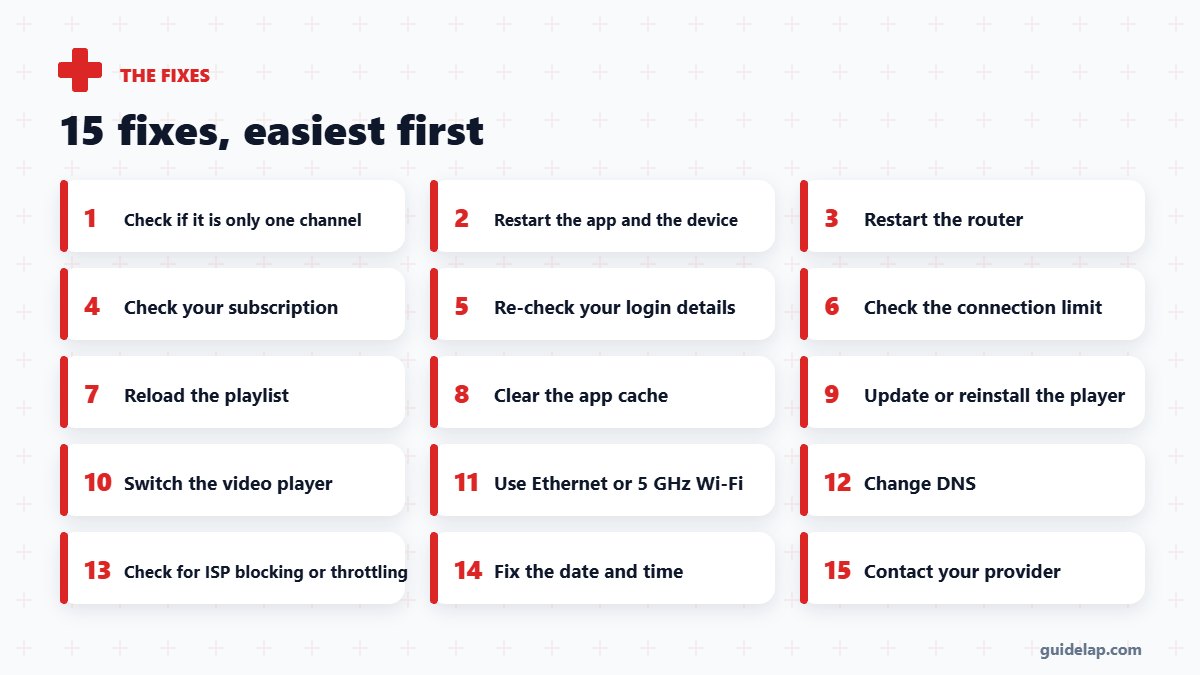
15 fixes when IPTV is not working
1. Check if it is only one channel
If only one channel fails, the source is down — try another channel or wait. If everything fails, continue below.
2. Restart the app and the device
Close the app completely and restart your TV box or Firestick.
3. Restart the router
Unplug it for 30 seconds — this fixes many “no connection” errors.
4. Check your subscription
An expired or suspended account shows errors like “Authorization failed” or empty lists.
5. Re-check your login details
One wrong character in the server URL, username or password breaks everything — copy them again from your provider.
6. Check the connection limit
If someone else is watching with your account, you may hit the maximum number of connections.
7. Reload the playlist
Use “Reload / Update playlist” in your player to download the latest channel list.
8. Clear the app cache
On Firestick and Android TV: Settings → Applications → app → Clear cache. See clear cache on Firestick.
9. Update or reinstall the player
Old app versions can stop working after provider changes.
10. Switch the video player
Most apps let you switch between the built-in player, ExoPlayer or VLC — one may play what another cannot.
11. Use Ethernet or 5 GHz Wi-Fi
Weak Wi-Fi causes freezing and timeouts — see Wi-Fi fixes.
12. Change DNS
Some internet providers’ DNS fail to resolve IPTV servers — change DNS to 1.1.1.1 or 8.8.8.8.
13. Check for ISP blocking or throttling
If it fails only on one network or only in the evening, try a mobile hotspot or a VPN.
14. Fix the date and time
A wrong device date breaks secure connections and EPG — set it to automatic.
15. Contact your provider
If none of this works, the server may be down — your provider can confirm and give a backup URL.
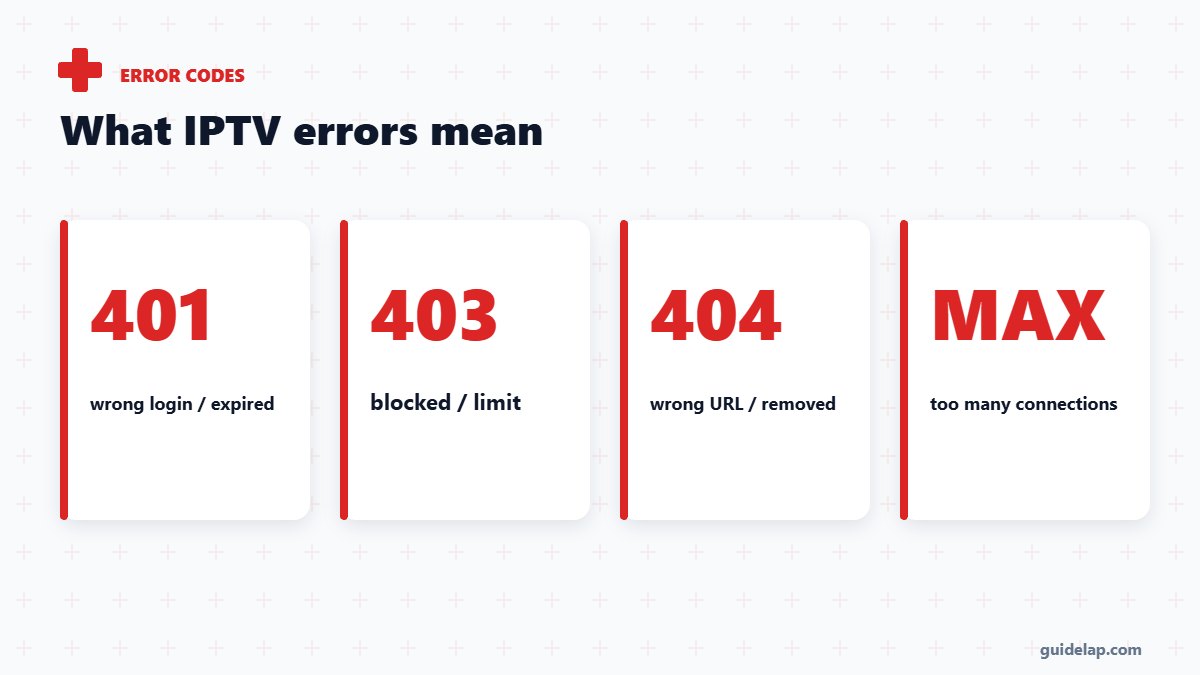
Common IPTV error messages explained
| Error | Meaning |
|---|---|
| 401 / Authorization failed | Wrong username/password, or the subscription expired |
| 403 / Forbidden | Access blocked — device, IP or connection limit |
| 404 / Not found | Wrong URL or the channel was removed |
| Max connections reached | Too many devices using the account at once |
| Playlist failed to load | Wrong URL, server down or network problem |
App-specific help: IPTV Smarters not working and TiviMate not working. Freezing during matches? Read IPTV buffering fixes and IPTV for live sports. Tired of problems? Use our IPTV provider checklist. HTTP error codes are explained on MDN.
IPTV not working on one device only?
If IPTV is not working on one device but works on another, the problem is the app or the device, not the provider. Clear the app cache, update the app and restart the device. If IPTV is not working on every device, check your internet, your router and your subscription status first.
Frequently asked questions
Why is my IPTV not working?
The most common causes are a weak internet connection, wrong login details, an expired subscription, too many connections or a temporary server problem.
How do I fix IPTV not loading channels?
Restart the app and router, check your login, reload the playlist and clear the app cache.
What does “Authorization failed” mean on IPTV?
The username or password is wrong or the subscription has expired. Copy your details again or contact your provider.
Why does IPTV work on my phone but not my TV?
The TV may be on weak Wi-Fi, use an outdated app or have a wrong date and time. Try Ethernet and update the app.
Can my internet provider block IPTV?
Some providers block or throttle certain servers. Test with a mobile hotspot or VPN to check.
Final thoughts
When IPTV is not working, start simple: restart everything, check your login and subscription, reload the playlist and improve your connection. Most issues are fixed in minutes — and if the server is down, your provider is the one to call.



