
Want to install IPTV Smarters Pro on Firestick? IPTV Smarters Pro is one of the most popular IPTV players in the world, but you will not find it in the Amazon Appstore. The good news: on most Fire TV devices you can still install it in about 10 minutes using a free app called Downloader.
In this updated guide, you will learn exactly how to install IPTV Smarters Pro on Firestick step by step, how to log in with your provider details, and what to do if something goes wrong. We also cover an important change Amazon made to its newest Fire TV Sticks that every buyer should know about before starting.
Important: IPTV Smarters Pro is only a media player. It does not include any channels or content. You need a subscription from an IPTV provider, and you should only use services that are licensed to distribute the content they offer. New to IPTV? Start with what is IPTV.
Why install IPTV Smarters Pro on Firestick?
A Firestick is one of the cheapest ways to turn any TV into a smart TV, and IPTV Smarters Pro turns it into a full IPTV player. Here is what the app offers:
- Live TV, Movies and Series in separate, easy-to-browse sections
- Electronic Program Guide (EPG) so you can see what is on now and next
- Catch-up and recordings when your provider supports them
- Multi-screen to watch several channels at once
- Parental controls to lock categories with a PIN
- External player support, such as VLC or MX Player
- A clean interface that works well with the Fire TV remote
Because the app is only a player, the quality of what you watch depends on your provider. The steps below show you how to install IPTV Smarters Pro on Firestick and connect it to your service.
What you need to install IPTV Smarters Pro on Firestick
- A compatible Amazon Fire TV device running Fire OS (see the compatibility table below)
- A stable internet connection
- Your IPTV provider login details: either an Xtream Codes API login (username, password and server URL) or an M3U playlist URL
- About 10 minutes and around 300 MB of free storage on your Firestick
Step 0: Check that your Fire TV supports sideloading
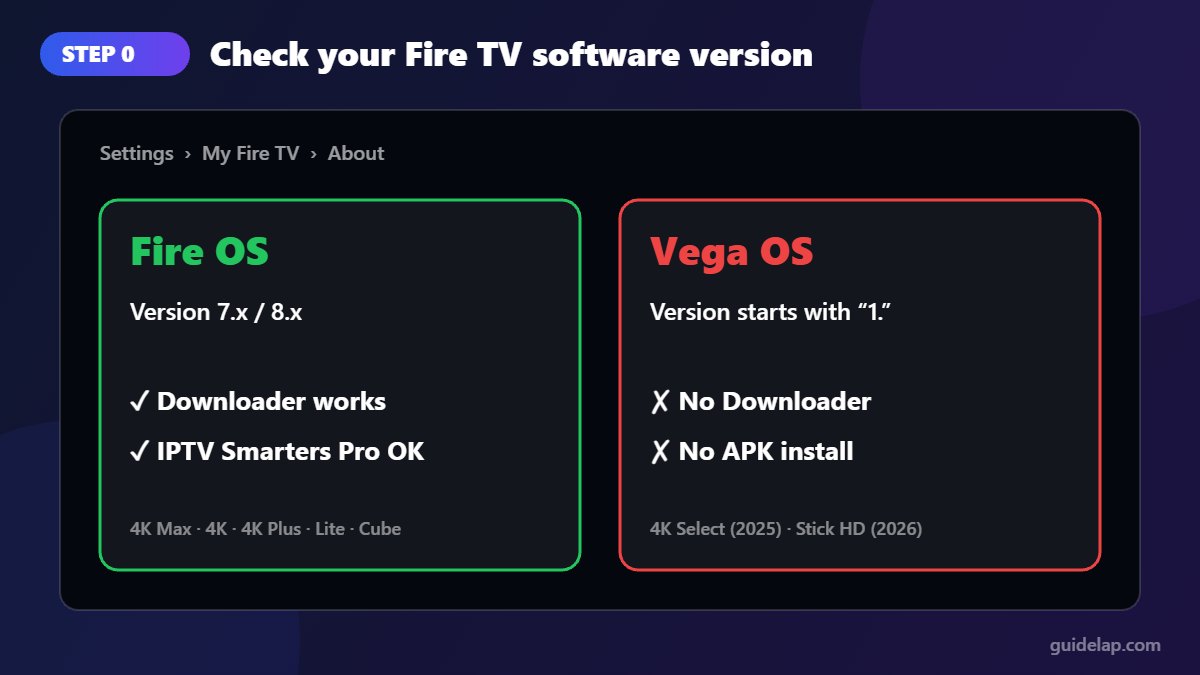
This step is new and very important. Amazon has started moving its newest streaming sticks from Android-based Fire OS to a new system called Vega OS. Vega OS only runs apps from the Amazon Appstore, so the Downloader app and APK installs do not work on it.
| Fire TV device | Operating system | Can install IPTV Smarters Pro? |
|---|---|---|
| Fire TV Stick 4K Max (1st & 2nd gen) | Fire OS | ✅ Yes |
| Fire TV Stick 4K / 4K Plus | Fire OS | ✅ Yes |
| Fire TV Stick Lite / 3rd gen | Fire OS | ✅ Yes |
| Fire TV Cube | Fire OS | ✅ Yes |
| Smart TVs with Fire TV built in | Fire OS | ✅ Yes |
| Fire TV Stick 4K Select (2025) | Vega OS | ❌ No |
| Fire TV Stick HD (2026 model) | Vega OS | ❌ No |
How to check: go to Settings → My Fire TV → About and look at the software version. If the version number starts with “1.”, your device runs Vega OS and this guide will not work on it. If you are buying a new stick specifically for IPTV, choose a Fire TV Stick 4K Max, 4K Plus or Fire TV Cube instead of a “Select” model. AFTVnews keeps an up-to-date list of Fire TV models that do not support sideloading.
Step 1: Install the Downloader app
Downloader is the tool you will use to install IPTV Smarters Pro on Firestick. Downloader (by AFTVnews) is a free app in the official Amazon Appstore. It lets you download files from a web address and install them on your Firestick. (Full tutorial: how to install Downloader on Firestick.)
- From the Firestick home screen, select the Find / search (magnifying glass) icon.
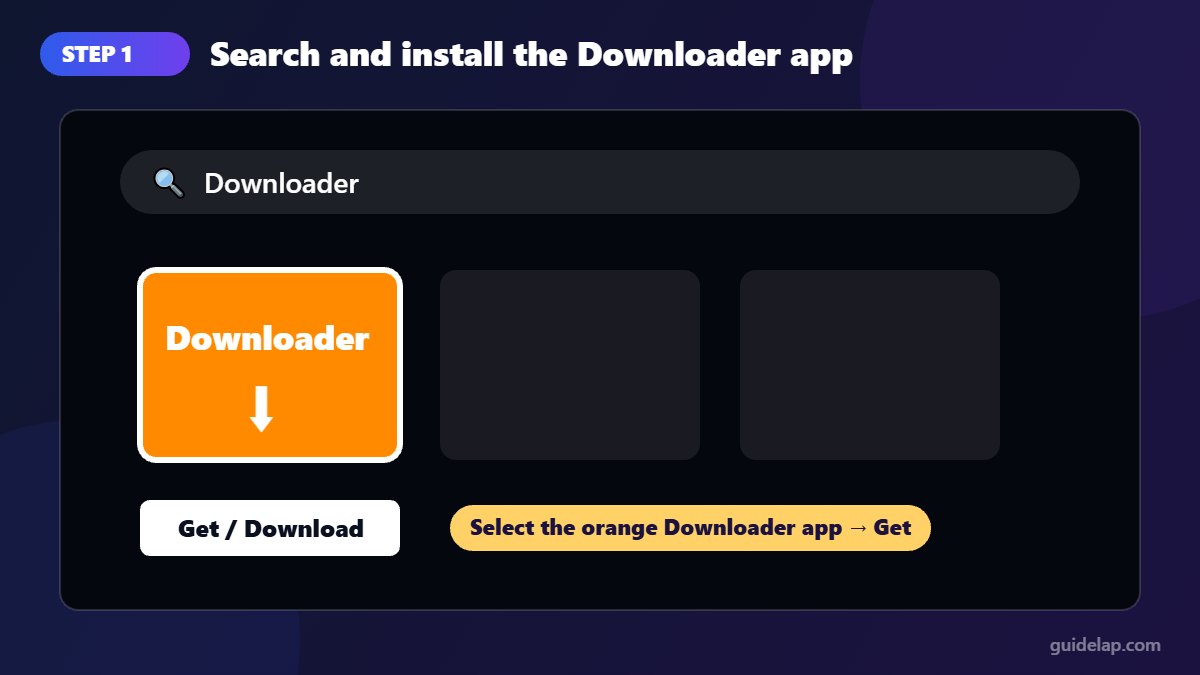
- Type Downloader and select it from the results (the orange icon with a down arrow).
- Select Get or Download and wait for it to install.
- Open Downloader once and choose Allow when it asks for access to files, then press Home to return to the main screen.
Step 2: Enable Developer Options
Your Firestick blocks apps from outside the Appstore by default, so you need Developer Options before you can install IPTV Smarters Pro on Firestick. On recent Fire OS versions, Amazon hides the Developer Options menu. You need to unlock it once:
- Open Settings (the gear icon on the right of the home screen).
- Select My Fire TV (on some models it is called Device & Software).
- Select About.
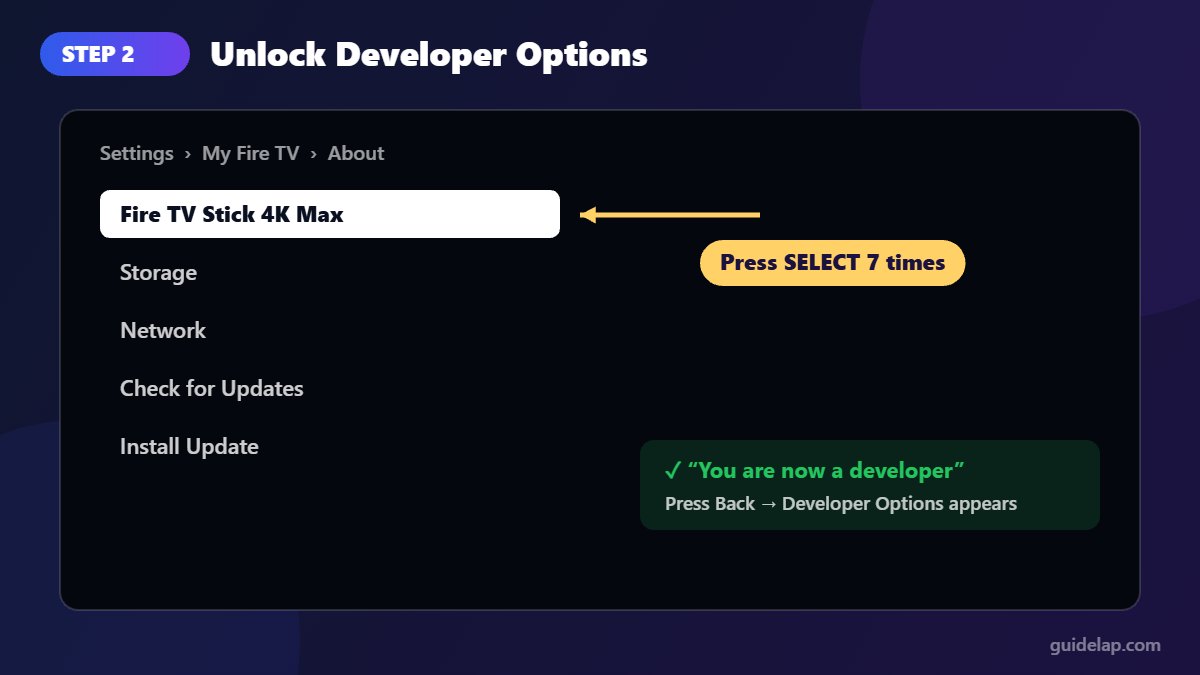
- Highlight the first line with your device name (for example “Fire TV Stick 4K Max”) and press the Select button on your remote 7 times quickly.
- A message will confirm that you are now a developer. Press Back once and you will see Developer Options in the menu.
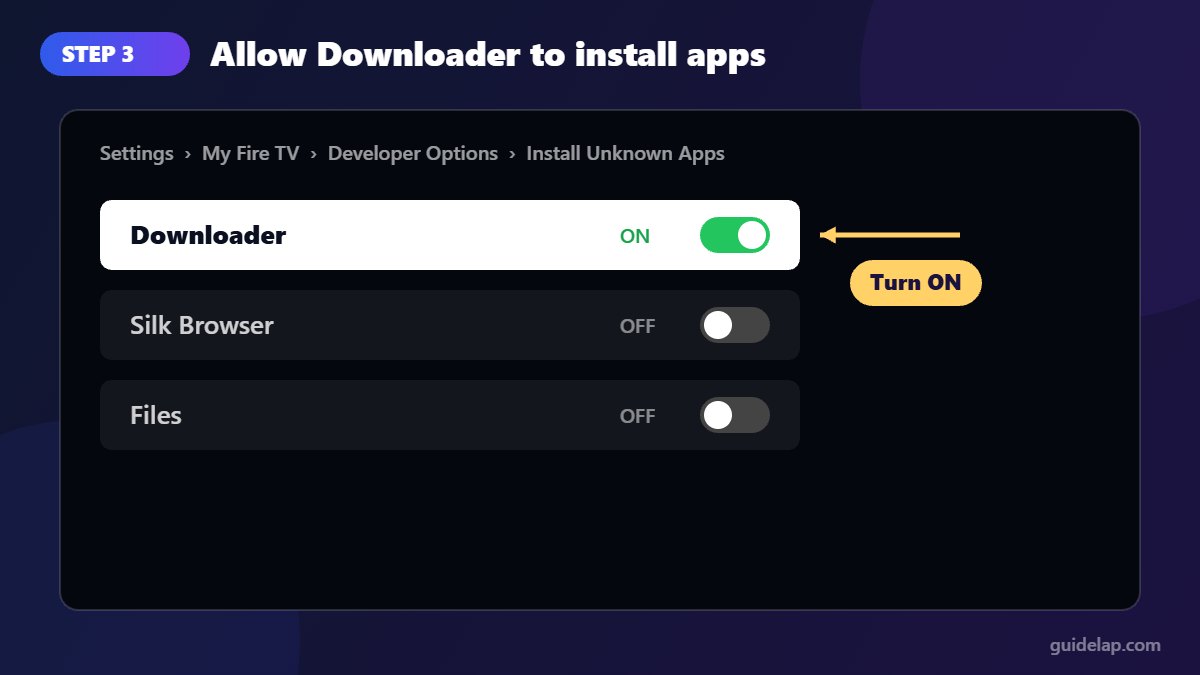
Step 3: Allow Downloader to install unknown apps
- Go to Settings → My Fire TV → Developer Options.
- Select Install Unknown Apps.
- Find Downloader in the list and switch it to ON.
On older Fire OS versions this option is called Apps from Unknown Sources and it is a single on/off switch. Turn it on and confirm the warning.
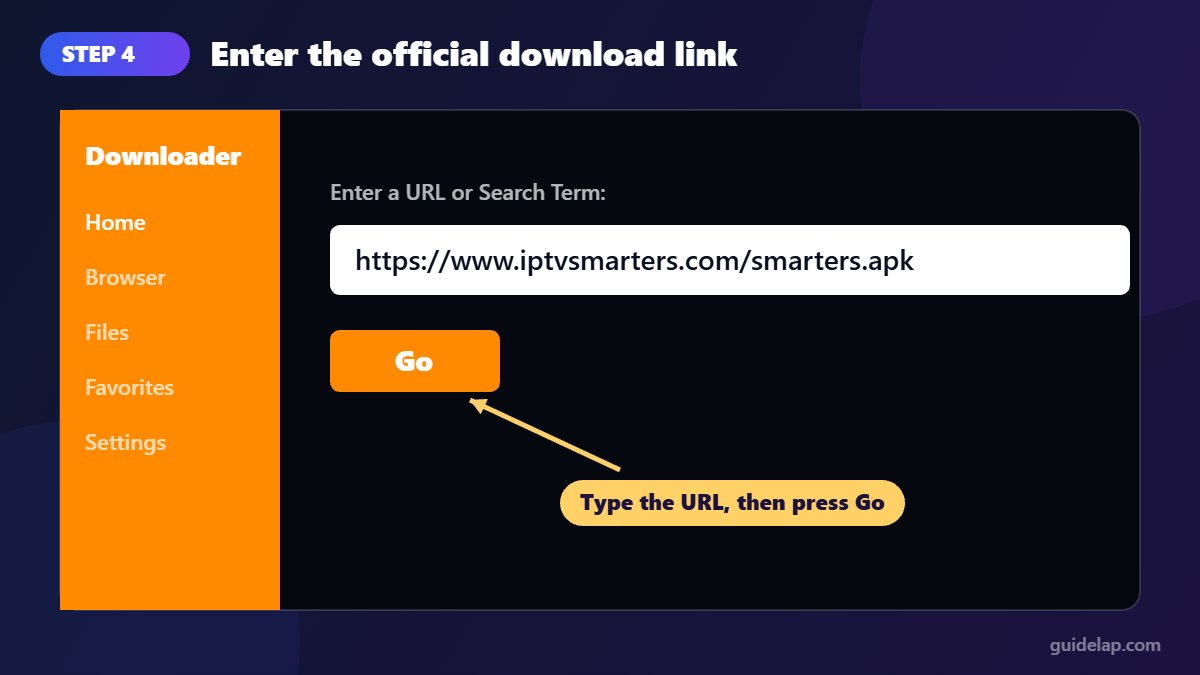
Step 4: Download IPTV Smarters Pro on Firestick with Downloader
- Open the Downloader app.
- Select the URL box on the Home tab.
- Type the official IPTV Smarters download address:
https://www.iptvsmarters.com/smarters.apk - Select Go and wait for the file to finish downloading.
This is the safest way to install IPTV Smarters Pro on Firestick because the file comes straight from the developer.
Tip: if the direct link does not work (download links sometimes change), type iptvsmarters.com instead. The official website will open inside Downloader, and you can select the latest Android APK from its download section.
Safety first: only download IPTV Smarters Pro from its official website. Avoid “modded” or “premium unlocked” APKs and random shortcodes shared on forums. Modified apps can contain malware that steals your data or slows your device.
Step 5: Install the app
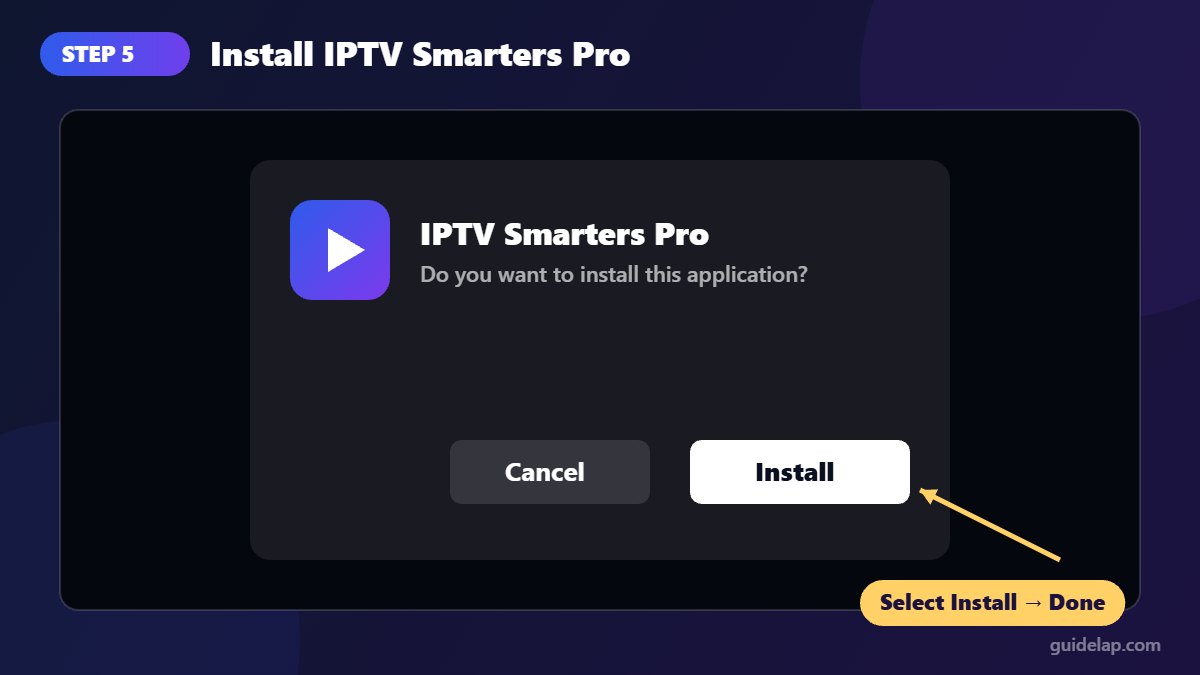
- When the download finishes, an installation screen will appear automatically.
- Select Install.
- When you see “App installed”, select Done (not Open).
- Downloader will offer to delete the APK file. Select Delete twice to free up storage. The app itself stays installed.
Step 6: Log in to IPTV Smarters Pro
Once you install IPTV Smarters Pro on Firestick, it is time to connect your service. Hold the Home button on your remote, choose Apps and open IPTV Smarters Pro. Accept the terms of use, then choose how you want to log in.
Option A: Login with Xtream Codes API (recommended)
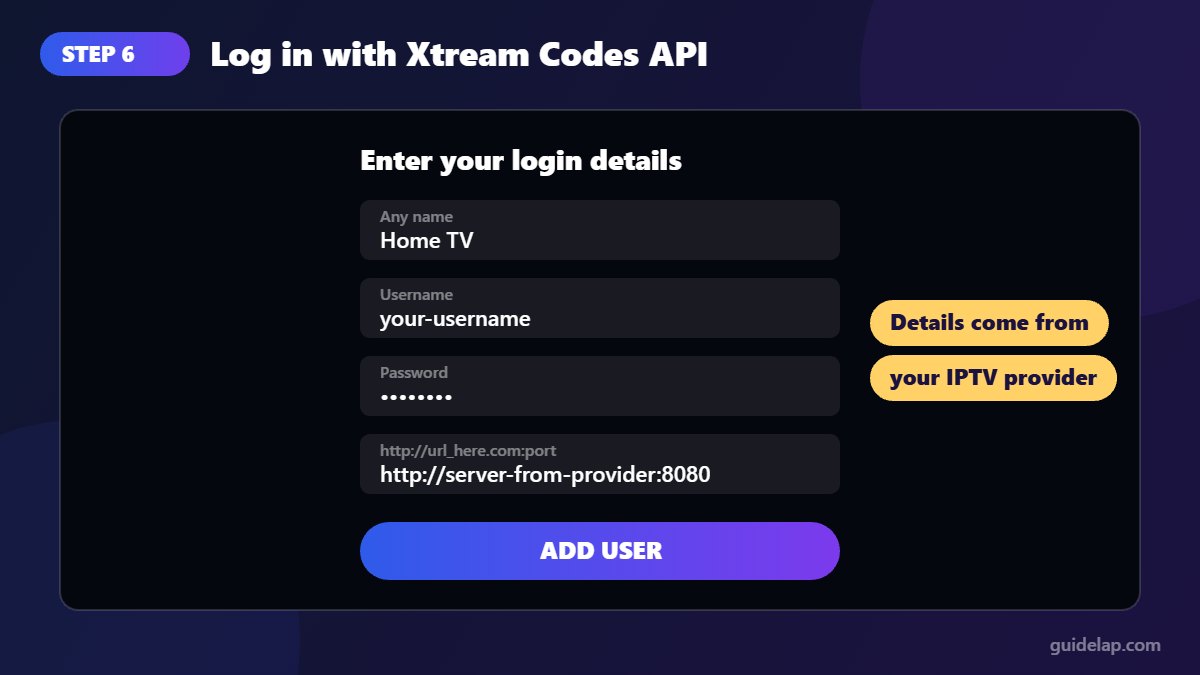
- Select Login with Xtream Codes API.
- Any name: type any name you like, for example “Home TV”.
- Username and Password: enter the details from your provider.
- URL: enter the server address exactly as your provider gave it, including
http://and the port number if there is one. - Select Add User. The app will load your Live TV, Movies and Series.
Option B: Load your playlist or file URL (M3U)
- Select Load Your Playlist or File/URL.
- Enter a playlist name.
- Choose M3U URL and paste the playlist link from your provider.
- Select Add User.
Not sure which login to choose? Read M3U vs Xtream Codes.
Xtream Codes logins usually load faster and include the TV guide (EPG) automatically, so use that option if your provider offers it. Need help with the guide? Read how to add EPG in IPTV Smarters Pro.
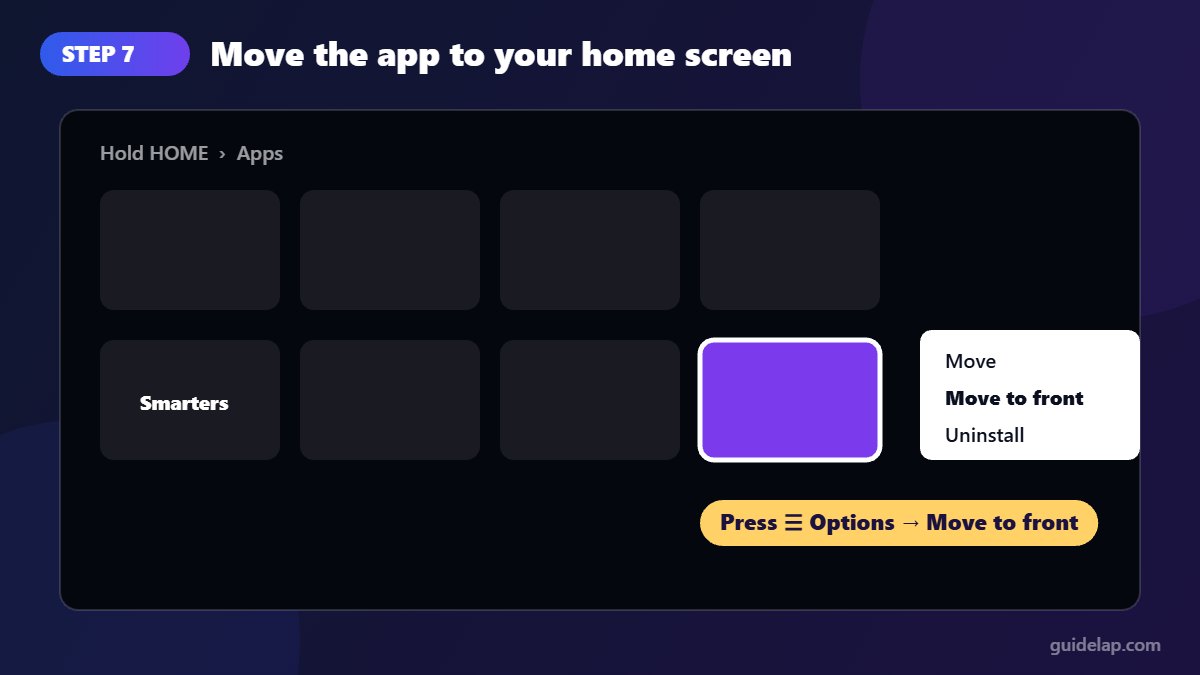
Step 7: Add IPTV Smarters Pro to your home screen
Newly installed apps are placed at the end of your app list. To make it easier to find:
- Hold the Home button on your remote and select Apps.
- Highlight IPTV Smarters Pro, press the Options button (three lines) and select Move to front.
Best IPTV Smarters Pro settings for Firestick
Not sure Smarters is the right app for you? Compare it in our list of the best IPTV players for Firestick.
After logging in, open the Settings (gear icon) inside IPTV Smarters Pro and adjust these options for smoother playback:
- Stream format: if channels buffer, try switching between Default, MPEGTS (.ts) and HLS (.m3u8) to see which works best with your provider.
- Player selection: the built-in player works for most people. If a channel will not play, try an external player such as VLC.
- EPG: refresh the TV guide from the home screen if program information is missing.
- Parental control: set a PIN and lock adult or unwanted categories.
- Automation: enable automatic updates of channels and EPG so your lists stay current.
Troubleshooting: IPTV Smarters Pro not working on Firestick
Developer Options does not appear
Make sure you are clicking the device name (the first line in About), not another line. Press Select at least 7 times without pausing. If it still does not show, check your software version: Vega OS devices do not offer this menu for normal users.
“There was a problem parsing the package”
The APK download is incomplete or damaged. Delete the file in Downloader (Files tab), make sure you have enough free storage, and download it again from the official website.
“App not installed”
Check that Install Unknown Apps is turned on for Downloader. If an older version of IPTV Smarters is already installed, uninstall it first and try again.
Channels buffer or freeze
- Restart your Firestick: Settings → My Fire TV → Restart.
- Use a 5 GHz Wi-Fi network or an Ethernet adapter for a more stable connection.
- Clear the app cache: Settings → Applications → Manage Installed Applications → IPTV Smarters Pro → Clear cache (see how to clear cache on Firestick).
- Contact your provider: frequent buffering is often a server-side issue.
- Still buffering? Follow our full guide: how to fix IPTV buffering (12 proven fixes).
“Invalid username or password”
Re-type your details carefully. Usernames and passwords are case-sensitive, and the server URL must match exactly what your provider sent. Also confirm that your subscription is still active.
How to update IPTV Smarters Pro on Firestick
Because you used Downloader to install IPTV Smarters Pro on Firestick, the app does not update through the Amazon Appstore. When a new version is released, simply repeat Steps 4 and 5. Installing the new APK over the old one keeps your login details in most cases.
Related guides
- Protect your connection: install a VPN on Firestick and change these 10 Firestick settings.
- Not sure if your Fire TV can sideload? Check Vega OS vs Fire OS.
- Don’t have a subscription yet? Start with an IPTV free trial and our provider checklist.
- Problems after installing? Read IPTV Smarters not working.
Frequently asked questions
Is IPTV Smarters Pro legal?
Yes. IPTV Smarters Pro is a legal video player, just like VLC. What matters is the content you watch with it. Only use IPTV services that have the rights to the channels and movies they provide.
Is IPTV Smarters Pro free?
The app itself is free to download and install. You only pay for the IPTV subscription from your provider.
How long does it take to install IPTV Smarters Pro on Firestick?
About 10 minutes. Most of that time is spent installing Downloader and enabling Developer Options, which you only need to do once.
Why is IPTV Smarters Pro not in the Amazon Appstore?
It is not available in the Appstore in many regions, which is why most people install it from the official website using Downloader.
Can I install IPTV Smarters Pro on the Fire TV Stick 4K Select?
No. The Fire TV Stick 4K Select, the 2026 Fire TV Stick HD and the 3rd-gen Fire TV Stick 4K (2026) run Vega OS, which only allows apps from the Amazon Appstore. You need a Fire OS device such as the Fire TV Stick 4K Max or Fire TV Cube, or an Android TV / Google TV device (see how to install IPTV Smarters Pro on Android TV).
Do I need a VPN?
A VPN is not required for the app to work. Some users choose one for extra privacy on public networks. If you use one, pick a reputable paid provider.
Final thoughts: install IPTV Smarters Pro on Firestick the safe way
Now you know how to install IPTV Smarters Pro on Firestick. It takes only a few minutes once you know the steps: check that your device runs Fire OS, install Downloader, enable Developer Options, download the official APK and log in with your provider details. Bookmark this guide. We update it whenever Amazon or IPTV Smarters change something. For more tutorials like this one, browse our How-To Guides and Technology sections.
Have a question or stuck on a step? Leave a comment below and we will help you out.



