Keeping your Fire TV software up to date gives you security fixes, new features and often better performance. In this guide you will learn how to update Firestick software in a few clicks, how to update your apps (including sideloaded ones), and what to do if an update gets stuck.
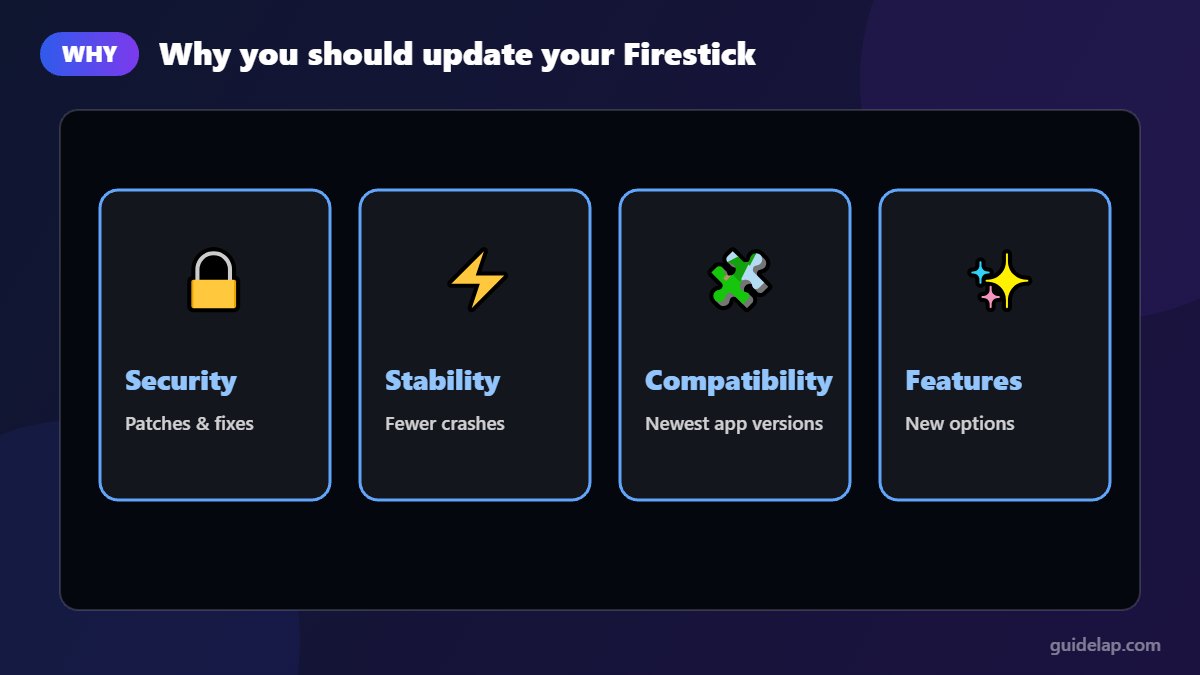
Why update your Firestick?
- Security: updates fix vulnerabilities.
- Stability: fewer crashes and freezes.
- Compatibility: new versions of apps may need a recent Fire OS.
- New features and interface improvements.
How to update Firestick software (Fire OS)
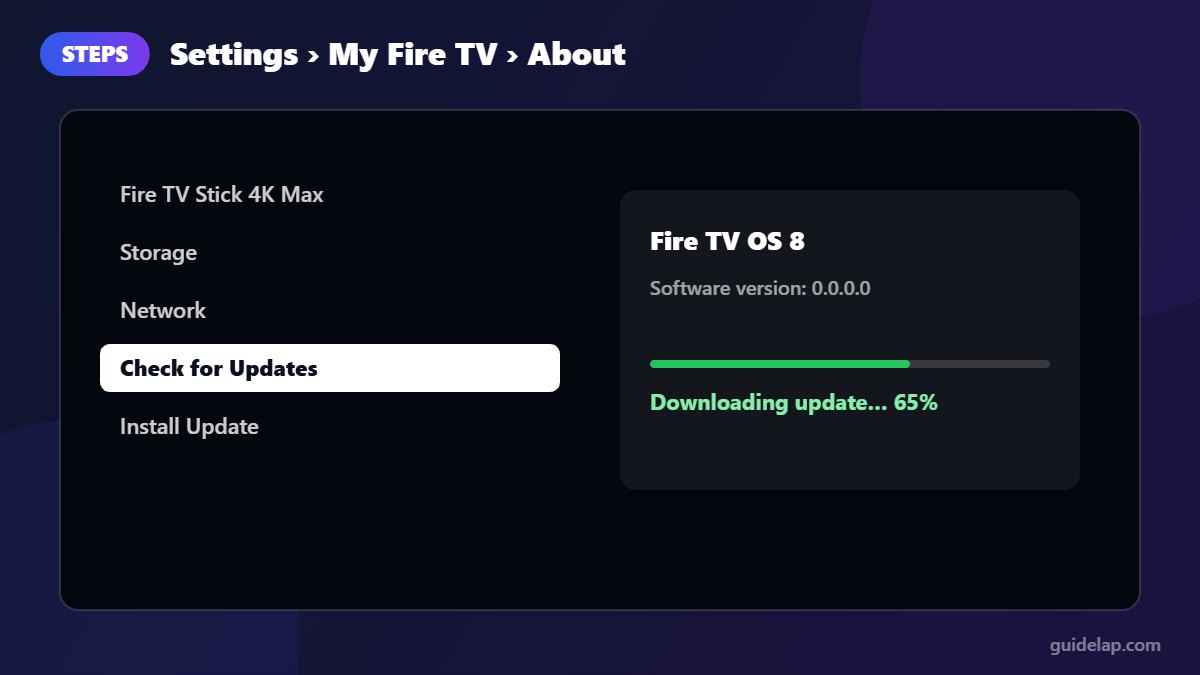
- Press Home and open Settings (gear icon).
- Select My Fire TV.
- Select About.
- Choose Check for Updates (or Check for System Update).
- If an update is found, select Install Update. The Firestick downloads it, restarts and installs it. Do not unplug it during this time.
If the menu says your device is up to date, there is nothing to install. Amazon also installs updates automatically in the background when the Firestick is idle.
How to check your current Fire OS version
Go to Settings → My Fire TV → About and look at Fire TV OS and Software Version. This is also how you can tell whether your device runs Fire OS or the newer Vega OS (versions starting with “1.” on Vega devices), which matters for sideloading. See our Firestick IPTV guide for details.
How to update apps on Firestick
Apps from the Amazon Appstore
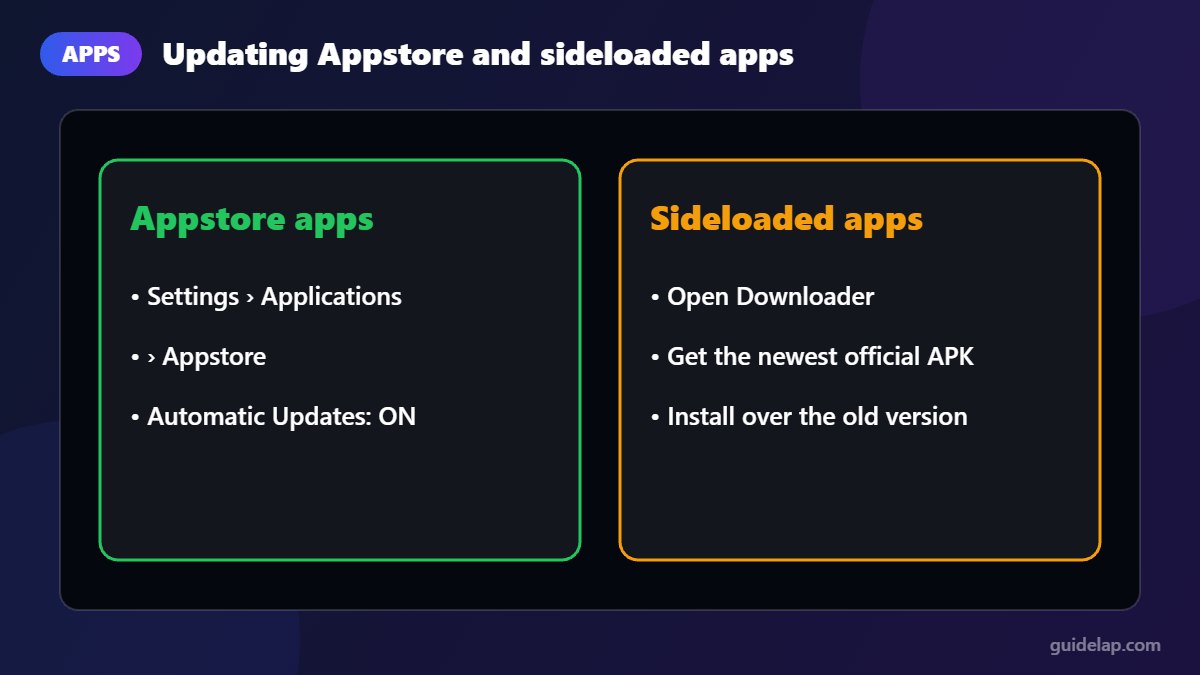
- Open Settings → Applications → Appstore.
- Turn Automatic Updates on.
- To update a single app now, open its page in the Appstore and select Update if available.
Sideloaded apps (installed with Downloader)
Apps installed from outside the Appstore, such as IPTV Smarters Pro, do not update automatically. To update them, download the newest version from the official website with Downloader and install it over the old one. Your login is usually kept.
Firestick update stuck or failing?
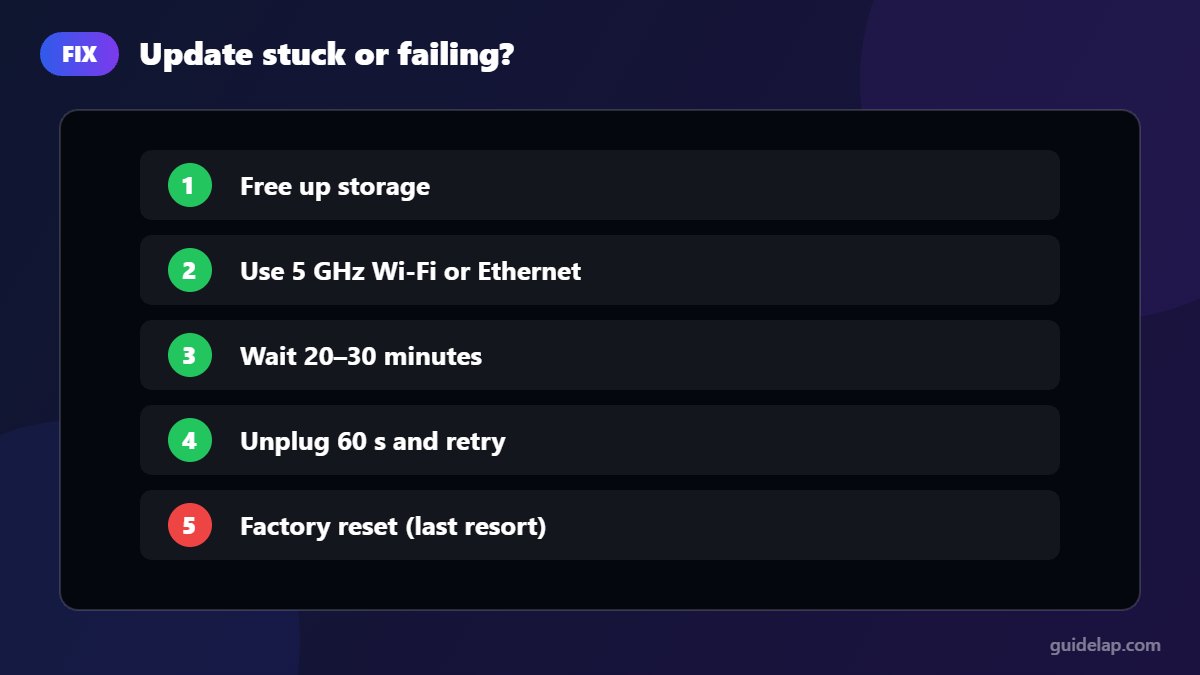
- Not enough storage: uninstall unused apps and clear cache, then try again.
- Weak connection: move closer to the router, use 5 GHz Wi-Fi or Ethernet.
- Stuck on a screen: wait at least 20–30 minutes; large updates take time. If nothing changes, unplug for 60 seconds and try again.
- Still failing: as a last resort, factory reset the Firestick and update during setup.
Tips to keep your Firestick running smoothly
- Restart the Firestick once a week.
- Keep at least a few hundred MB of free storage.
- Turn on automatic app updates.
- Use a wired or 5 GHz connection for streaming (buffering tips).
After updating, review these 10 Firestick settings to change.
Frequently asked questions
How do I update my Firestick?
Go to Settings, My Fire TV, About, Check for Updates, then select Install Update if one is available.
Does Firestick update automatically?
Yes. Fire TV devices download and install system updates automatically, usually when the device is idle. You can also check manually at any time.
How long does a Firestick update take?
Most updates take 5 to 20 minutes, depending on the size and your internet speed.
Will updating my Firestick delete my apps?
No. A normal system update keeps your apps, logins and settings.
How do I update IPTV Smarters Pro on Firestick?
Download the latest version from the official site with Downloader and install it over the old one. See our Firestick guide.
Final thoughts
To update Firestick software, open Settings → My Fire TV → About → Check for Updates. Turn on automatic app updates, update sideloaded apps manually from their official sources, and your Fire TV will stay fast, safe and compatible.