TiviMate is the favourite IPTV player of many Android TV and Firestick users thanks to its clean TV guide, fast channel switching and recording. This TiviMate setup guide shows you how to install it, add your playlist (M3U or Xtream Codes), load the TV guide and unlock Premium step by step.
TiviMate is only a player and contains no channels. Add playlists from a licensed provider.
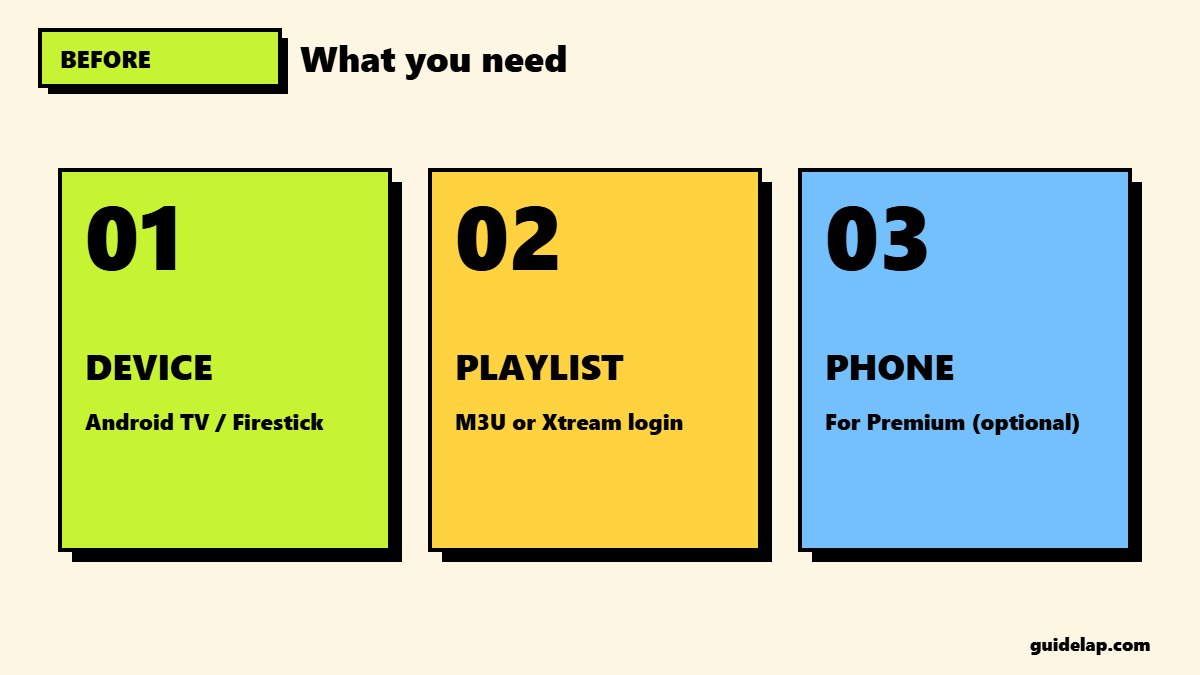
What you need for TiviMate setup
- An Android TV, Google TV, Nvidia Shield or Fire OS Firestick (TiviMate is not available on iPhone, Apple TV, Roku or Samsung/LG TVs).
- Your playlist details: an M3U URL or Xtream Codes login.
- Optional: an Android phone for the TiviMate Companion app to buy Premium.
Step 1: Install TiviMate
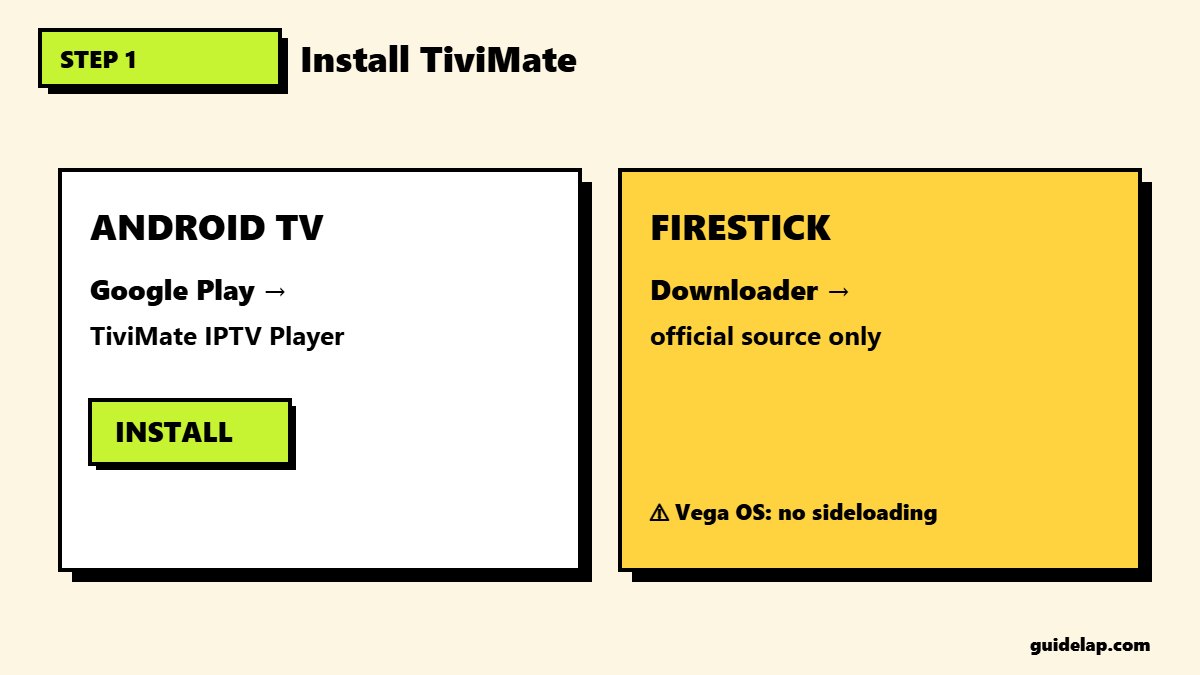
On Android TV / Google TV
Open Google Play, search for TiviMate IPTV Player and click Install.
On Firestick
TiviMate is not in the Amazon Appstore. On Fire OS models, install Downloader, enable Install unknown apps for it, and download TiviMate only from the developer’s official source. Newer Vega OS sticks cannot sideload apps — use IPTV Smarters alternatives from the Appstore or a Google TV device instead.
Step 2: Add your playlist in TiviMate
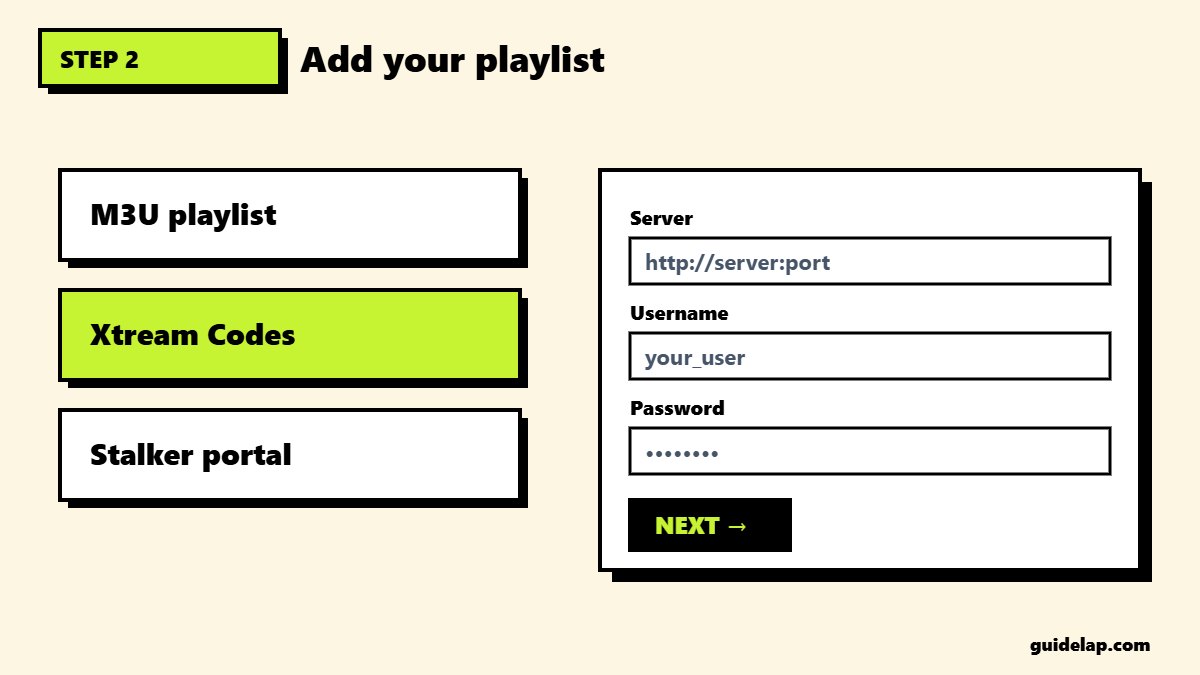
- Open TiviMate and select Add playlist.
- Choose the type: M3U playlist, Xtream Codes or Stalker portal.
- For M3U, type the URL. For Xtream Codes, enter the server address, username and password.
- Click Next — TiviMate checks the playlist and shows the number of channels.
- Give the playlist a name and click Done.
Not sure which option to choose? See M3U vs Xtream Codes. Xtream Codes usually loads movies, series and the TV guide automatically.
Step 3: Set up the TV guide (EPG)
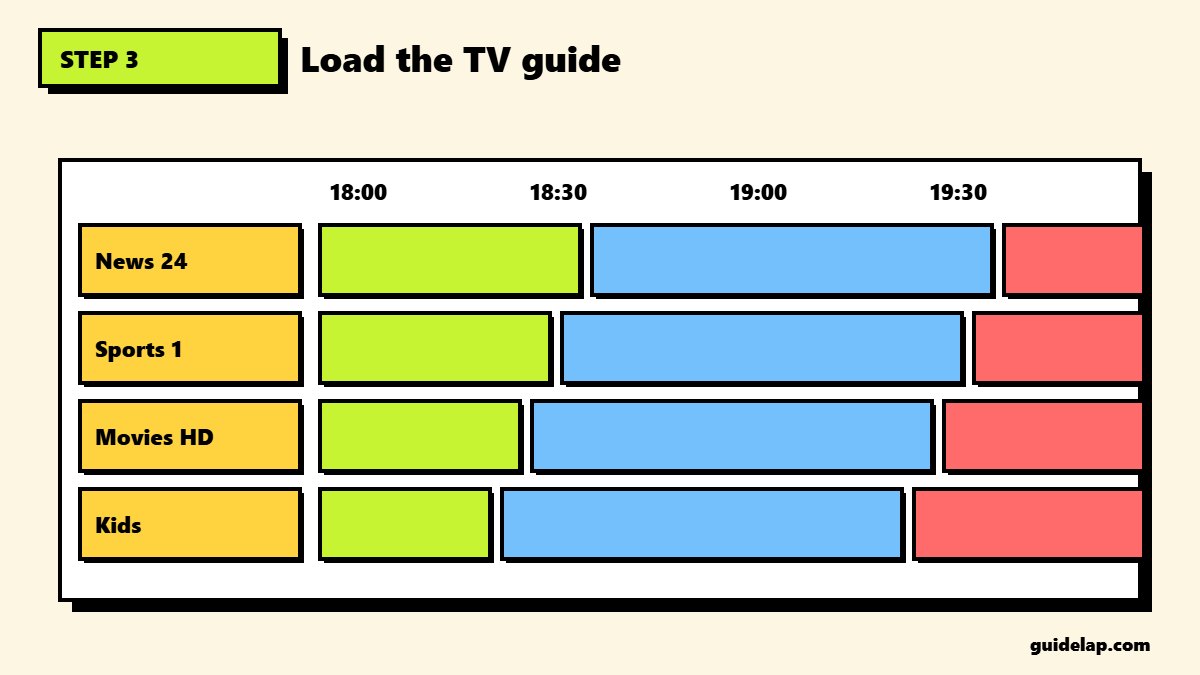
If your provider includes a guide, it loads on its own. Otherwise go to Settings → EPG → Add EPG source and paste the XMLTV link from your provider. Set Update EPG on app start so the guide stays current.
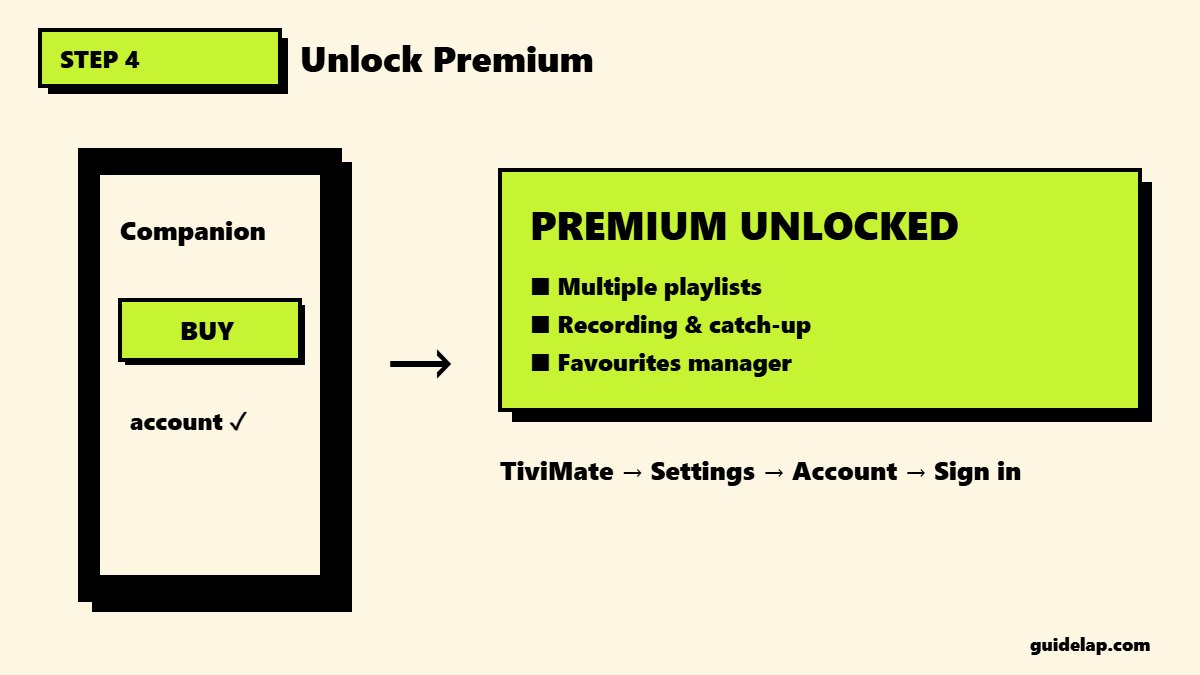
Step 4: Unlock TiviMate Premium (optional)
The free version works with one playlist. Premium unlocks multiple playlists, recording, catch-up, favourites management and more. It is sold as a yearly or lifetime licence and one account can activate several devices.
- Install TiviMate Companion from Google Play on an Android phone or tablet.
- Create an account and buy Premium in the Companion app.
- On the TV, open TiviMate → Settings → Account and sign in with the same account.
Only buy Premium through the official Companion app or Google Play. “Cheap lifetime codes” from other sellers can be revoked.
Best TiviMate settings
| Setting | Recommended |
|---|---|
| Settings → Playback → Buffer size | Medium or Large if streams freeze |
| Settings → Playback → Video decoder | Auto (try Software if picture glitches) |
| Settings → EPG → Update interval | Every 12–24 hours |
| Settings → General → Auto start on boot | On, for a cable-TV feel |
| Settings → Appearance | Hide channel groups you never watch |
Still buffering? Check our IPTV buffering fixes, clear the Firestick cache, or use one of the best VPNs for IPTV if your provider throttles streams. Comparing apps? Read TiviMate vs IPTV Smarters Pro and the best IPTV player apps. Official app page: TiviMate on Google Play.
Frequently asked questions
Is TiviMate free?
Yes, the basic app is free with one playlist. TiviMate Premium is a paid yearly or lifetime licence bought through the TiviMate Companion app.
Can I use TiviMate on iPhone or Samsung TV?
No. TiviMate only runs on Android-based devices such as Android TV, Google TV, Nvidia Shield and Fire OS Firesticks.
How do I add an M3U playlist to TiviMate?
Select Add playlist → M3U playlist, type the URL, click Next, name the playlist and click Done.
Why does TiviMate say “No channels”?
The URL or login is wrong, the subscription has expired, or the server is down. Check the details with your provider.
How many devices can use one TiviMate Premium account?
One Premium account can be activated on several devices; you manage them in the Companion app.
Final thoughts
TiviMate setup takes about five minutes: install the app, add your M3U or Xtream Codes playlist, load the TV guide and, if you want the extra features, unlock Premium with the Companion app.