
Sharing your Fire TV with kids? Firestick parental controls let you lock purchases, block mature content and even require a PIN to open apps. This guide shows how to turn them on in two minutes, what each option does, and how to close the gaps that many parents miss.
How to turn on Firestick parental controls
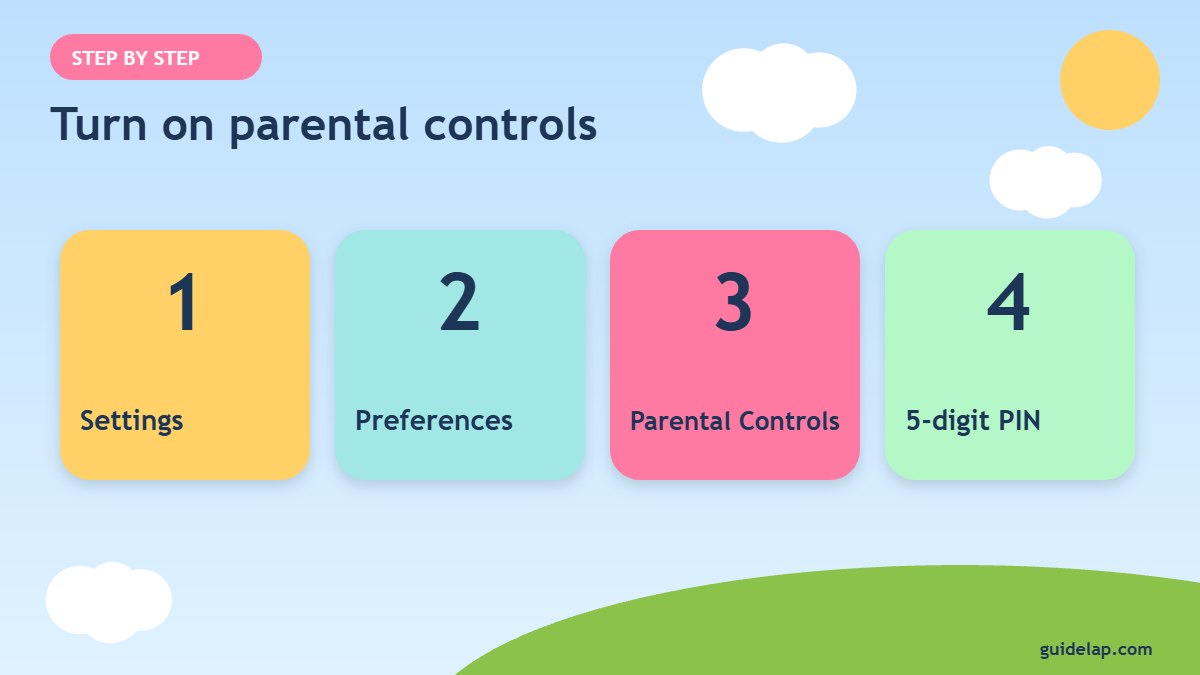
- Press Home and open Settings (the gear icon).
- Select Preferences.
- Select Parental Controls and switch it ON.
- Enter a 5-digit PIN and confirm it. This is your Prime Video PIN, used for all Fire TV restrictions.
- Choose the options you want to protect (see below).
These steps come straight from Amazon’s Fire TV parental controls help page.
What each parental control option does
| Option | What it does | Recommended for kids |
|---|---|---|
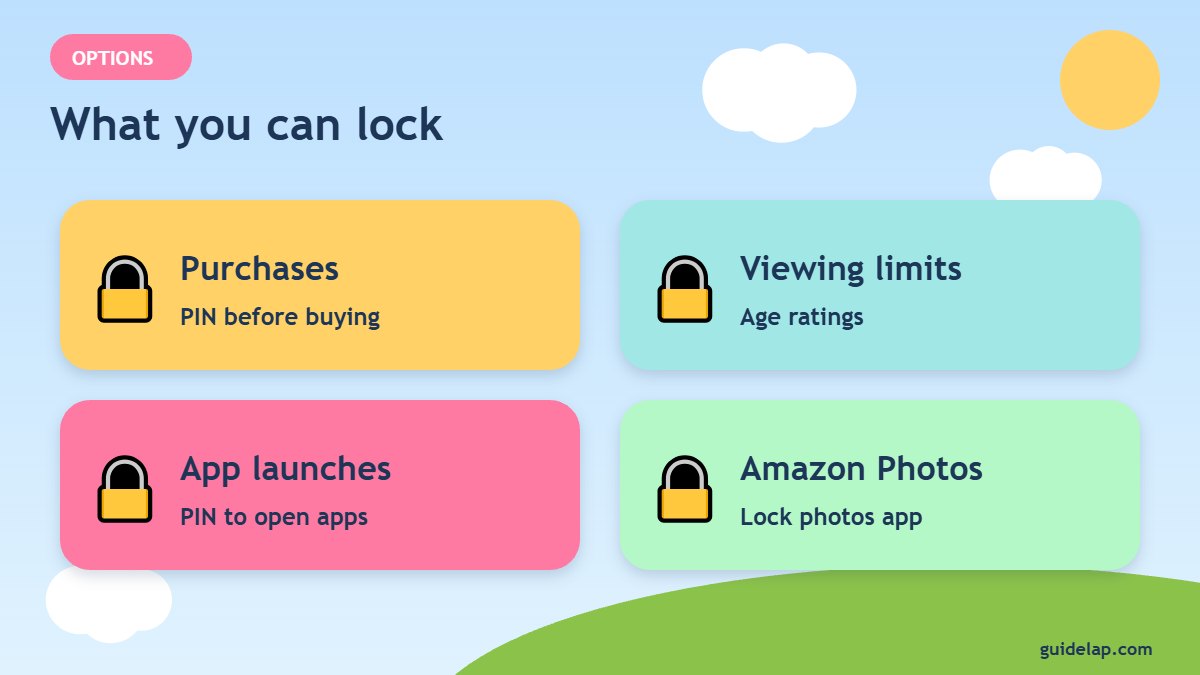
| PIN Protect Purchases | Asks for the PIN before buying or renting videos, apps and in-app items | ON |
| Viewing Restrictions | Blocks videos above the age rating you choose (General, Family, Teen, Mature) | Set to Family or Teen |
| PIN Protect App Launches | Asks for the PIN before any installed app opens | ON for young children |
| PIN Protect Amazon Photos | Locks the Amazon Photos app | Optional |
| Change PIN | Changes your Prime Video PIN | Use a PIN kids cannot guess |
The gap most parents miss
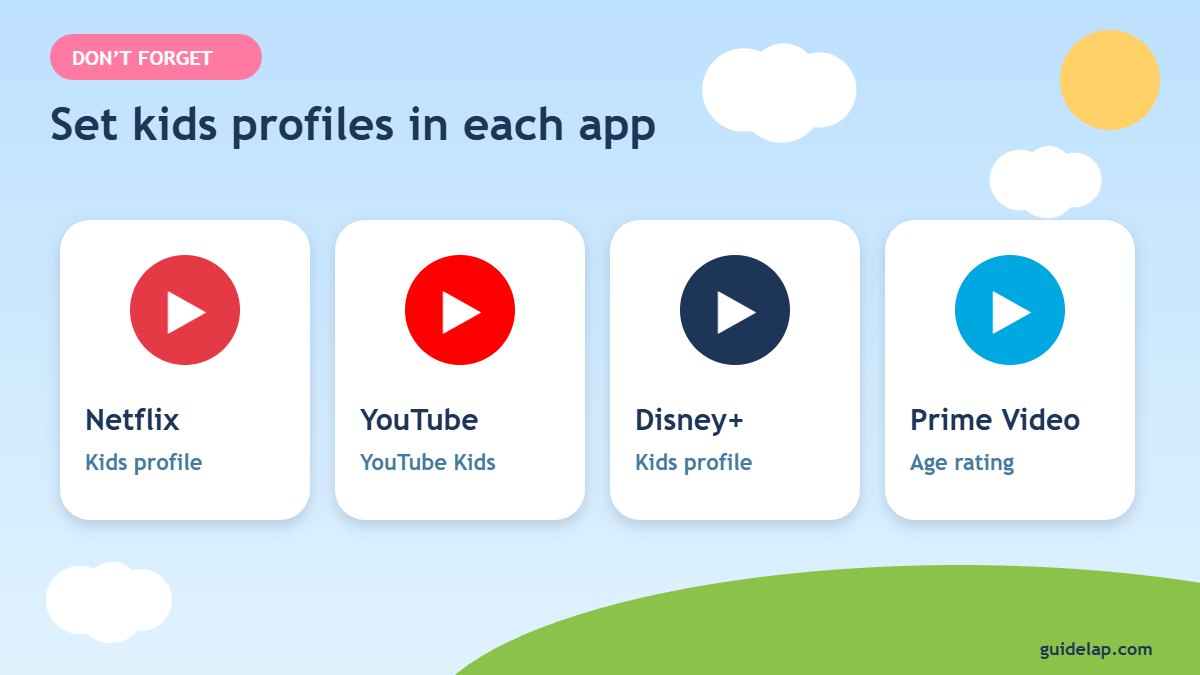
Viewing restrictions only apply to Amazon content. Apps like Netflix, YouTube and Disney+ have their own kids profiles and settings. Also, an app that was already bought on your account can be reinstalled without a new purchase — so PIN Protect App Launches (or kid profiles) is the reliable way to stop kids opening apps you do not want them to use.
- Netflix: create a Kids profile and set a profile lock.
- YouTube: use YouTube Kids or a supervised account.
- Disney+ / Prime Video: use kids profiles with age ratings.
- Browsers: PIN-protect app launches, because browsers are hard to filter.
Extra tips for a family-safe Fire TV
- Move kids’ apps to the front of the home screen and hide the rest — see Firestick settings to change.
- Turn off featured video autoplay so trailers do not play automatically.
- Change the PIN if kids have watched you type it.
- Use only official apps from the Appstore — see our free streaming apps list for family-friendly options like Pluto TV Kids channels.
- If kids keep changing settings, you can always start fresh with a factory reset.
Just bought your device? Follow how to set up Firestick first.
How to change or turn off Firestick parental controls
To change your settings later, go back to Settings → Preferences → Parental Controls and enter your PIN. From there you can switch individual options on or off, choose a different viewing restriction level, or select Change PIN. To turn Firestick parental controls off completely, select the Parental Controls toggle again and confirm with your PIN.
Remember that the PIN is shared with Prime Video on your Amazon account. If you change it on one device, the new PIN applies to your other Fire TV and Prime Video devices too, so tell other adults in the house.
Want silent late-night viewing? Connect Bluetooth headphones to Firestick.
Also lock adult groups inside your IPTV app — see IPTV parental controls.
Frequently asked questions
How do I turn on parental controls on Firestick?
Go to Settings → Preferences → Parental Controls, switch it on and enter a 5-digit PIN.
What is my Firestick parental control PIN?
It is your Prime Video PIN. You can change it in the Parental Controls menu or in your Amazon account’s Prime Video settings.
Can I block specific apps on Firestick?
Fire TV does not block single apps, but PIN Protect App Launches asks for the PIN before any app opens.
Do Firestick parental controls work on Netflix and YouTube?
Not fully. Use each app’s own kids profiles and settings as well.
I forgot my Firestick PIN — what now?
Reset your Prime Video PIN from your Amazon account settings on the web.
Final thoughts
Firestick parental controls take two minutes: Settings → Preferences → Parental Controls, set a 5-digit PIN, then protect purchases, set viewing limits and lock app launches. Add kids profiles inside Netflix, YouTube and Disney+ for complete protection.



