
Lost the remote, batteries dead or it simply stopped responding? You can still use Firestick without remote. This guide covers the 5 methods that work — the Fire TV phone app, your TV remote (HDMI-CEC), Alexa, a game controller or keyboard, and a replacement remote — plus a clever trick if you also changed your Wi-Fi.
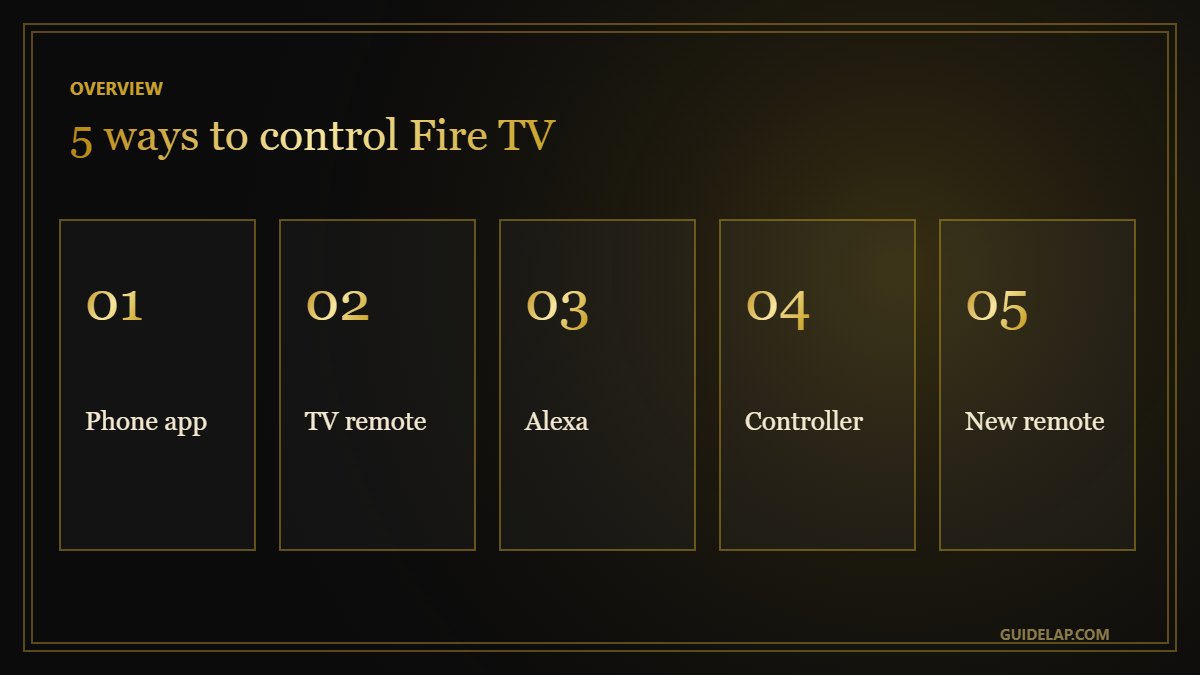
Quick comparison
| Method | Needs | Best for |
|---|---|---|
| Fire TV app on your phone | Same Wi-Fi as the Firestick | Most people — free and instant |
| TV remote (HDMI-CEC) | TV with CEC turned on | Basic navigation |
| Alexa / Echo | Linked Echo device | Voice control |
| Game controller / keyboard | Pairing via the app first | Typing and gaming |
| Replacement remote | Buy and pair | Long-term fix |
Method 1: Use the Fire TV app on your phone
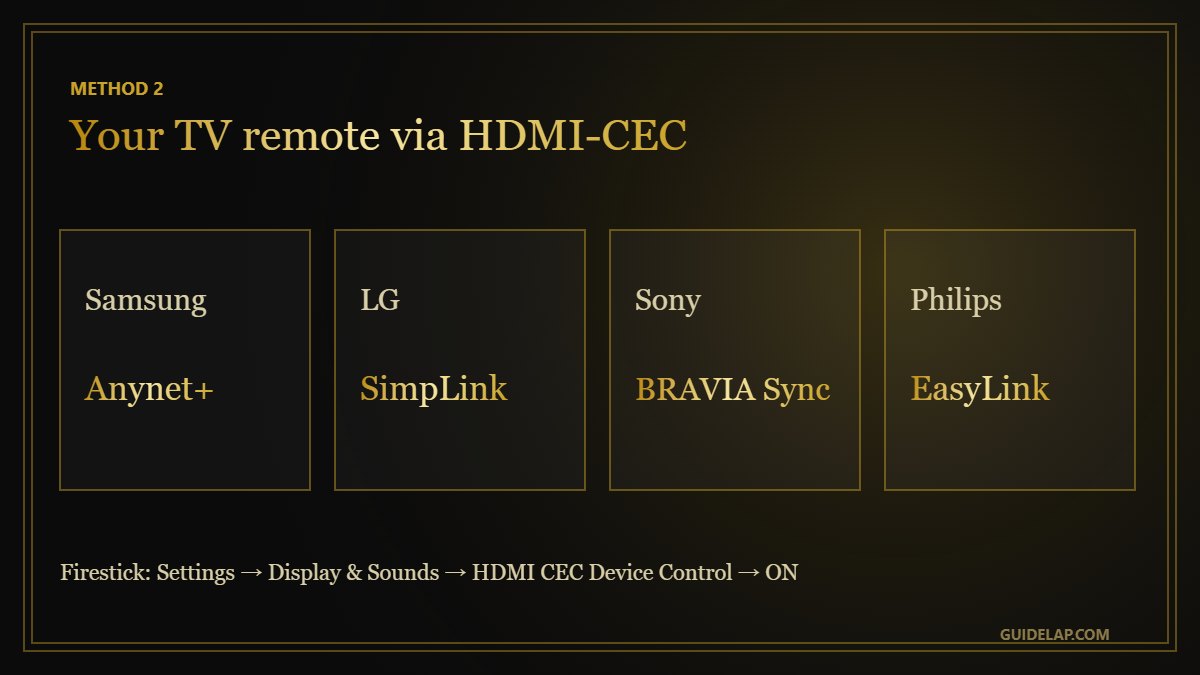
- Install the free Amazon Fire TV app from the App Store or Google Play.
- Connect your phone to the same Wi-Fi as the Firestick.
- Open the app and select your Fire TV from the list.
- Enter the 4-digit code shown on the TV.
- Use the touchpad, keyboard and voice button to control the Firestick.
Method 2: Use your TV remote (HDMI-CEC)
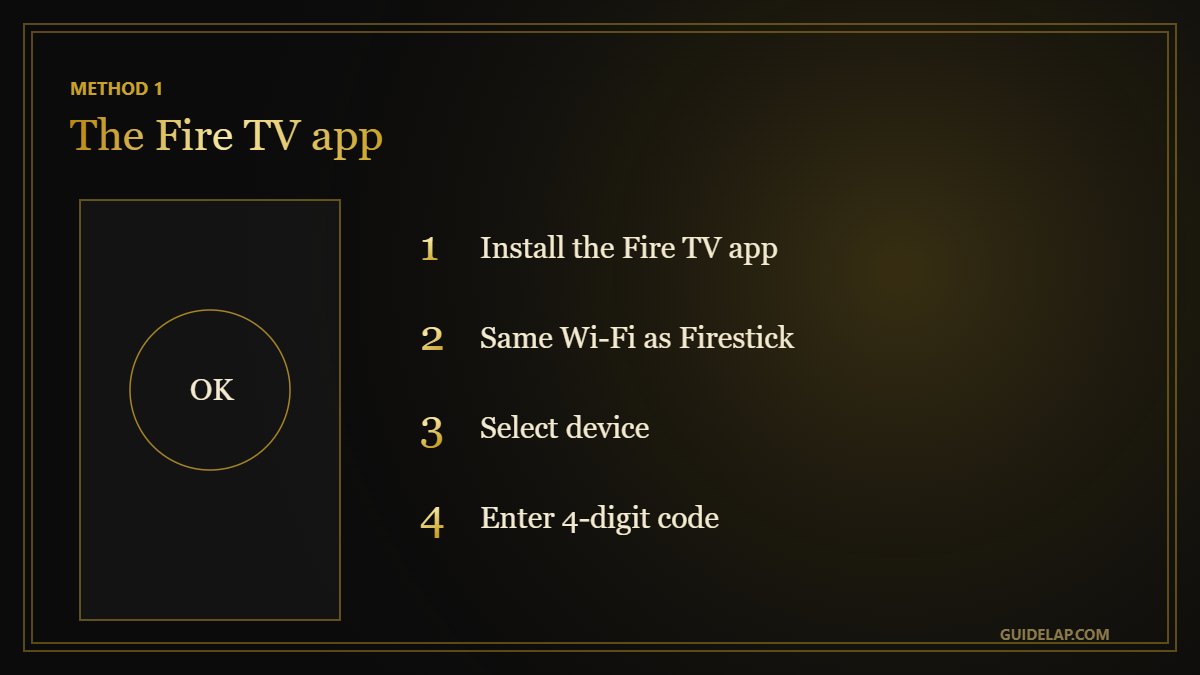
Many TVs can control the Firestick through HDMI-CEC. Turn it on in the TV settings — it has a different name per brand: Anynet+ (Samsung), SimpLink (LG), BRAVIA Sync (Sony), EasyLink (Philips). On the Firestick, Settings → Display & Sounds → HDMI CEC Device Control should be ON (it is by default). Then the TV remote’s arrows, OK and Back keys control the Firestick.
Method 3: Use Alexa
If an Echo speaker is linked to the same Amazon account, go to the Alexa app → Devices → link your Fire TV. Then say “Alexa, open YouTube on Fire TV” or “Alexa, pause”.
Method 4: Pair a game controller or keyboard
Use the phone app (Method 1) to open Settings → Controllers & Bluetooth Devices and pair a Bluetooth game controller or keyboard. After that, they work on their own.
Method 5: Get a replacement remote
Buy an official Alexa Voice Remote that supports your model, insert batteries and hold Home for 10 seconds to pair. If your current remote just stopped working, first try the fixes in Firestick remote not working.
Trick: new Wi-Fi and no remote?
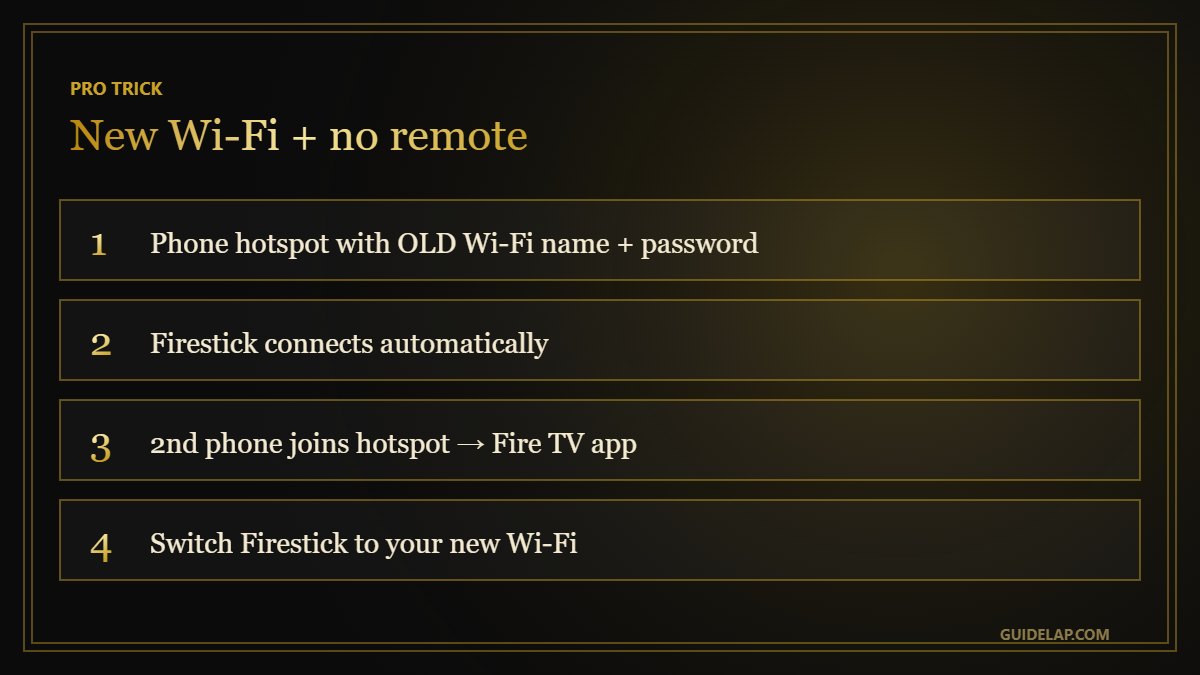
The phone app only works if the Firestick is online. If you changed your router, create a phone hotspot with the old Wi-Fi name and password. The Firestick connects to it automatically, then connect a second phone or tablet to the same hotspot and use the Fire TV app to join your new network. More tips: Firestick not connecting to WiFi.
Want a bigger screen from your phone instead? See screen mirroring to TV. Setting up a new stick? Follow how to set up Firestick. Background on the standard behind TV-remote control: HDMI-CEC on Wikipedia.
Pairing headphones or a keyboard? See connect Bluetooth headphones to Firestick.
Frequently asked questions
Can I use Firestick without remote?
Yes. Use the free Fire TV app on your phone, your TV remote via HDMI-CEC, Alexa, or a paired controller or keyboard.
How do I connect the Fire TV app without the remote?
Put your phone on the same Wi-Fi as the Firestick, open the Fire TV app, select the device and enter the code shown on the TV.
Does my TV remote work with Firestick?
Often yes. Enable HDMI-CEC on your TV (Anynet+, SimpLink, BRAVIA Sync, etc.) and keep HDMI CEC Device Control on in the Firestick.
My Firestick is on new Wi-Fi and I have no remote — what can I do?
Create a phone hotspot with your old Wi-Fi name and password, connect the Firestick to it, then use the Fire TV app to switch networks.
How do I pair a new Firestick remote?
Insert batteries and hold the Home button for 10 seconds near the Firestick.
Final thoughts
You can easily use Firestick without remote: the Fire TV phone app is the fastest fix, HDMI-CEC lets your TV remote take over, and the hotspot trick rescues you after a Wi-Fi change. For the long term, pair a replacement remote.



