
Want to watch late at night without waking anyone? You can connect Bluetooth headphones to Firestick in under a minute — including AirPods, Galaxy Buds and Sony or Bose headphones. This guide covers pairing, fixing audio delay, and what to do when your headphones will not show up.
How to connect Bluetooth headphones to Firestick
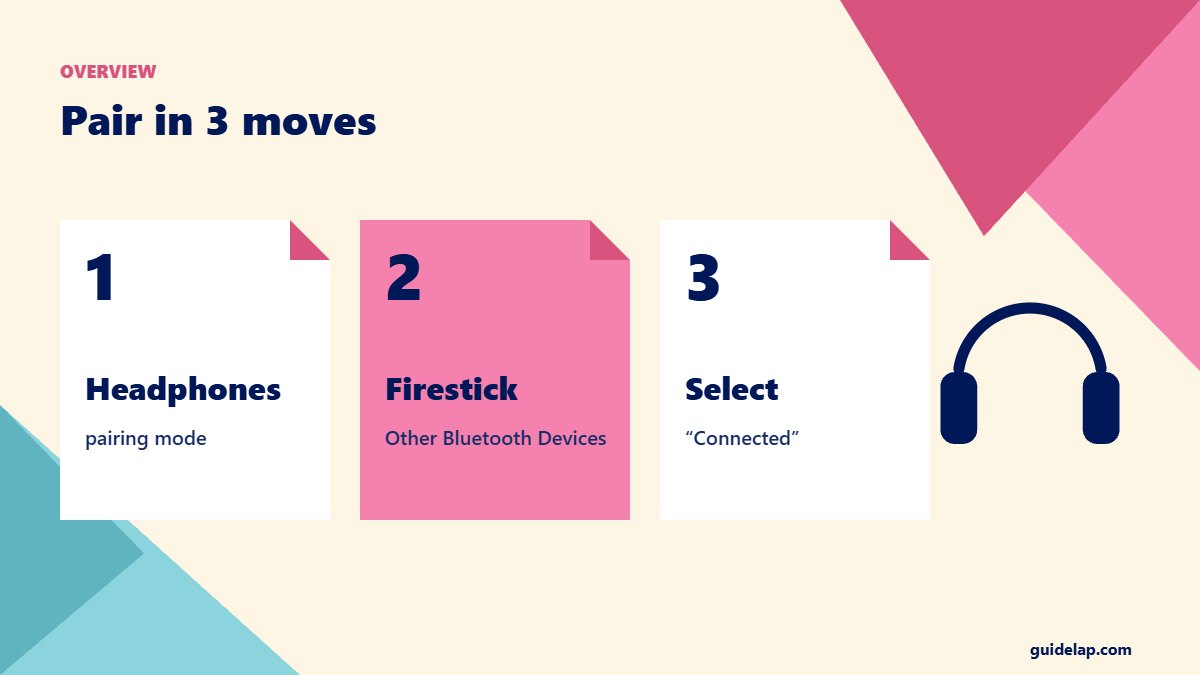
- Put your headphones in pairing mode (usually hold the power or Bluetooth button until a light flashes; for AirPods, hold the case button).
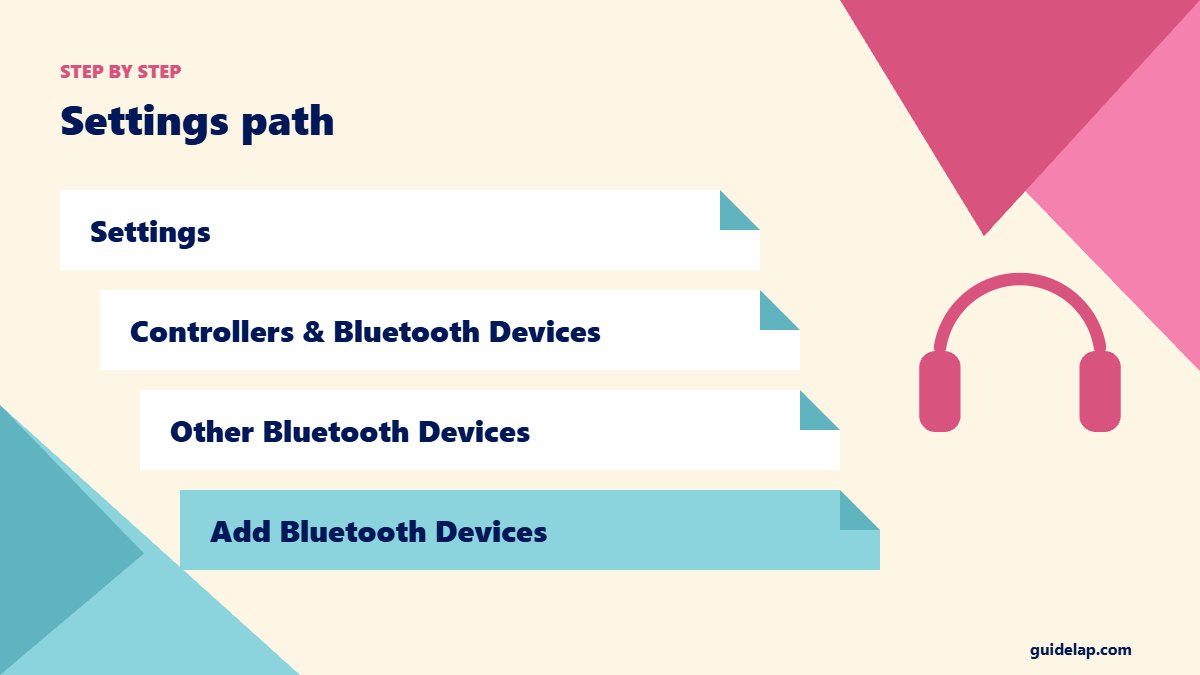
- On the Firestick, open Settings.
- Select Controllers & Bluetooth Devices.
- Select Other Bluetooth Devices.
- Select Add Bluetooth Devices — the Firestick starts searching.
- Choose your headphones in the Discovered Devices list and wait for “Connected”.
This is the same path described in Amazon device guides and by Digital Trends.
Fix audio delay (lip-sync problems)
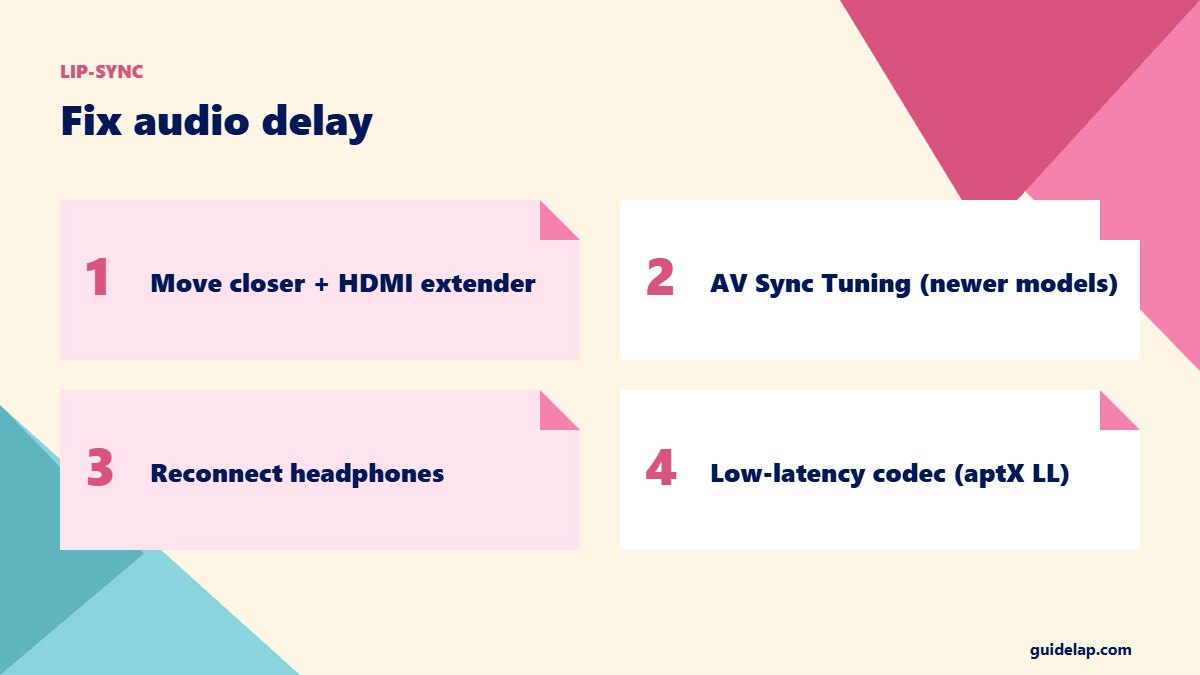
- Move closer to the Firestick and keep the stick away from the TV’s back using the HDMI extender.
- On newer Fire TV software, look for AV Sync Tuning under Settings → Display & Sounds → Audio.
- Disconnect and reconnect the headphones.
- Use headphones with a low-latency codec (aptX Low Latency) for the best sync.
Headphones not showing up? Try this
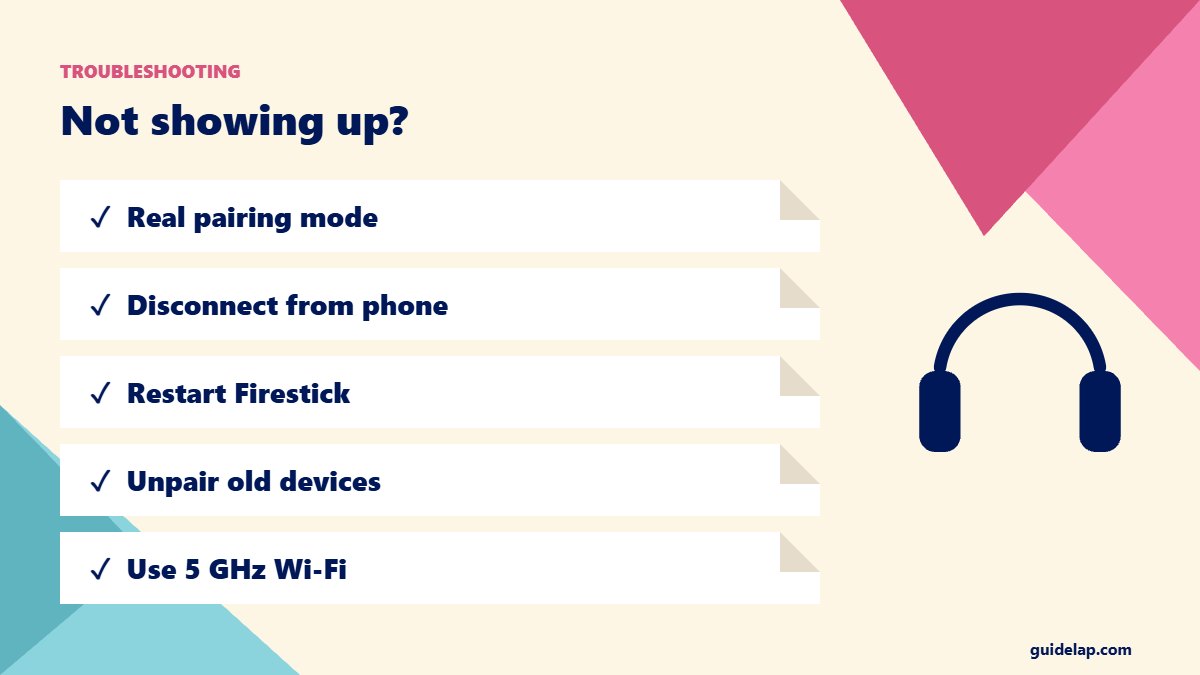
- Make sure they are in pairing mode, not just switched on.
- Disconnect them from your phone or laptop first — many headphones connect to only one device at a time.
- Restart the Firestick (Settings → My Fire TV → Restart).
- Remove old pairings: Other Bluetooth Devices → select device → Menu ☰ → Unpair.
- Bluetooth and 2.4 GHz Wi-Fi can interfere — use 5 GHz Wi-Fi. See Firestick Wi-Fi fixes.
How to disconnect or switch back to TV sound
Turn the headphones off, or go to Other Bluetooth Devices, select them and press Menu (☰) → Unpair. Sound goes back to the TV automatically.
Other Bluetooth devices you can connect
| Device | Where to pair |
|---|---|
| Speakers and soundbars | Other Bluetooth Devices |
| Game controllers | Game Controllers |
| Keyboards | Other Bluetooth Devices |
| Extra Alexa remotes | Alexa Voice Remotes / Remotes |
No remote? Pair through the phone app — see use Firestick without remote. Want the phone screen on the TV instead? Read screen mirroring to TV. Speed things up with these Firestick settings.
Best headphones for Firestick
Any Bluetooth headphones work, but some are better for TV. Look for long battery life (20+ hours), comfortable over-ear cushions for films, and a low-latency codec to keep speech in sync. Dedicated TV headphones that come with their own Bluetooth transmitter can also connect to the TV directly, which is useful if you want to connect Bluetooth headphones to Firestick and to other devices without re-pairing.
Gaming headsets with Bluetooth also work for audio, but the microphone is only used by apps that support voice input.
Frequently asked questions
How do I connect Bluetooth headphones to Firestick?
Put the headphones in pairing mode, then go to Settings → Controllers & Bluetooth Devices → Other Bluetooth Devices → Add Bluetooth Devices and select them.
Can I connect AirPods to a Firestick?
Yes. Hold the button on the AirPods case to enter pairing mode, then add them under Other Bluetooth Devices.
Can I connect two Bluetooth headphones at once?
Usually no. Fire TV plays audio to one Bluetooth audio device at a time.
Why is there a delay with Bluetooth headphones?
Bluetooth adds some latency. Use AV Sync Tuning if available, move closer and use low-latency headphones.
How do I switch sound back to the TV?
Turn off or unpair the headphones; the Firestick returns audio to the TV automatically.
Final thoughts
To connect Bluetooth headphones to Firestick, go to Settings → Controllers & Bluetooth Devices → Other Bluetooth Devices → Add Bluetooth Devices with your headphones in pairing mode. Use 5 GHz Wi-Fi and AV sync settings for the best experience.



