
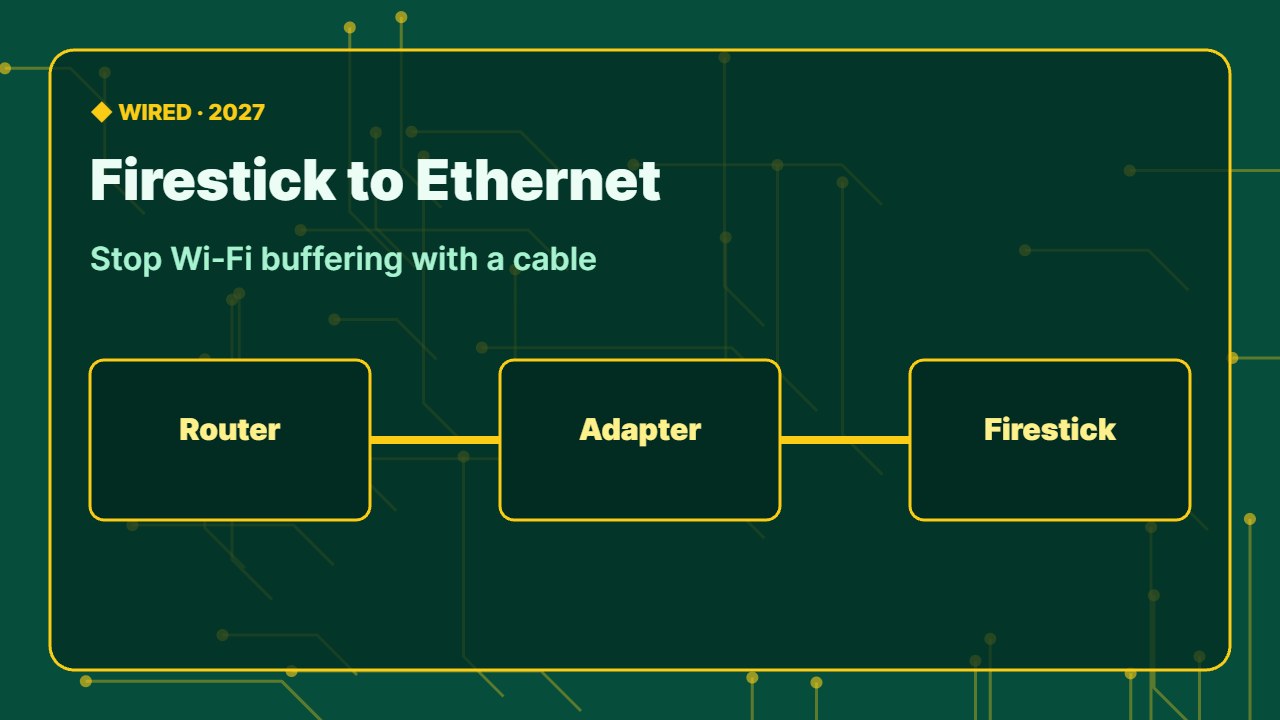
Firestick Ethernet is the best upgrade for smooth IPTV.
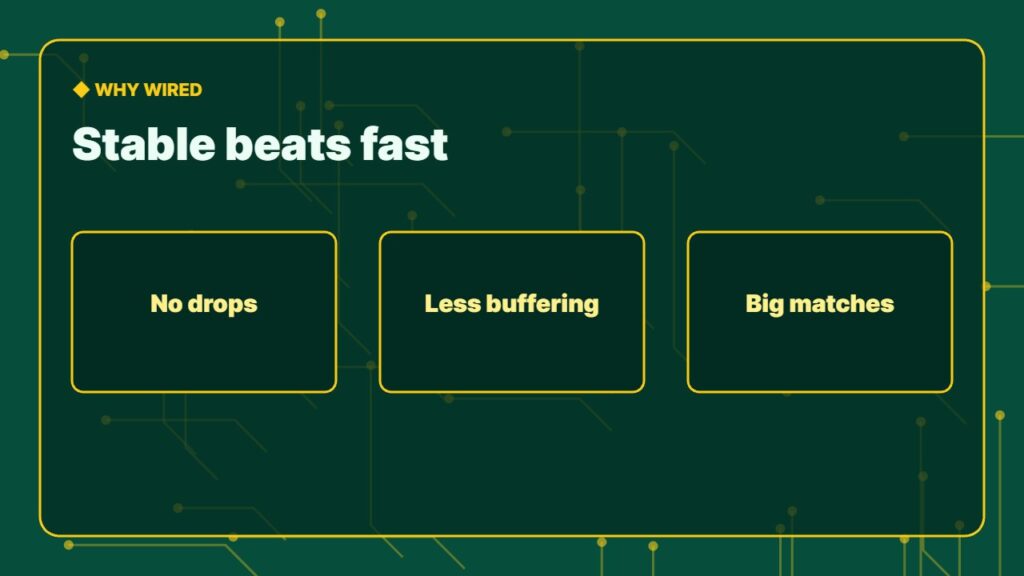
Wi-Fi drops and buffering during the big match? Connecting your Firestick to Ethernet gives you a stable wired connection that does not care about walls, neighbours or microwave ovens. Here is what you need, how to set it up, and whether it is faster than Wi-Fi.
Does the Firestick have an Ethernet port?
No. Fire TV Sticks have only HDMI and a power port. To use a cable you need an Ethernet adapter that sits between the power cable and the stick. Fire TV Cube and some Fire TV smart TVs have a built-in Ethernet port.
Which Ethernet adapter do you need?
| Adapter | Speed | Notes |
|---|---|---|
| Amazon Ethernet Adapter for Fire TV | Up to 100 Mbps | Official, plug and play |
| Third-party USB adapters with power pass-through | Varies | Check reviews and Fire TV compatibility |
| Fire TV Cube (built-in port) | Built-in | No adapter needed |
Make sure the adapter fits your stick’s power port (micro-USB or USB-C) and still powers the stick from the wall socket.
How to connect Firestick to Ethernet
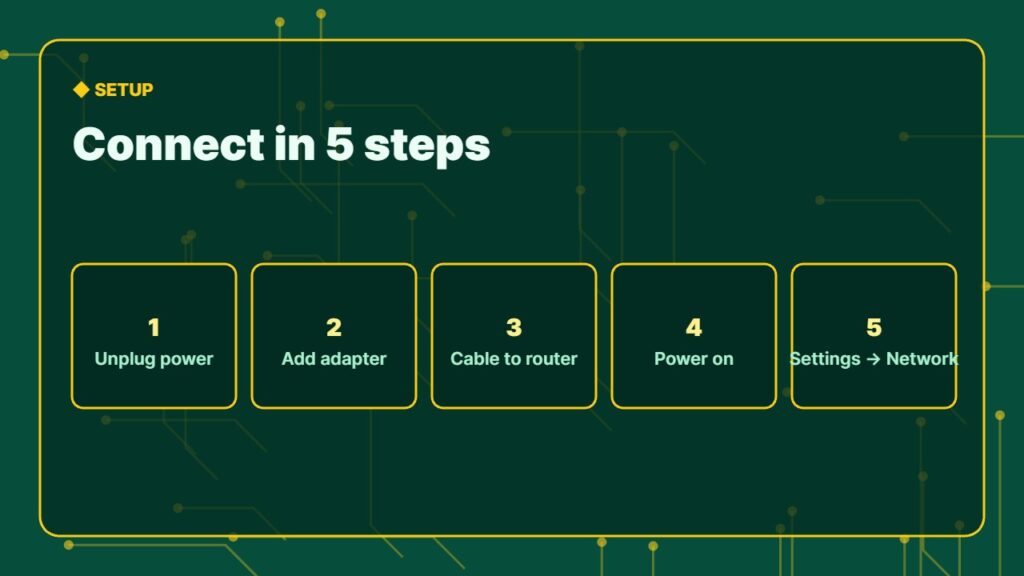
- Unplug the Firestick power cable.
- Plug the power cable into the Ethernet adapter, and the adapter into the Firestick.
- Connect a network cable from the adapter to your router.
- Turn the Firestick on and go to Settings → Network.
- You should see Connected to Ethernet. Wi-Fi is ignored while the cable is connected.
Is Ethernet faster than Wi-Fi on Firestick?
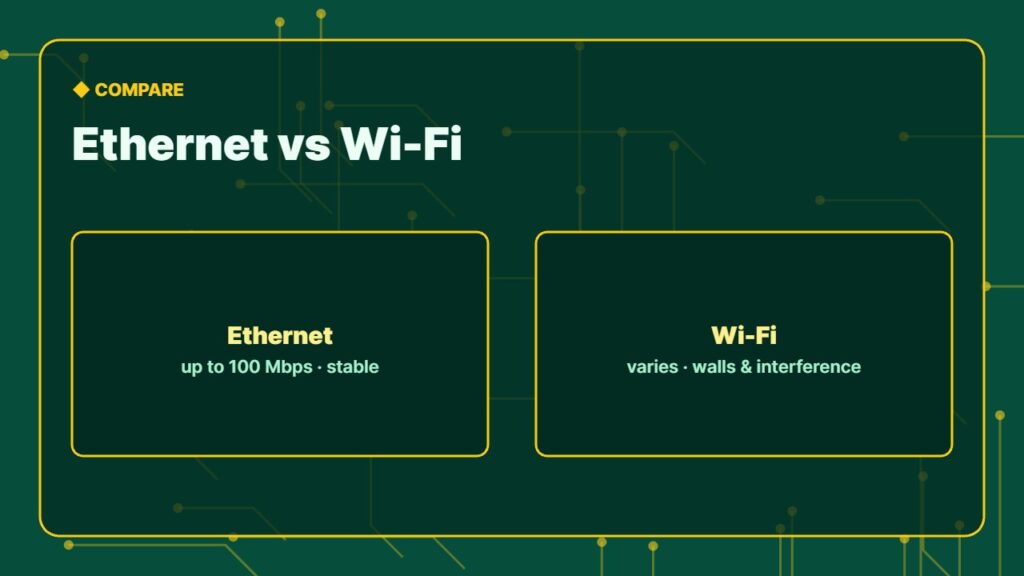
Not always faster — but much more stable. The official adapter is limited to 100 Mbps, which is far more than IPTV needs (4K needs about 25 Mbps). Newer Firesticks with Wi-Fi 6/6E can reach higher peak speeds close to the router, but Ethernet wins on steady, drop-free streaming. Read internet speed for IPTV for the numbers.
Can’t run a cable? Alternatives
- Powerline adapters send the network through your electrical wiring.
- Mesh Wi-Fi puts a node near the TV — see our best router for streaming.
- Move the router or use the HDMI extender to get the stick away from the TV.
Ethernet not working? Quick fixes
- Try another cable and router port.
- Restart the router and the Firestick.
- Check the adapter fits and the stick gets enough power.
- Still no connection? See Firestick not connecting to WiFi — many network fixes apply to Ethernet too, and change DNS on Firestick.
Wired and still buffering? The problem is probably the stream — follow how to fix IPTV buffering. More on the standard: Ethernet.
Is a Firestick Ethernet adapter worth it?
If your Firestick is far from the router, behind the TV or in a busy apartment building, a Firestick Ethernet adapter is one of the cheapest upgrades you can make. It will not make a bad internet plan faster, but Firestick Ethernet removes Wi-Fi drops, which is what causes most buffering.
Behind the TV and getting hot? See Firestick overheating.
Frequently asked questions
Can you connect a Firestick to Ethernet?
Yes, with an Ethernet adapter that connects between the power cable and the Firestick, such as Amazon’s official Ethernet Adapter.
Is Ethernet better than Wi-Fi for IPTV?
Yes for stability. A wired connection avoids drops and interference, which reduces IPTV buffering even if the top speed is similar.
How fast is the Amazon Ethernet Adapter?
It supports up to 100 Mbps, which is more than enough for HD and 4K IPTV.
Do I need to turn off Wi-Fi when using Ethernet?
No. The Firestick automatically uses Ethernet when the cable is connected.
Does the Fire TV Cube have Ethernet?
Yes. The Fire TV Cube has a built-in Ethernet port, so no adapter is needed.
Final thoughts
Connecting your Firestick to Ethernet is the easiest way to stop Wi-Fi buffering: add an Ethernet adapter, plug in a cable and check Settings → Network. For IPTV and live sports, a wired Firestick is worth it.



