
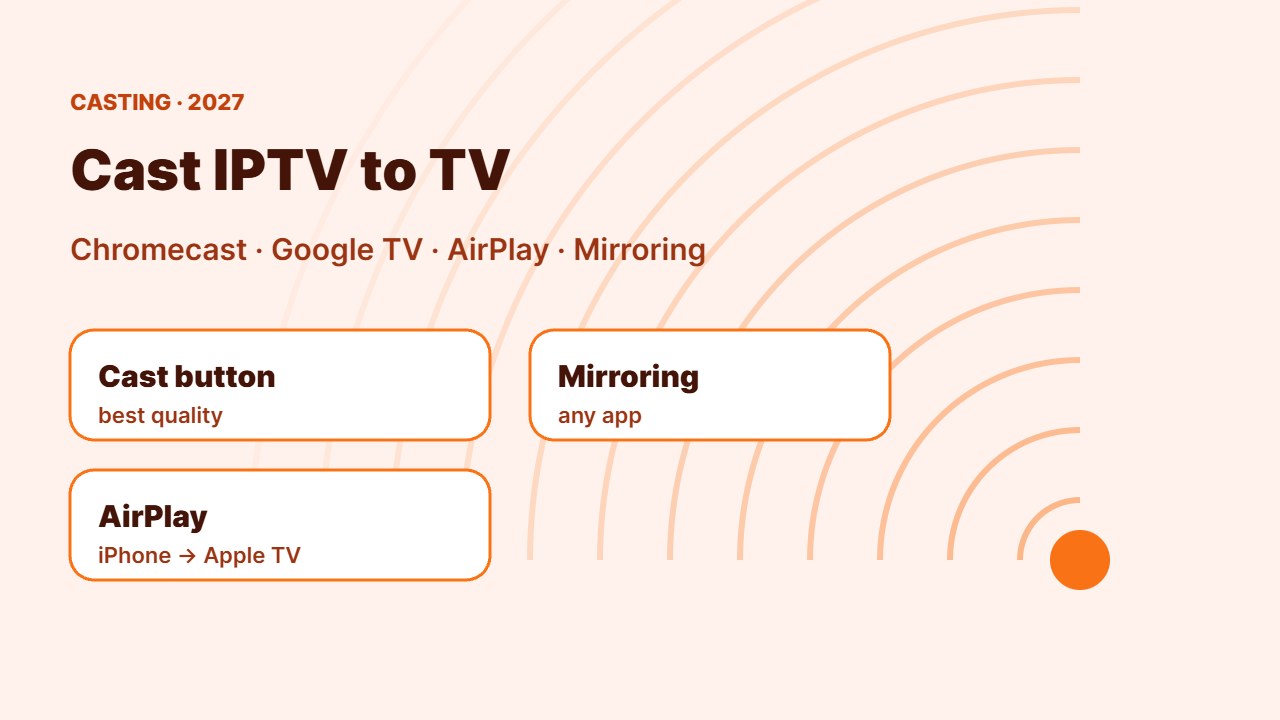
Watching IPTV on your phone and want it on the big screen? You can cast IPTV to TV in a few taps with Chromecast, Google TV, AirPlay or screen mirroring. This guide explains every method, which one gives the best picture, and how to fix casting problems.
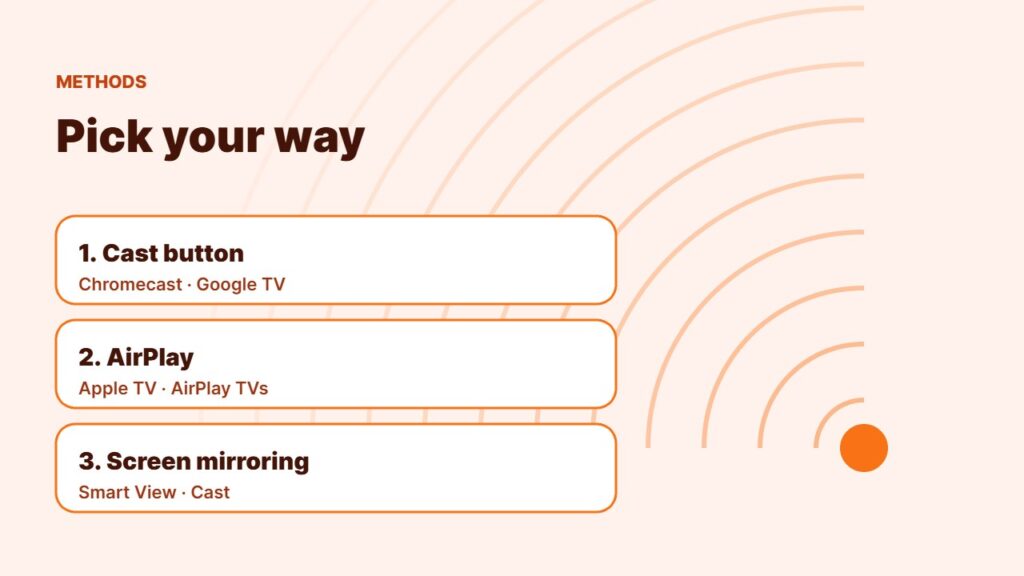
3 ways to cast IPTV to TV
| Method | Works with | Quality |
|---|---|---|
| Cast button in the app | Chromecast, Google TV, TVs with Chromecast built-in | Best — the TV plays the stream directly |
| AirPlay | iPhone/iPad to Apple TV or AirPlay TVs | Very good |
| Screen mirroring | Most Android phones and smart TVs | OK — phone must stay on |
Method 1: Cast from the IPTV app (best)
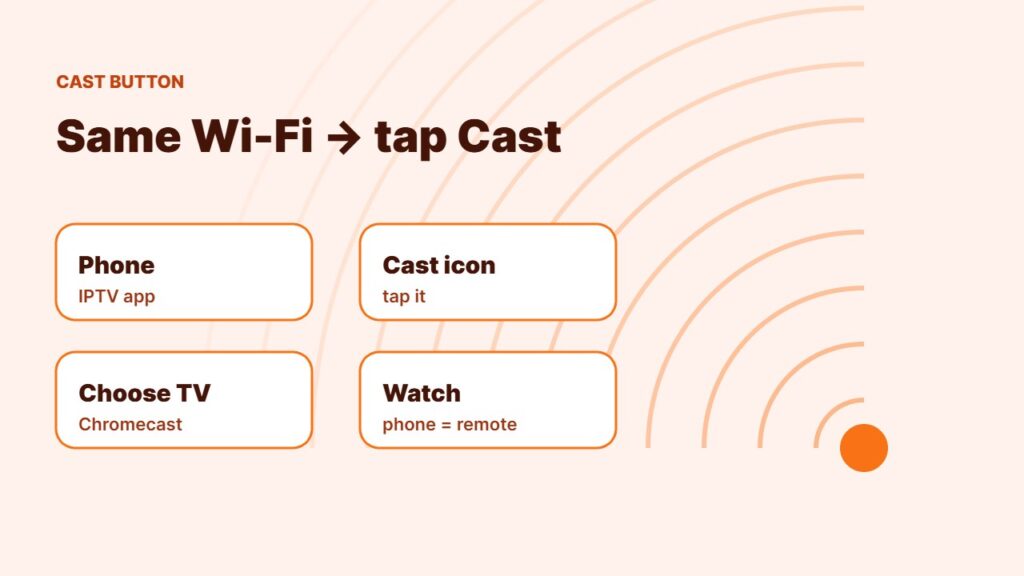
- Connect your phone and the Chromecast / Google TV to the same Wi-Fi.
- Open your IPTV player and start a channel.
- Tap the Cast icon (a screen with Wi-Fi waves).
- Choose your TV. The stream now plays on the TV, and your phone becomes the remote.
Many players include a cast button, and VLC for Android can cast too — see IPTV on VLC. Set up your phone first with IPTV on Android phone.
Method 2: AirPlay from iPhone or iPad
Open the IPTV app, start playback and tap the AirPlay icon, then choose your Apple TV or AirPlay TV. Even better: install a player directly on Apple TV — see best IPTV apps for Apple TV.
Method 3: Screen mirroring
On Android, swipe down and tap Smart View, Cast or Screen mirroring, then pick your TV. Everything on your phone appears on the TV. It works with almost any app, but quality is lower and calls or notifications will show. Full steps in screen mirroring to TV.
Casting uses your IPTV connection like any device. Use a licensed provider and keep your login private.
Casting IPTV not working? Fixes
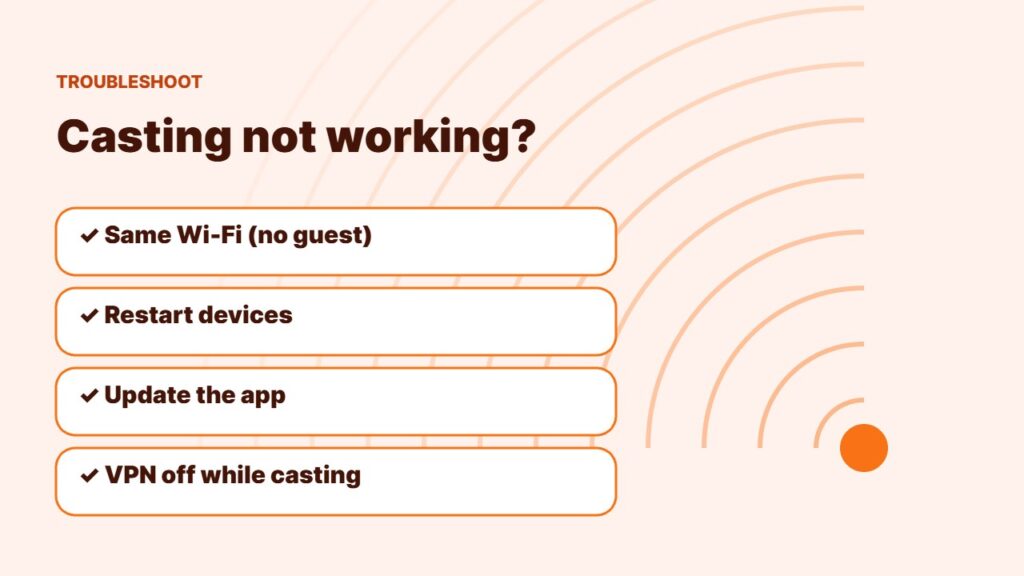
- Put the phone and TV device on the same Wi-Fi network (not a guest network).
- Restart the Chromecast / Google TV and the phone.
- Update the IPTV app — older versions may not have the cast button.
- Turn off VPN on the phone while casting; it can hide the TV from the network.
- Stream stops or freezes? Check internet speed for IPTV and fix IPTV buffering.
Better option for every day: a streaming device
Casting is great for quick viewing. For daily IPTV, a dedicated device with TiviMate or Smarters is smoother — compare the best streaming devices. Learn how the technology works: Chromecast.
Frequently asked questions
Can I cast IPTV from my phone to my TV?
Yes. Use the cast button in your IPTV app with a Chromecast or Google TV device, AirPlay on iPhone, or screen mirroring.
Why is there no cast button in my IPTV app?
Not every app supports casting, and the button only appears when a cast device is on the same Wi-Fi. Update the app or try another player.
Is casting better than screen mirroring?
Yes. Casting sends the stream to the TV directly, so quality is better and you can use your phone for other things.
Does casting IPTV use more data?
The TV device downloads the stream over Wi-Fi, so it uses your home internet, not your phone’s mobile data.
Can I cast IPTV to a Firestick?
Firesticks do not support Google Cast. Use screen mirroring, or simply install an IPTV app directly on the Firestick.
Final thoughts
To cast IPTV to TV, use the cast button in your player with a Chromecast or Google TV device, AirPlay on Apple, or screen mirroring as a backup. Keep everything on the same Wi-Fi and the big screen is one tap away.



