Out of the box, Amazon’s defaults favour ads, autoplay and data collection, not speed. These are the 10 Firestick settings to change right now for a faster, cleaner and more private Fire TV. They work on Fire TV Stick, Fire TV Stick 4K and 4K Max (menu names may vary slightly between Fire OS versions).
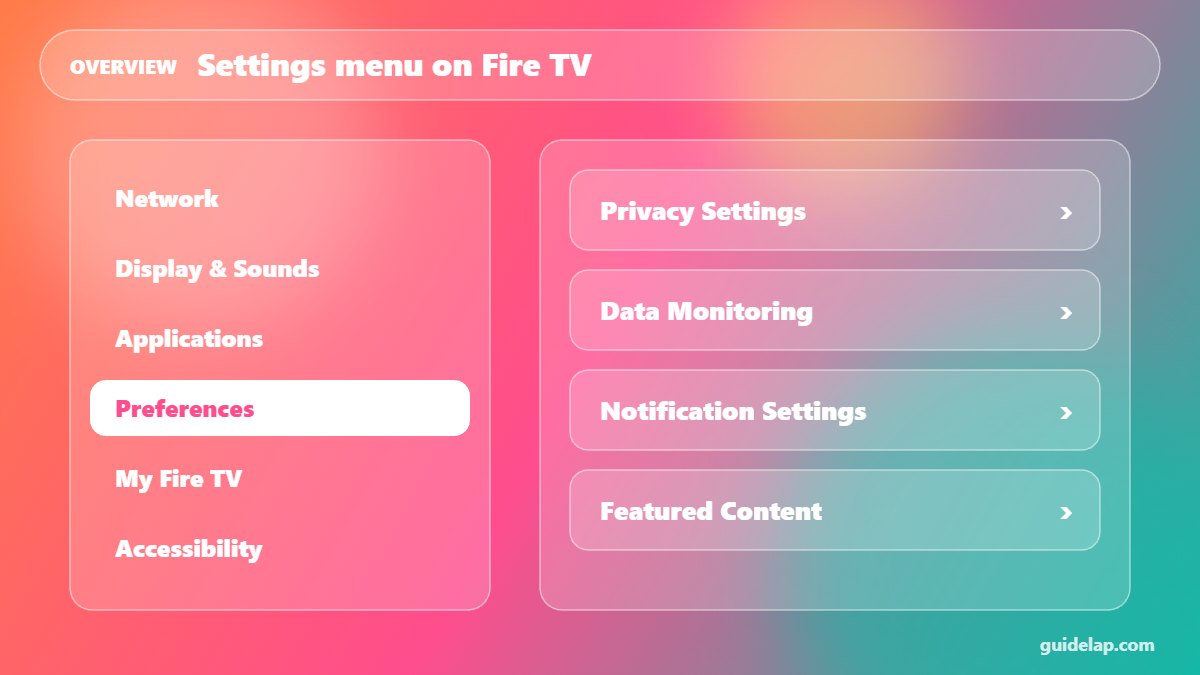
Quick list: Firestick settings to change
| # | Setting | Where to find it |
|---|---|---|
| 1 | Turn off data monitoring | Settings → Preferences → Data Monitoring → Off |
| 2 | Disable app usage data collection | Settings → Preferences → Privacy Settings → Collect App Usage Data → Off |
| 3 | Turn off Device Usage Data | Settings → Preferences → Privacy Settings → Device Usage Data → Off |
| 4 | Disable interest-based ads | Settings → Preferences → Privacy Settings → Interest-based Ads → Off |
| 5 | Stop featured video autoplay | Settings → Preferences → Featured Content → Allow Video Autoplay → Off |
| 6 | Turn off notifications you do not need | Settings → Preferences → Notification Settings → App Notifications |
| 7 | Set the right display resolution | Settings → Display & Sounds → Display → Video Resolution |
| 8 | Set Match Original Frame Rate | Settings → Display & Sounds → Display → Match Original Frame Rate |
| 9 | Enable HDMI CEC device control | Settings → Display & Sounds → HDMI CEC Device Control → On |
| 10 | Manage installed applications | Settings → Applications → Manage Installed Applications |
Privacy Firestick settings to change
1. Turn off data monitoring
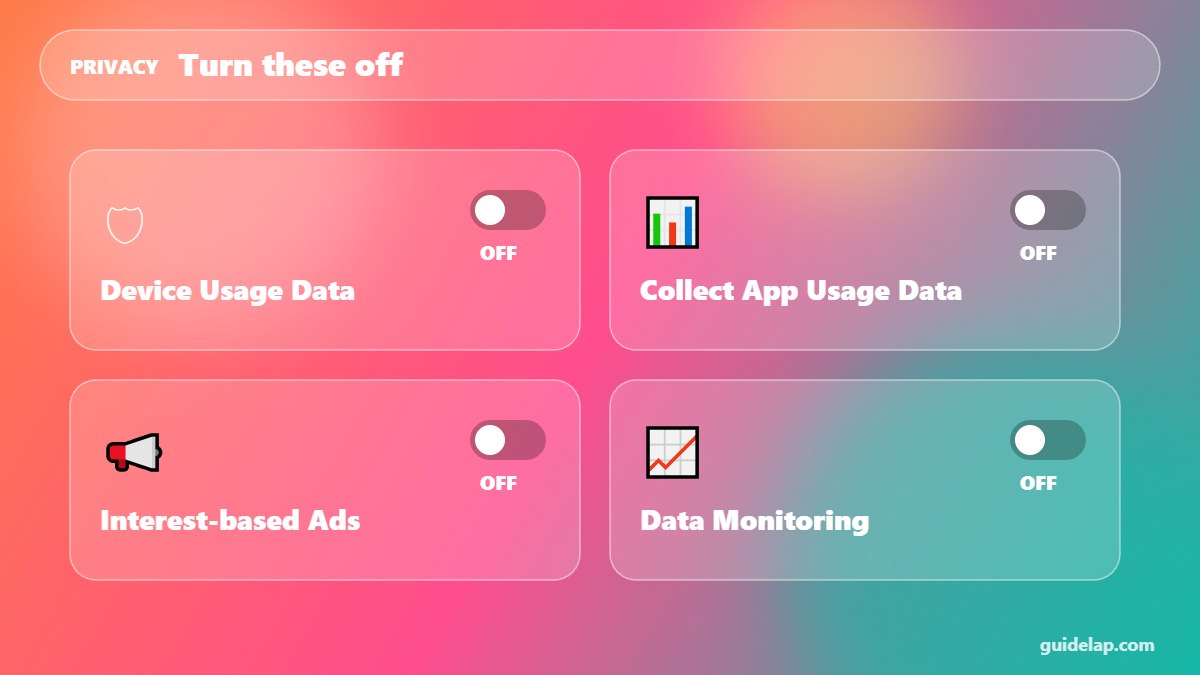
Go to Settings → Preferences → Data Monitoring → Off. Stops unnecessary background tracking of your data use.
2. Disable app usage data collection
Go to Settings → Preferences → Privacy Settings → Collect App Usage Data → Off. Better privacy and slightly less background activity.
3. Turn off Device Usage Data
Go to Settings → Preferences → Privacy Settings → Device Usage Data → Off. Amazon collects less data about how you use the device.
4. Disable interest-based ads
Go to Settings → Preferences → Privacy Settings → Interest-based Ads → Off. Ads become less personalised.
Speed and home screen settings
5. Stop featured video autoplay
Go to Settings → Preferences → Featured Content → Allow Video Autoplay → Off. The home screen is faster and uses less bandwidth.
6. Turn off notifications you do not need
Go to Settings → Preferences → Notification Settings → App Notifications. Fewer pop-ups while you watch.
Picture and sound settings
7. Set the right display resolution
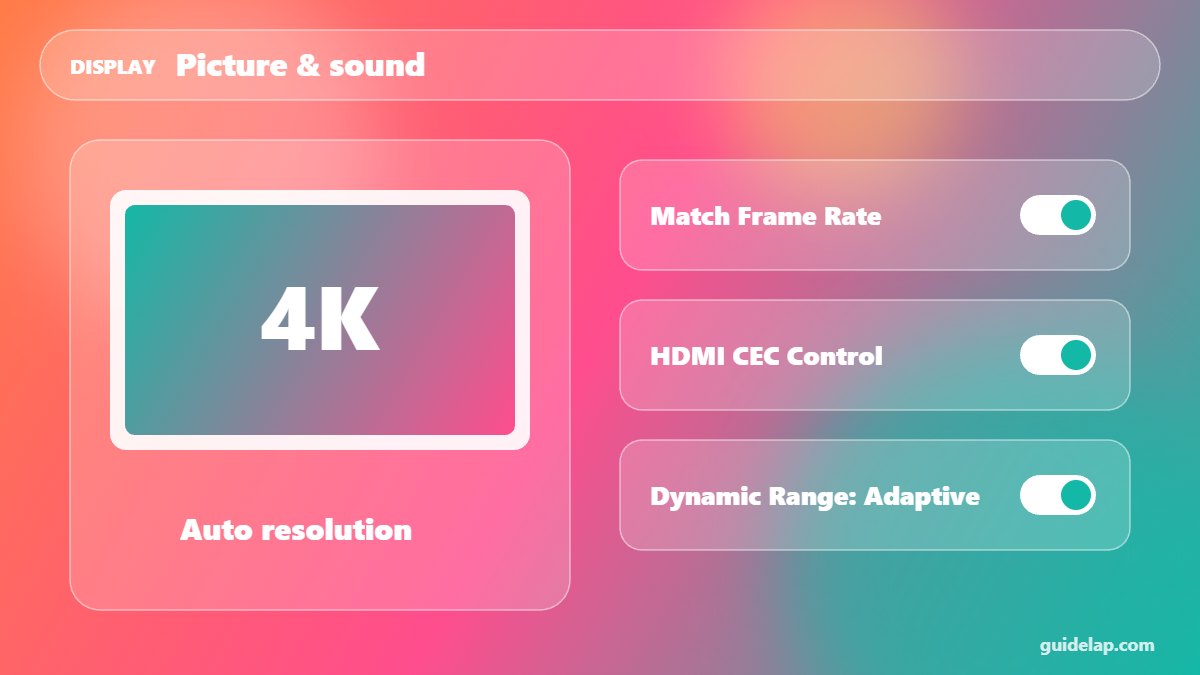
Go to Settings → Display & Sounds → Display → Video Resolution. Match your TV (4K or 1080p) for the sharpest picture.
8. Set Match Original Frame Rate
Go to Settings → Display & Sounds → Display → Match Original Frame Rate. Smoother motion in movies and sports (if your TV supports it).
9. Enable HDMI CEC device control
Go to Settings → Display & Sounds → HDMI CEC Device Control → On. Control your TV power and volume with the Firestick remote.
Storage and app settings
10. Manage installed applications
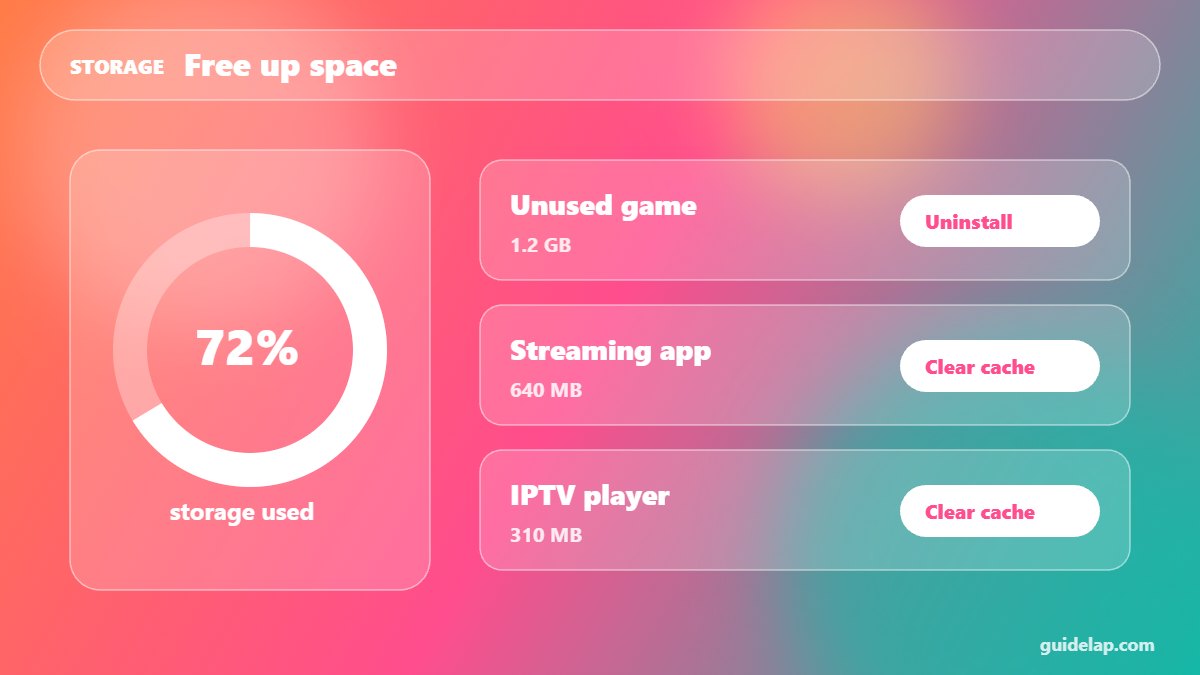
Go to Settings → Applications → Manage Installed Applications. Uninstall apps you do not use and select Clear cache on heavy apps. Full guide: how to clear cache on Firestick.
Bonus: settings for sideloading
On Fire OS devices, to install apps like IPTV Smarters you need Settings → My Fire TV → Developer Options → Install unknown apps (enable it for Downloader). See how to install Downloader on Firestick. Newer Vega OS models (such as Fire TV Stick 4K Select) do not support sideloading.
Keep your Firestick updated
Updates fix bugs and add features. Go to Settings → My Fire TV → About → Check for Updates, or follow our Firestick update guide. If your device is still slow after changing these settings, try a factory reset. For protection on public networks, see how to install a VPN on Firestick. Background on the platform is on Wikipedia’s Fire TV page.
Want a full media center? Learn how to install Kodi on Firestick.
Frequently asked questions
What Firestick settings should I change first?
Turn off data monitoring, app usage data collection, interest-based ads and featured video autoplay. These make the biggest difference to speed and privacy.
Will these settings delete my apps?
No. Changing these settings does not remove apps or accounts. Only uninstalling apps or a factory reset deletes data.
How do I make my Firestick faster?
Disable autoplay, remove unused apps, clear app cache, keep the device updated and use 5 GHz Wi-Fi or Ethernet.
Why can I not find a setting?
Menu names change between Fire OS versions. Look in Preferences or Privacy Settings, and update your Firestick.
Does turning off data collection break anything?
No. The Firestick and your apps keep working normally; Amazon simply collects less data.
Final thoughts
Changing these 10 Firestick settings takes about five minutes and makes your Fire TV faster, more private and less cluttered. Check them again after big updates, because Amazon sometimes resets defaults.