
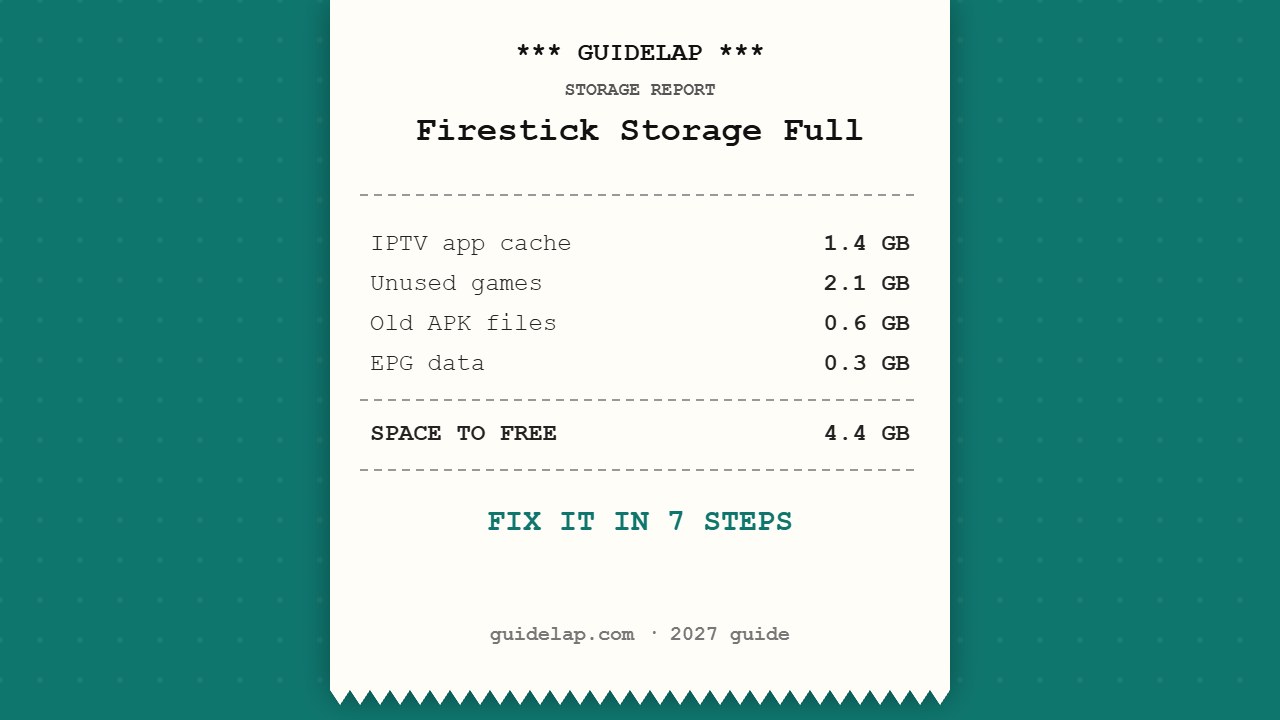
Seeing “Firestick storage full” or “low on storage” warnings? Fire TV Sticks have small internal storage, and apps, cache and updates fill it fast. When storage runs low, the Firestick gets slow, apps crash and updates fail. Here is how to check your storage and free up space in a few minutes.
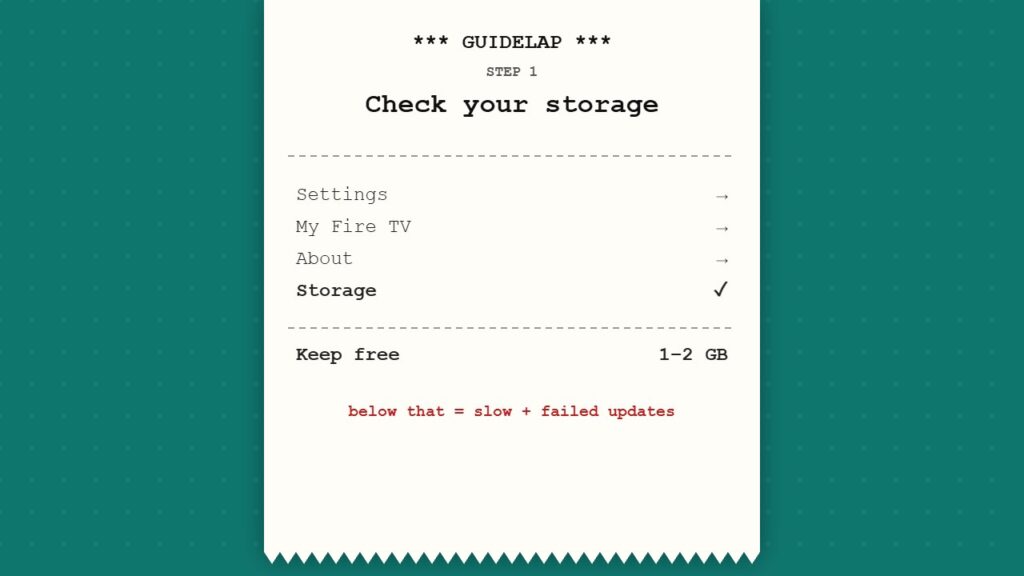
How to check Firestick storage
- Go to Settings (gear icon).
- Open My Fire TV → About → Storage.
- You will see how much internal storage is used and how much is free.
Aim to keep at least 1–2 GB free. Below that, the Firestick slows down and system updates may not install.
Why is my Firestick storage full?
- App cache: streaming and IPTV apps save temporary data that grows every day.
- Unused apps: games and apps you tried once still take space.
- Downloaded APK files: files left in the Downloader app after sideloading.
- EPG data: large TV guides in IPTV apps take space too.
How to fix Firestick storage full (7 steps)
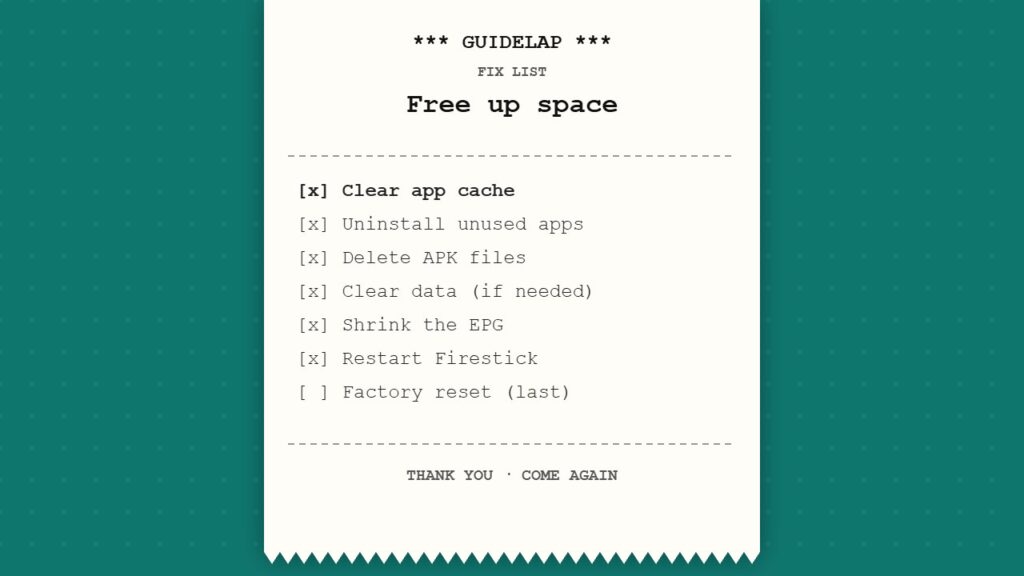
- Clear cache: Settings → Applications → Manage Installed Applications → choose an app → Clear cache. Start with the largest apps.
- Uninstall apps you don’t use: in the same menu choose Uninstall. Full guide: how to delete apps on Firestick.
- Delete APK files: open Downloader → Files, and delete old .apk files after installing.
- Clear data (only if needed): this resets an app, so you will need to log in again.
- Shrink the EPG: in TiviMate or Smarters, hide channel groups you never watch and lower the EPG days.
- Restart: Settings → My Fire TV → Restart, to free memory.
- Last resort — factory reset: it erases everything. See how to factory reset a Firestick.
Do not clear data of apps you use with a login unless you have the login details saved — you will need to enter them again.
Which Firestick has the most storage?
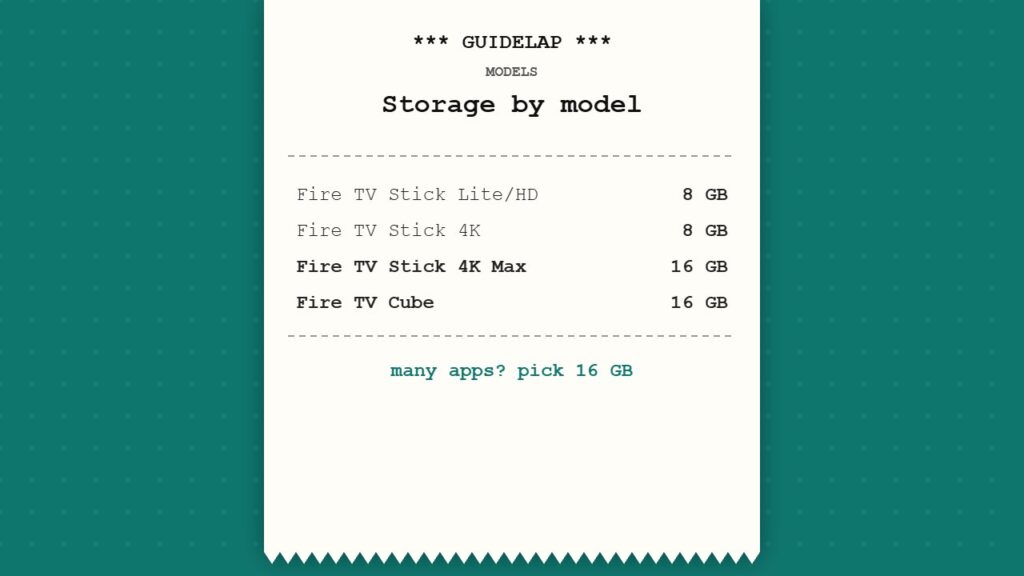
| Model | Internal storage (approx.) |
|---|---|
| Fire TV Stick Lite / HD | 8 GB |
| Fire TV Stick 4K | 8 GB |
| Fire TV Stick 4K Max | 16 GB |
| Fire TV Cube | 16 GB |
Part of this storage is used by the system, so less is free for apps. If you install many apps, the 16 GB models are a better choice — compare them in Fire TV Stick 4K Max vs Google TV Streamer. Amazon lists exact specs on its Fire TV product pages.
Keep your Firestick fast
- Clear the cache of your IPTV app once a month.
- Keep only the apps you use every week.
- Change the settings Amazon enables by default — see Firestick settings to change.
- Still slow? Follow how to speed up a slow Firestick.
IPTV buffering even with free space? Read IPTV not working and TiviMate not working.
A full stick also runs hotter — see Firestick overheating.
Frequently asked questions
How do I free up space on my Firestick?
Clear the cache of large apps, uninstall apps you do not use and delete old APK files in Downloader. These three steps usually free several hundred MB to a few GB.
Does clearing cache delete my login?
No. Clearing cache only removes temporary files. Clearing data resets the app and removes your login.
Can I add more storage to a Firestick?
Some Fire TV models support USB storage with an OTG adapter, but support is limited. Freeing space or choosing a 16 GB model is usually easier.
How much free storage should a Firestick have?
Keep at least 1–2 GB free so the Firestick stays fast and system updates can install.
Why does my Firestick say storage full after an update?
Updates need free space to download and install. Clear cache and remove unused apps, then try the update again.
Final thoughts
A Firestick storage full warning is easy to fix: check storage in Settings, clear app cache, remove apps and APK files you do not need, and keep 1–2 GB free. Your Firestick will be faster and your IPTV apps more stable.



