
Running out of space or tired of apps you never open? This guide shows how to delete apps on Firestick in three different ways, which pre-installed apps can and cannot be removed, and how to free even more storage afterwards.
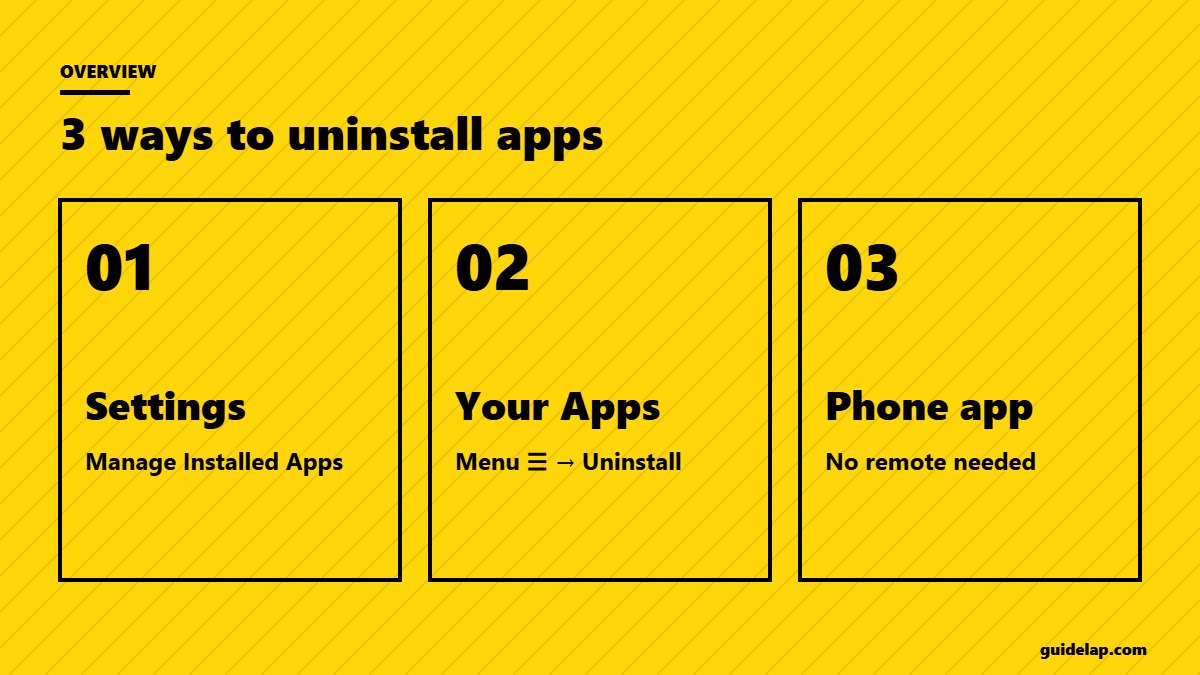
Method 1: Delete apps from Settings (recommended)
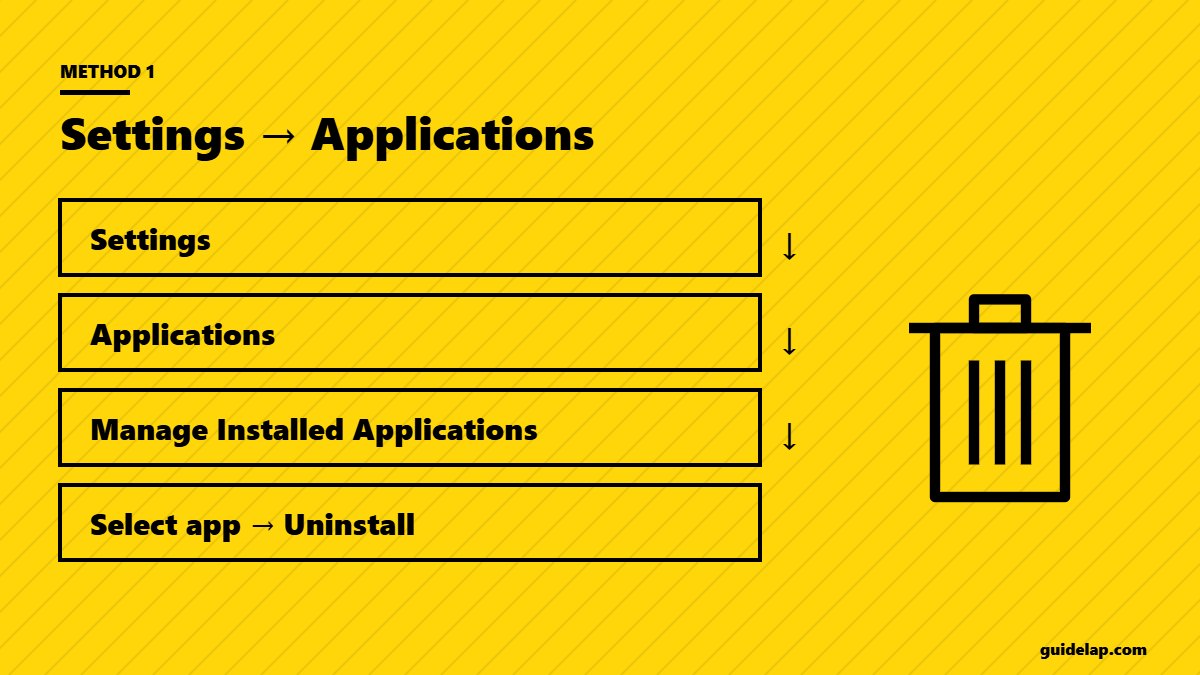
- Press Home and open Settings (gear icon).
- Select Applications.
- Select Manage Installed Applications.
- Choose the app you want to remove.
- Select Uninstall, then confirm with Uninstall again.
This screen also shows how much storage each app uses, so you can remove the biggest ones first.
Method 2: Delete apps from the Your Apps screen
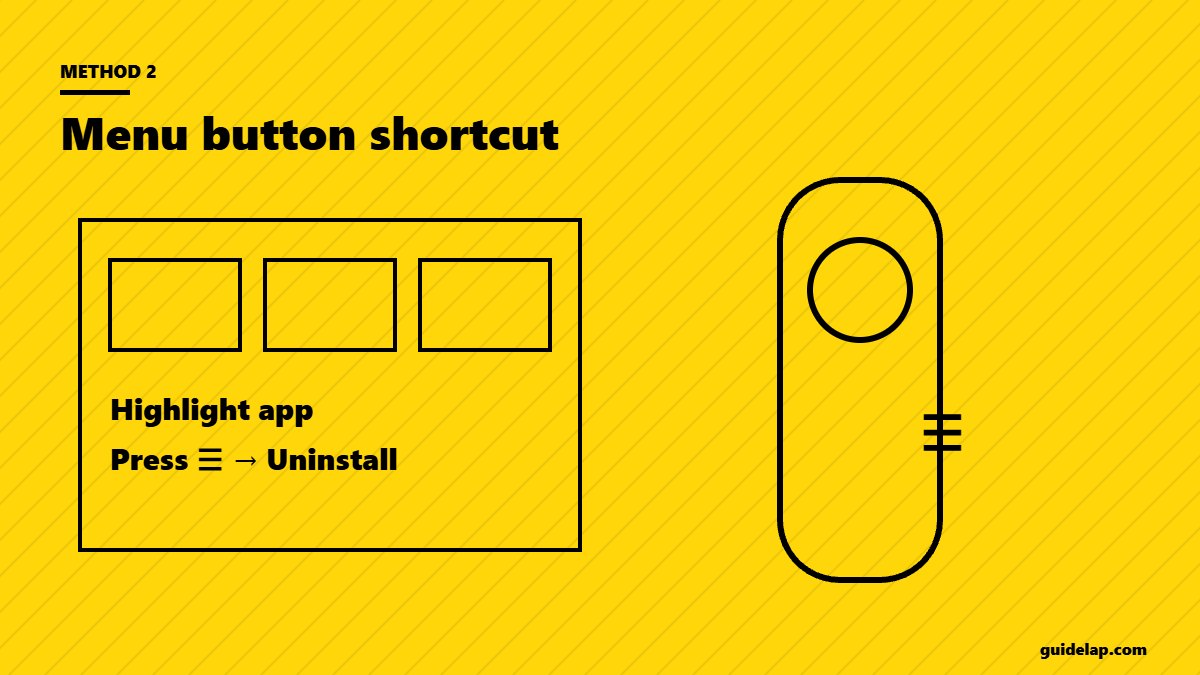
- Hold the Home button and select Apps (or open the apps row on the home screen).
- Highlight the app.
- Press the Menu (☰) button on the remote.
- Select Uninstall and confirm.
Method 3: Delete apps with the Fire TV phone app
If your remote is broken, open the free Fire TV app on your phone, connect to your Firestick and follow Method 1 using the on-screen touchpad. More options in use Firestick without remote.
Which apps can you not delete?
| App type | Can you uninstall it? |
|---|---|
| Apps you installed | ✓ Yes |
| Sideloaded apps (Downloader etc.) | ✓ Yes |
| Netflix, Prime Video and other pre-installed partner apps | Often only “Clear data” or disable — depends on model |
| System apps (Settings, Appstore, Silk on some models) | ✗ No |
If Uninstall is greyed out, the app is part of the system. You can still clear its cache and data to free space.
Free more storage after deleting apps
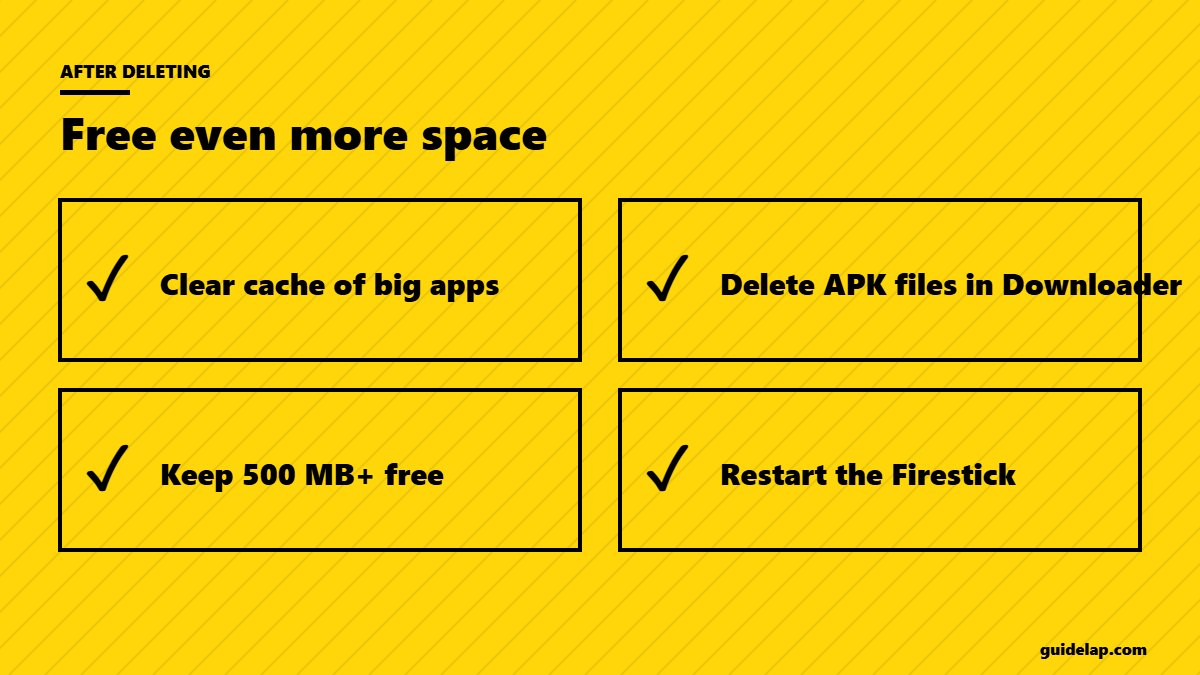
- Clear cache of large apps — see clear cache on Firestick.
- Delete downloaded APK files inside Downloader (Files tab).
- Keep at least 500 MB free for smooth performance.
- Still slow? Follow how to speed up a slow Firestick.
Want to reinstall later? Apps from the Appstore stay in your Amazon library — find them in Apps → Your Library. Kids at home? Lock app installs with Firestick parental controls. Need good replacements? Try the free streaming apps for Firestick. Amazon’s overview of the platform is on Wikipedia.
Delete apps on Firestick vs clear data: what is the difference?
Uninstall removes the app and all its files from the Firestick. Clear data keeps the app installed but resets it, signing you out and deleting its settings. Clear cache only removes temporary files and keeps your login. If an app misbehaves, try Clear cache first, then Clear data, and only delete apps on Firestick when you really do not need them anymore.
Tip: before you uninstall an IPTV or streaming app, write down your login details or playlist URL, so you can set it up again quickly if you reinstall it later.
Still low on space? Read Firestick storage full.
Frequently asked questions
How do I delete apps on Firestick?
Go to Settings → Applications → Manage Installed Applications, select the app and choose Uninstall twice.
Why can’t I uninstall some apps on Firestick?
System apps and some pre-installed partner apps cannot be removed. You can clear their cache and data instead.
Does deleting an app delete my account?
No. It only removes the app from the Firestick. Your account and subscription stay the same.
How do I reinstall a deleted app?
Search for it in Find or open Apps → Your Library to install it again.
How much free space should a Firestick have?
At least 500 MB, ideally 1 GB or more for smooth performance.
Final thoughts
Now you know how to delete apps on Firestick: Settings → Applications → Manage Installed Applications → Uninstall. Remove what you do not use, clear the cache of the rest, and your Fire TV will have more space and run faster.



