
IPTV playlists can include thousands of channels and movies — not all of them suitable for children. IPTV parental controls let you hide or lock adult groups, set a PIN, and keep your kids’ TV time safe. Here is how to do it in the most popular apps and on your device.
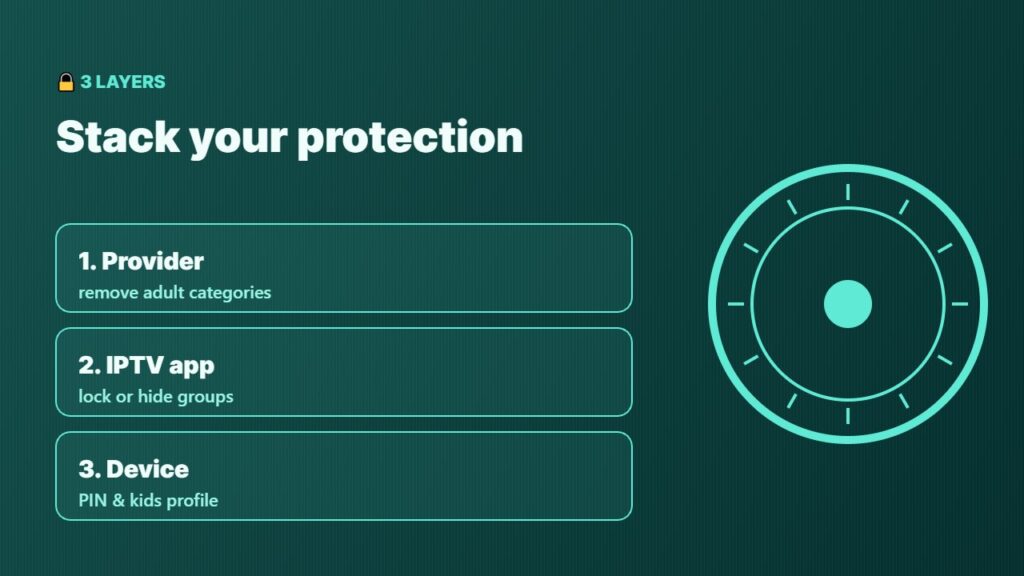
3 layers of IPTV parental controls
| Layer | What it does | Where |
|---|---|---|
| 1. Provider | Remove adult categories from your playlist | Ask your provider or use their panel |
| 2. IPTV app | Lock or hide groups with a PIN | TiviMate, IPTV Smarters, OTT Navigator |
| 3. Device | PIN for purchases and apps | Firestick, Google TV, smart TV settings |
Using all three layers is the safest option. No single setting is perfect, so also talk with your children about what they watch.
IPTV Smarters parental control
- Open IPTV Smarters and go to Settings.
- Select Parental Control and create a password.
- Choose the Live TV, Movies and Series categories you want to lock.
- Save. Locked categories now need the password to open.
TiviMate parental control
- Open TiviMate → Settings → Parental control.
- Set a PIN code.
- Choose which groups or channels to lock, or hide groups completely in the group settings.
- Some options may require TiviMate Premium depending on your version.
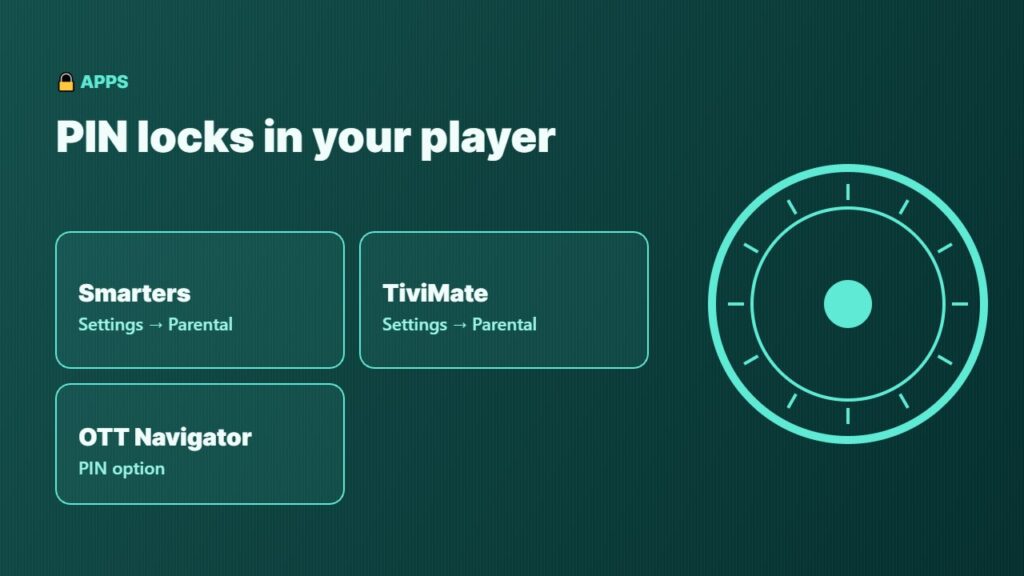
OTT Navigator and other players
Most modern players, including OTT Navigator, have a parental control or PIN option in their settings. Hiding groups you never use also makes the TV guide faster — see OTT Navigator setup.
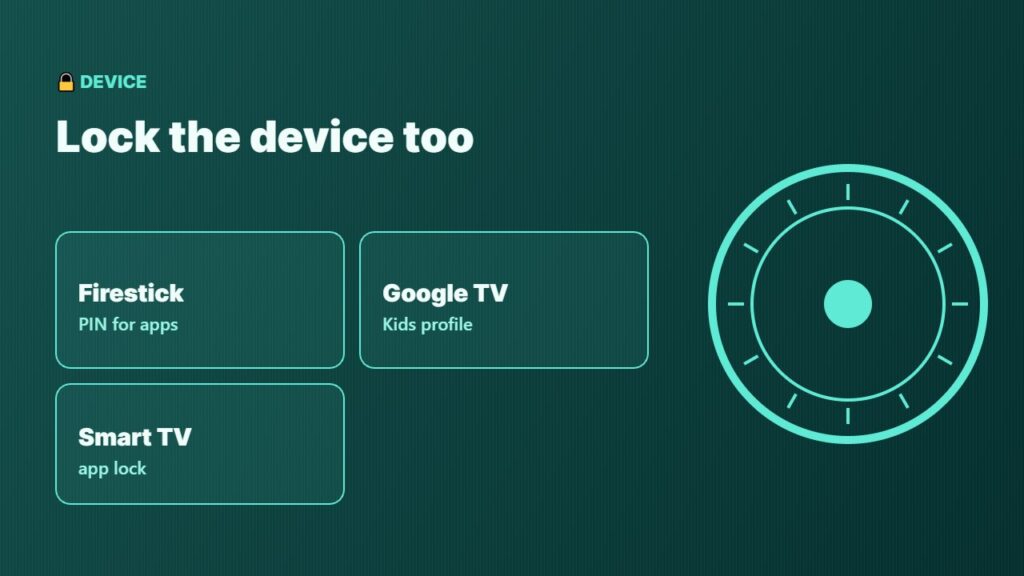
Lock the device too
- Firestick: turn on a PIN for purchases and app launches — full guide: Firestick parental controls.
- Google TV: create a Kids profile so children only see apps you approve.
- Smart TVs: Samsung and LG have app lock / PIN options in the general settings.
Ask your provider to remove adult content
Many providers can deliver a family playlist without adult categories, or let you choose bouquets in their customer panel. It is one of the questions in our IPTV provider checklist. Also use a separate profile or playlist for kids if you share the account on multiple devices.
Tips for a family-safe IPTV setup
- Use a PIN your children do not know — not a birthday.
- Hide groups instead of only locking them, so they do not even appear.
- Re-check locks after app updates or a new playlist.
- Keep the app updated — see how to update Firestick apps.
- Learn more about parental controls in general.
Remember that IPTV parental controls are only as strong as the PIN. Change it from time to time, and check the settings on every device in the house.
Frequently asked questions
How do I block adult channels on IPTV?
Use the parental control in your IPTV app to lock or hide adult groups with a PIN, and ask your provider to remove adult categories from your playlist.
Does IPTV Smarters have parental controls?
Yes. In Settings → Parental Control you can set a password and lock Live TV, Movies and Series categories.
Does TiviMate have parental controls?
Yes. TiviMate lets you set a PIN and lock or hide groups and channels. Some options depend on your app version or Premium.
Can I set a PIN on my Firestick?
Yes. Firestick parental controls let you set a PIN for purchases, app launches and certain content.
Is hiding groups better than locking them?
Hiding removes the groups from view completely, so children do not see them at all. Locking still shows them but asks for a PIN.
Final thoughts
Good IPTV parental controls use three layers: a family-friendly playlist from your provider, PIN locks in your IPTV app, and device controls on your Firestick or TV. Set them up once and your family can enjoy IPTV safely.



