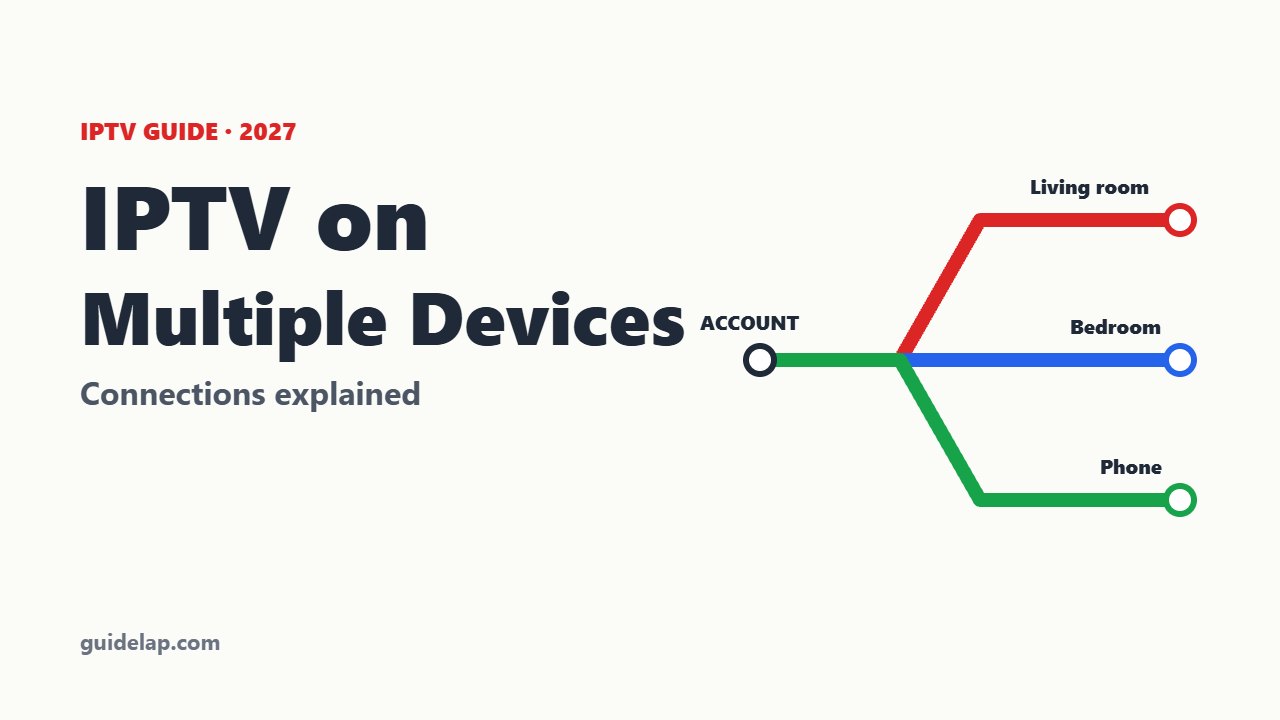
Want IPTV in the living room, the bedroom and on your phone? Using IPTV on multiple devices is easy once you understand “connections”: how many screens can watch at the same time on one subscription. This guide explains connections, how to set up the same account on several devices, and how to avoid the dreaded “max connections reached” error.
What are IPTV connections?
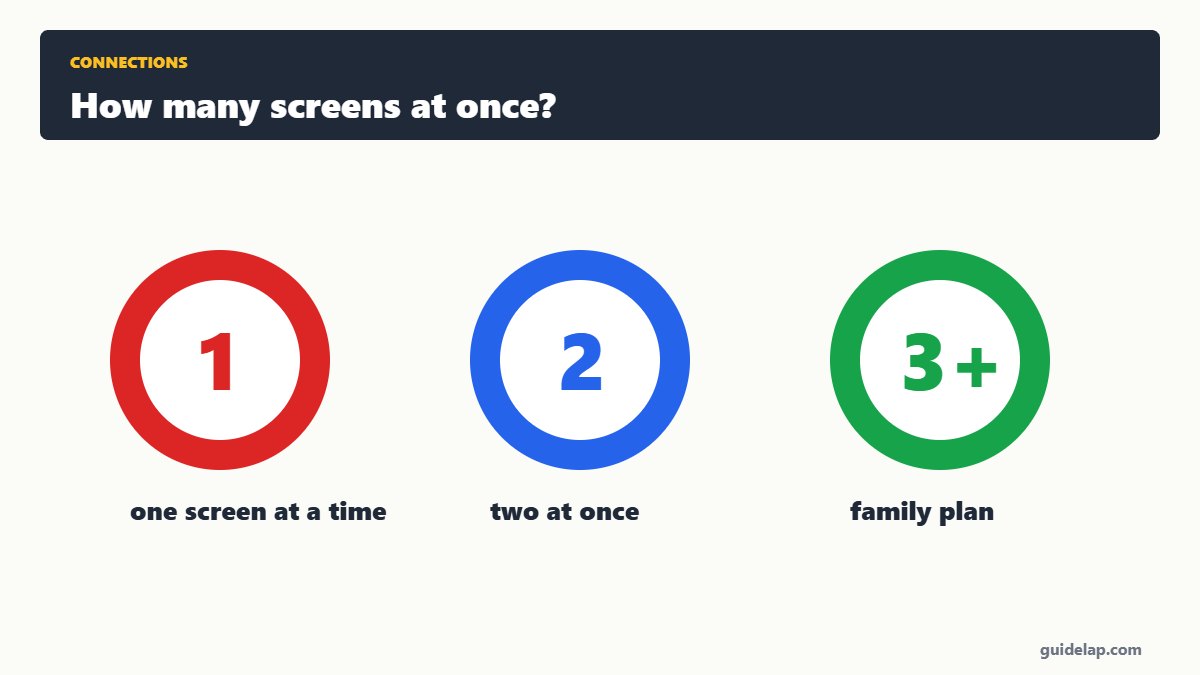
A connection is one stream playing at a time. A 1-connection plan lets you install the app on many devices, but only one can watch at once. A 2- or 3-connection plan lets two or three devices watch at the same time.
| Plan | Devices installed | Watching at the same time |
|---|---|---|
| 1 connection | Unlimited (usually) | 1 |
| 2 connections | Unlimited (usually) | 2 |
| 3+ connections | Unlimited (usually) | 3+ |
Rules differ by provider — some limit the number of devices, MAC addresses or IP addresses. Always check your provider’s terms, and stay within your plan.
How to use IPTV on multiple devices
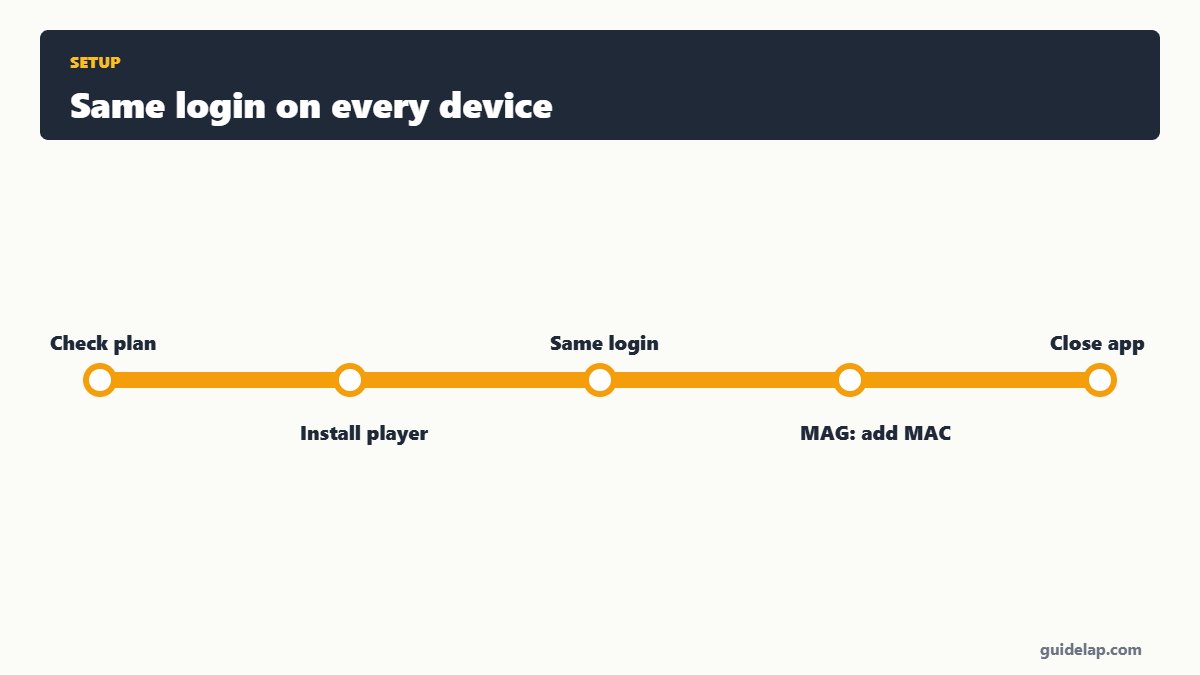
- Check how many connections your plan includes.
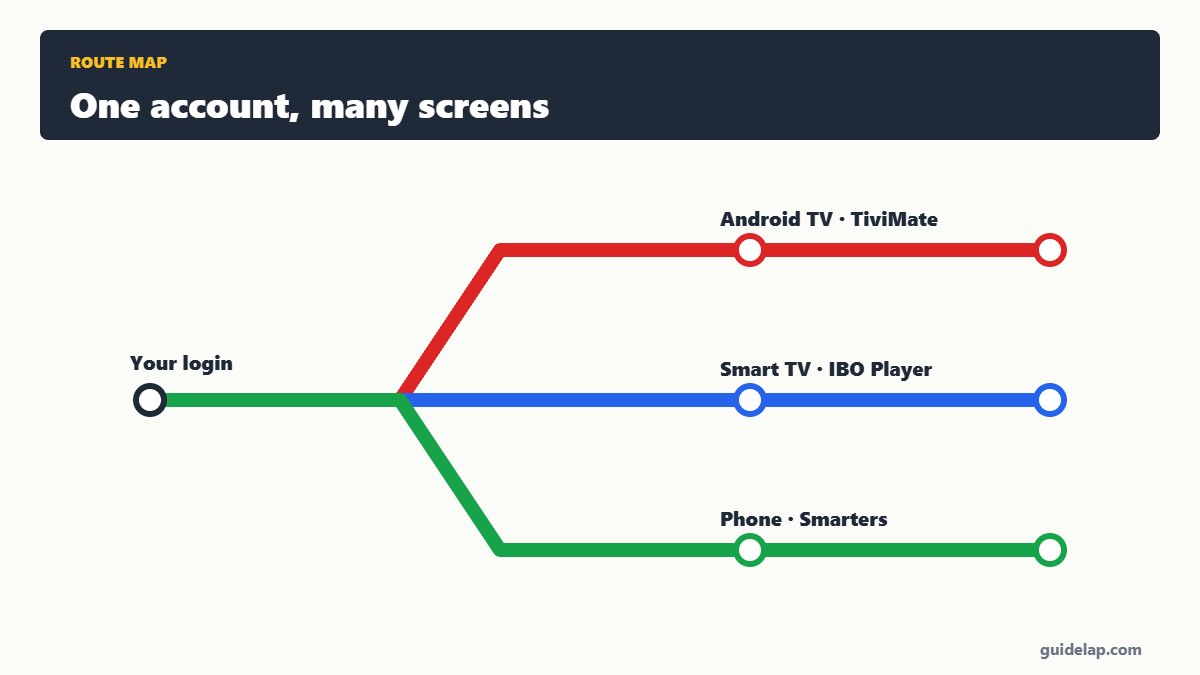
- Install a player on each device — for example TiviMate on Android TV, IBO Player Pro on a smart TV and IPTV Smarters on your phone.
- Enter the same login (Xtream Codes or M3U) on every device.
- For MAG boxes or MAC-based apps, each device has its own MAC — ask your provider to add it. See MAG box IPTV setup.
- Close the app (do not just press Home) when you stop watching, so the connection is released.
Fix “max connections reached”
- Close the IPTV app on every other device — on Firestick use Settings → Applications → app → Force stop.
- Wait 1–2 minutes for the server to release the connection.
- Check that no one else is using your login.
- Upgrade to a plan with more connections if your family watches at the same time.
Plan your home network
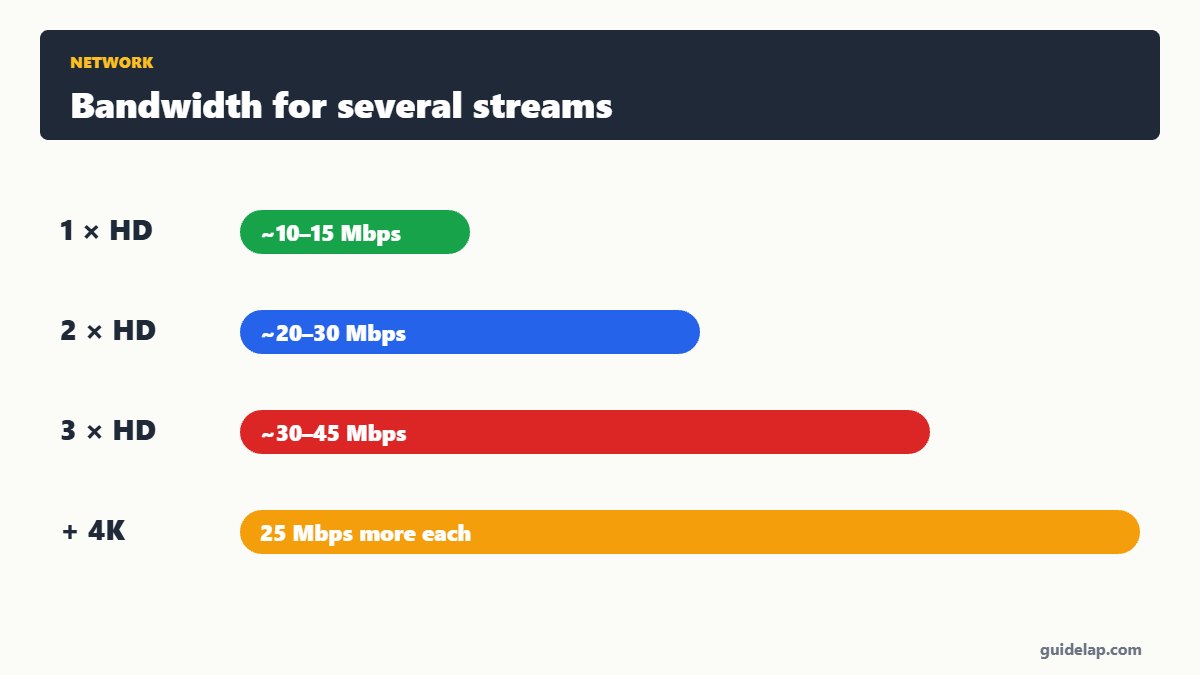
Two or three HD streams need about 30–50 Mbps; 4K needs much more. Use Ethernet for the main TV and a mesh router for other rooms — see internet speed for IPTV and the best router for streaming.
Choosing a plan? Our IPTV provider checklist covers connections, and you can test with an IPTV free trial. App problems on one device? See IPTV not working. For background, see IPTV on Wikipedia.
Kids watching in their room? Set up IPTV parental controls.
Consoles count as devices too — see IPTV on Xbox.
Frequently asked questions
Can I use IPTV on multiple devices?
Yes. You can usually install your subscription on several devices, but the number watching at the same time depends on how many connections your plan includes.
What does “max connections reached” mean?
Your account is already streaming on the maximum number of devices. Close the app on the other devices or upgrade your plan.
How many IPTV connections do I need?
One per screen that watches at the same time — for example 2 connections for a living room TV plus a bedroom TV.
Do I need a new login for each device?
Not for Xtream Codes or M3U — use the same login. MAG boxes and MAC-based apps need each device’s MAC added by the provider.
How much internet speed do I need for 3 IPTV streams?
About 30–45 Mbps for three Full HD streams, and more for 4K.
Final thoughts
Using IPTV on multiple devices is simple: install a player on each screen, use the same login, and choose a plan with enough connections for the people watching at once. Close apps properly and plan your Wi-Fi, and every room gets a smooth picture.