
Want to watch IPTV on your laptop or desktop? Good news: you can install IPTV Smarters Pro for PC and Mac without an Android emulator. In this guide you will find the safest way to install it on Windows, the right app for Apple Silicon Macs, and simple alternatives if your computer is not supported.
IPTV Smarters Pro is a media player only. It does not include channels. Use it with an IPTV service that is licensed to distribute its content.
Which version do you need?
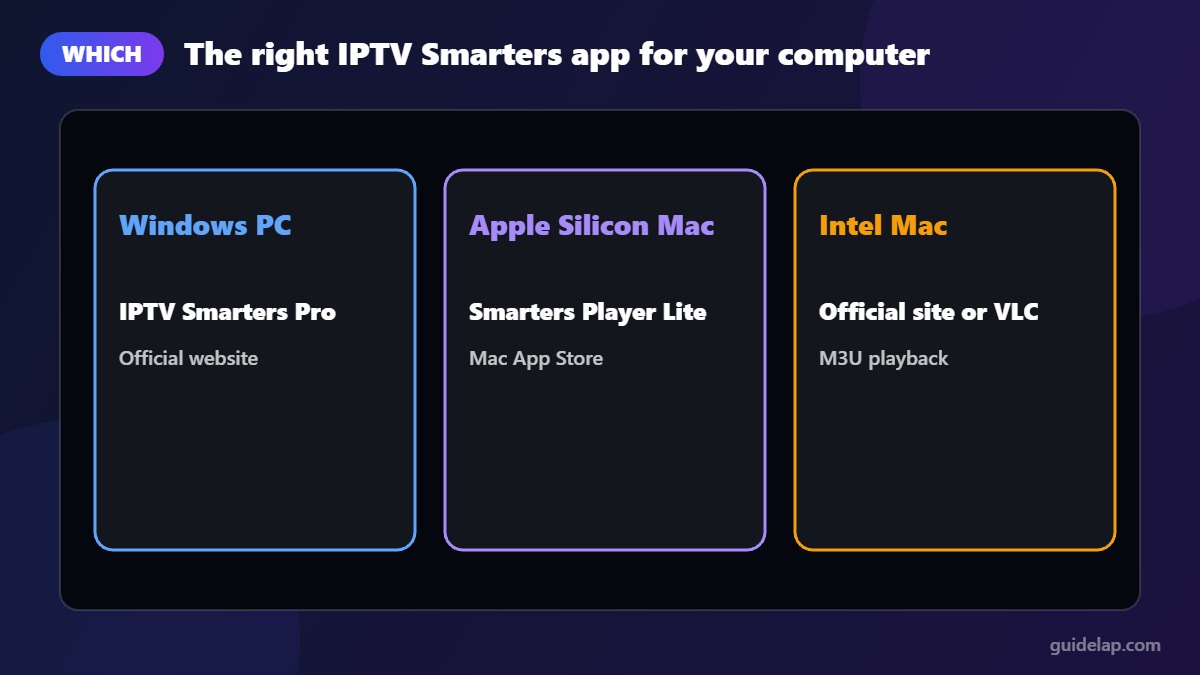
| Computer | Recommended app | Where to get it |
|---|---|---|
| Windows 10 / 11 PC | IPTV Smarters Pro (desktop) | Official IPTV Smarters website |
| Mac with Apple Silicon (M1 or later) | Smarters Player Lite | Mac App Store |
| Older Intel Mac | Check the official website, or use VLC with an M3U link | iptvsmarters.com / videolan.org |
How to install IPTV Smarters Pro for PC (Windows)
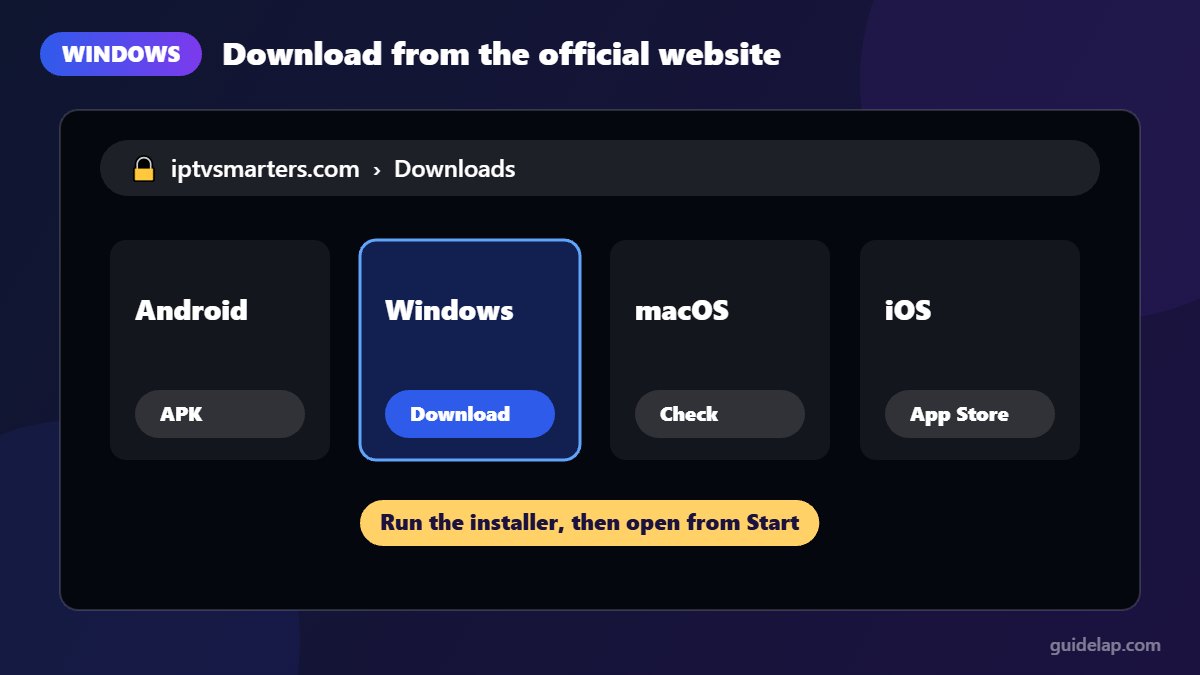
- Open your browser and go to the official website:
iptvsmarters.com. - Find the Downloads section and choose the Windows version.
- Run the downloaded installer and follow the on-screen steps.
- Open IPTV Smarters Pro from the Start menu.
- Log in with Xtream Codes or an M3U playlist (see below).
That is all you need to run IPTV Smarters Pro for PC. You may also find IPTV Smarters-style apps in the Microsoft Store. If you install from a store, check the developer and the reviews carefully, because copycat apps with similar names exist.
Windows SmartScreen may show a warning for desktop installers downloaded from the web. Only continue if the file came from the official IPTV Smarters website.
How to install IPTV Smarters on Mac
Apple Silicon Macs (M1, M2, M3 and later)
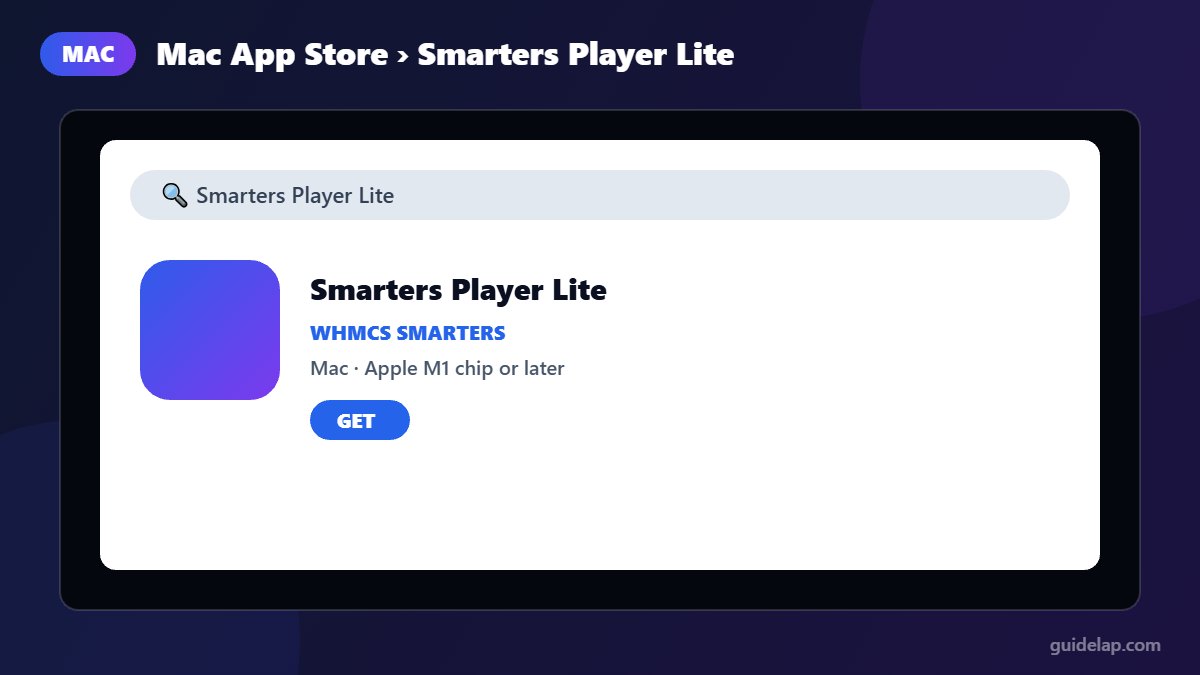
The official Apple version of IPTV Smarters is called Smarters Player Lite, published by WHMCS SMARTERS. Its App Store listing includes Mac support for computers with an Apple M1 chip or later.
- Open the App Store on your Mac.
- Search for Smarters Player Lite.
- Check that the developer is WHMCS SMARTERS and click Get.
- Open the app from Launchpad and log in.
It is the same app used on iPhone and Apple TV; see our iPhone & Apple TV guide.
Intel Macs
Check the downloads section of the official IPTV Smarters website for a macOS version that supports your Mac. If none is available, the simplest alternative is VLC (below).
How to log in to IPTV Smarters Pro for PC or Mac
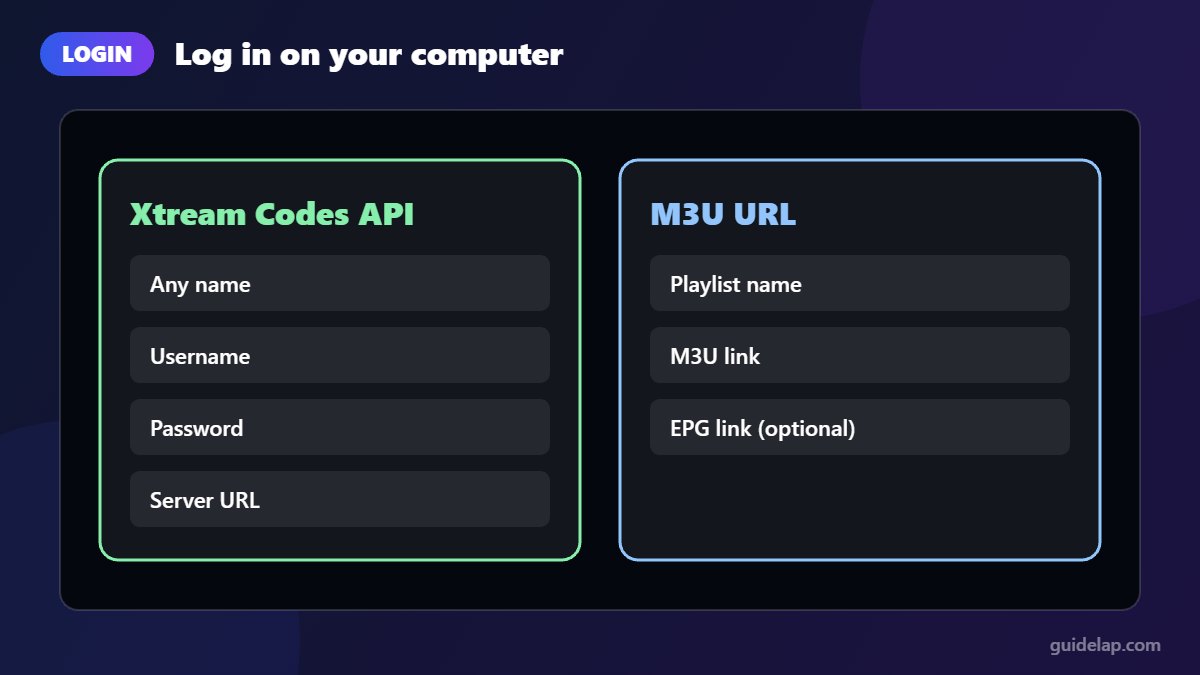
- Xtream Codes API (recommended): enter any name, your username, password and the server URL from your provider.
- M3U URL: paste the playlist link from your provider and add the EPG link if you have one.
Not sure which to choose? Read M3U vs Xtream Codes, and set up the TV guide with our EPG tutorial.
Alternative: watch IPTV with VLC
If you only have an M3U link, the free VLC media player works on Windows, Mac and Linux:
- Install VLC from the official VideoLAN website.
- Open VLC and choose Media → Open Network Stream (on Mac: File → Open Network).
- Paste your M3U link and click Play.
- Open the playlist view to browse channels.
VLC has no TV guide or movie sections, so a dedicated IPTV player is more comfortable for daily use.
Should you use an Android emulator?
Some people run IPTV Smarters Pro for PC through an Android emulator. Emulators such as BlueStacks can run Android IPTV apps on a computer, but they use a lot of memory and CPU and add another layer that can cause playback problems. Use the native desktop or Mac App Store version whenever possible.
Tips for using IPTV Smarters Pro for PC smoothly
- Use an Ethernet cable or 5 GHz Wi-Fi.
- Close heavy programs (games, large downloads) while streaming.
- Keep your graphics drivers and operating system updated.
- Still buffering? See our 12 buffering fixes.
Just want a quick test on PC? Try IPTV on VLC.
Playing on an Xbox instead? See IPTV on Xbox.
Frequently asked questions
Is IPTV Smarters Pro available for Windows?
Yes. A desktop version for Windows is offered on the official IPTV Smarters website. Download it only from the official site.
Is IPTV Smarters available on Mac?
On Macs with Apple Silicon (M1 or later), you can install Smarters Player Lite by WHMCS SMARTERS from the Mac App Store. For Intel Macs, check the official website or use VLC.
Is IPTV Smarters Pro free on PC?
Yes, the app is free. You only pay your IPTV provider for the subscription.
Do I need BlueStacks for IPTV Smarters on PC?
No. A native desktop version exists, which is lighter and more reliable than an emulator.
Can I use the same subscription on my PC and Firestick?
Usually yes, but check how many simultaneous connections your provider allows.
Final thoughts
Installing IPTV Smarters Pro for PC is easy: download the Windows version from the official website, or get Smarters Player Lite from the Mac App Store on an Apple Silicon Mac. For quick M3U viewing, VLC is a solid free backup.



