
Your Firestick shows “Unable to connect” or keeps dropping the network? A Firestick not connecting to WiFi is one of the most common Fire TV problems, and it is usually fixed in minutes. Follow these 10 fixes in order — from the quickest to the most advanced.
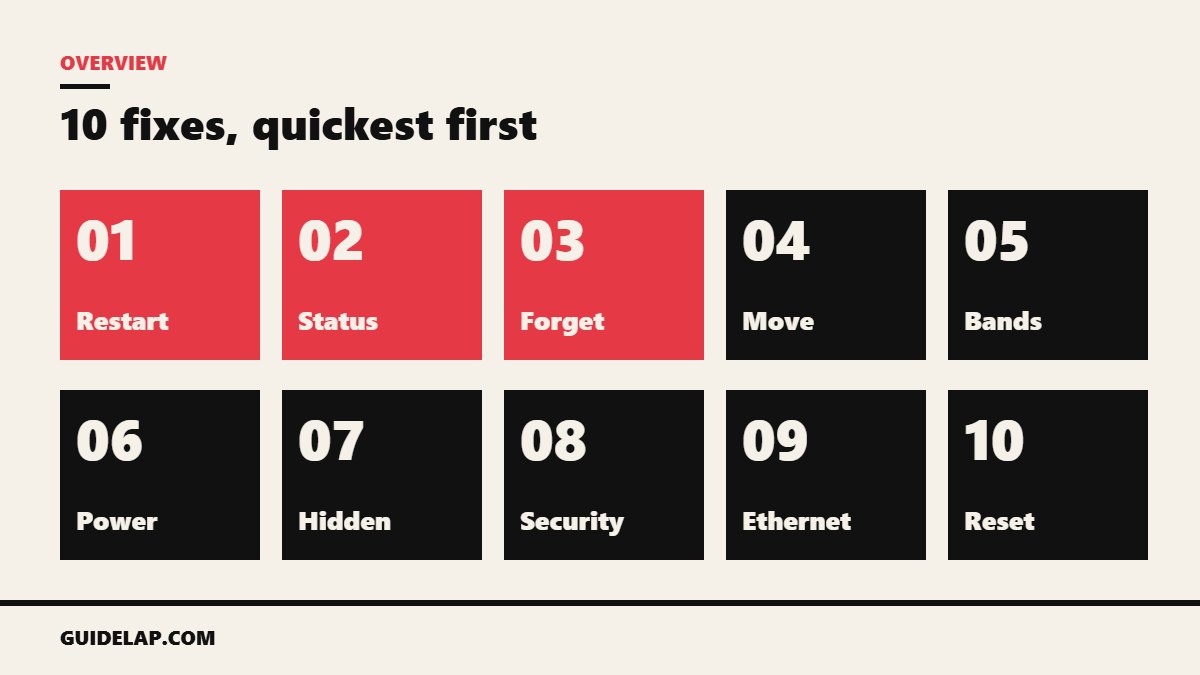
Quick checklist
| Fix | Time |
|---|---|
| Restart router and Firestick | 2 min |
| Check network status | 1 min |
| Forget and re-join the network | 2 min |
| Move the stick / use an HDMI extender | 2 min |
| Separate 2.4 GHz and 5 GHz | 5 min |
| Use the official power adapter | 1 min |
| Join a hidden network manually | 3 min |
| Change router security or channel | 5 min |
| Use an Ethernet adapter | 5 min |
| Update or factory reset | 10+ min |
Fixes for Firestick not connecting to WiFi
1. Restart the router and the Firestick
Unplug the router for 30 seconds, plug it back in and wait until the internet light is stable. Then restart the Firestick: Settings → My Fire TV → Restart, or unplug its power cable for 30 seconds.
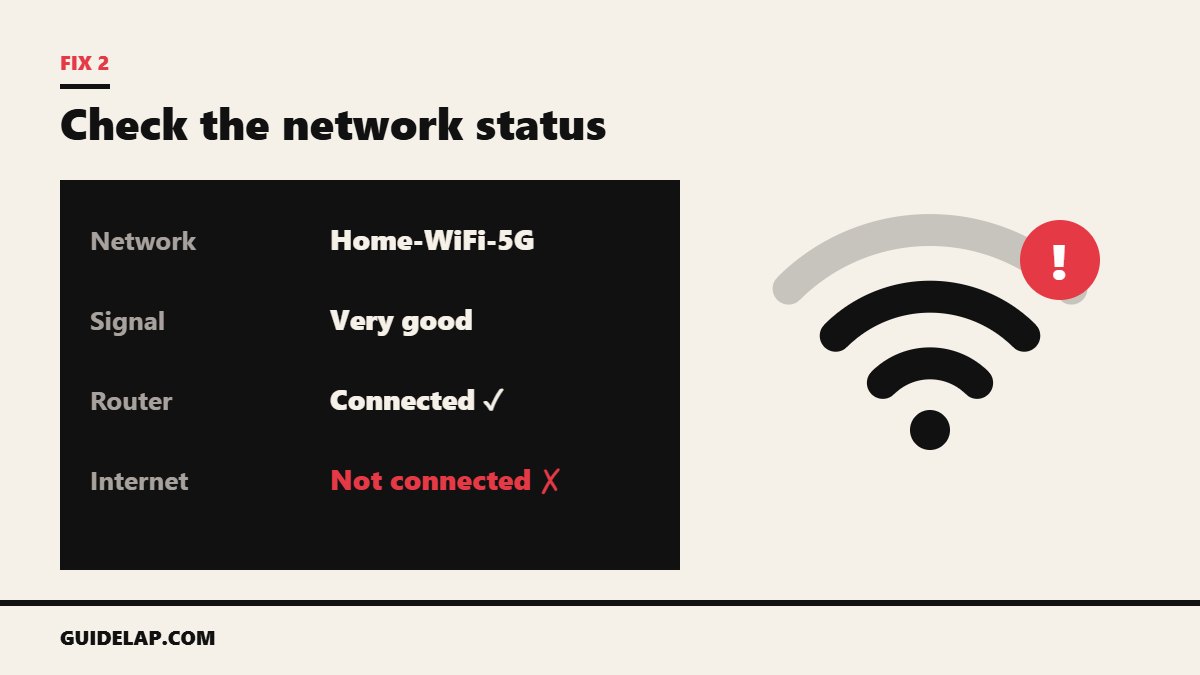
2. Check the network status
Go to Settings → Network, highlight your network and press Play/Pause on the remote. Fire TV shows whether it is connected to the router and to the internet, which tells you if the problem is the Firestick or your internet line.
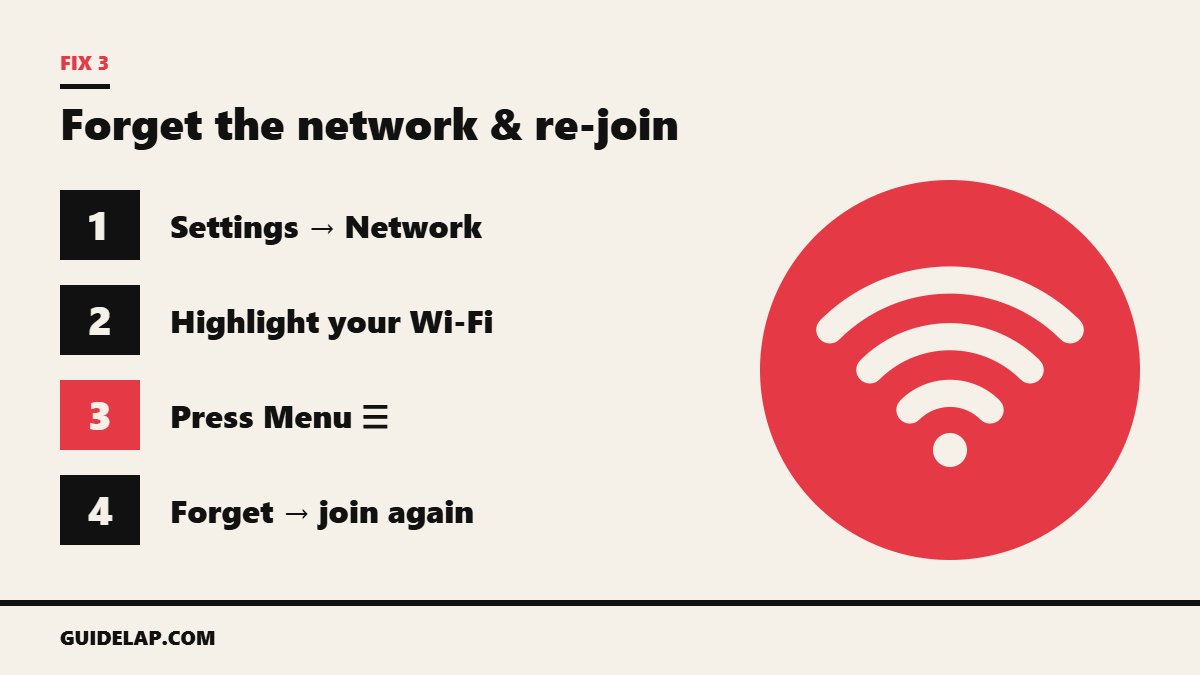
3. Forget the network and join again
- Go to Settings → Network.
- Highlight your Wi-Fi and press the Menu (☰) button.
- Select Forget and confirm.
- Select the network again and type the Wi-Fi password (not your Amazon password).
4. Move the Firestick away from the TV
A stick hidden behind the TV or inside a cabinet gets a weak signal. Use the HDMI extender that came in the box, or move the router closer.
5. Separate the 2.4 GHz and 5 GHz networks
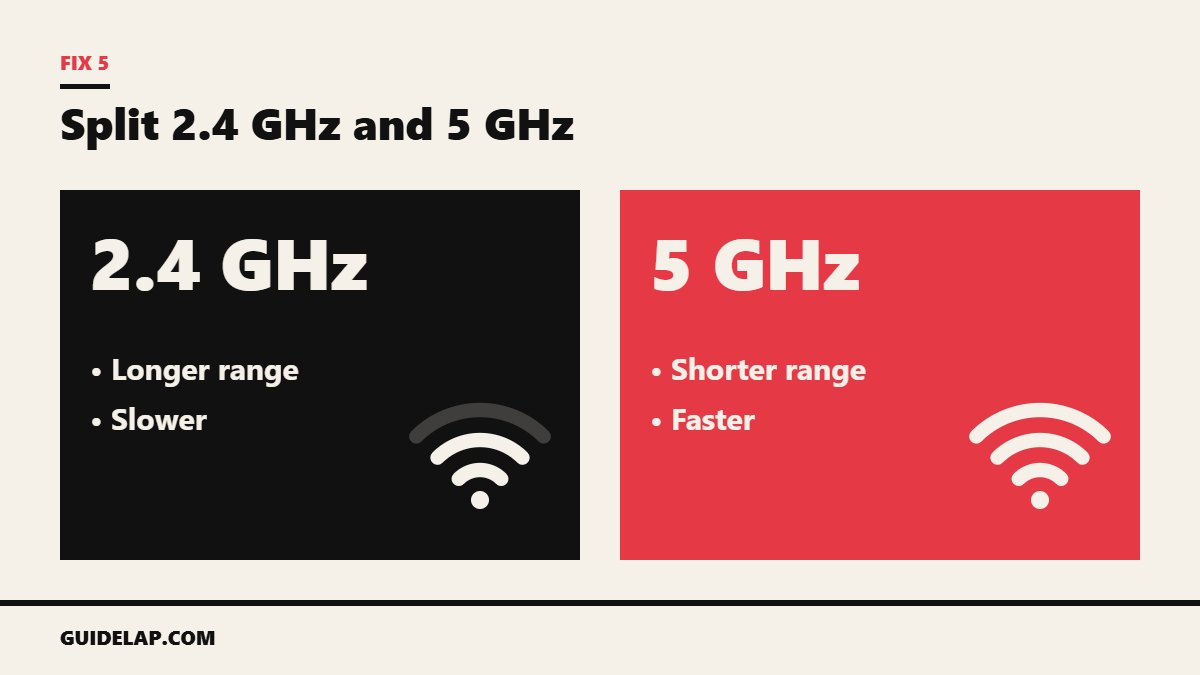
Some routers combine both bands under one name (“Smart Connect” / band steering), which can confuse the Firestick. In the router settings give the bands different names, then connect the Firestick to the 5 GHz network if it is close, or 2.4 GHz if it is far.
6. Use the official power adapter
Powering the Firestick from the TV’s USB port can cause random disconnects. Use the Amazon adapter plugged into a wall socket.
7. Join a hidden network manually
If your network name is hidden, go to Settings → Network → Join Other Network, type the exact network name, choose the security type and enter the password.
8. Change router security or Wi-Fi channel
Use WPA2 or WPA2/WPA3 instead of the old WEP. If many neighbours use the same channel, set the router to a less crowded one. TP-Link’s Fire TV connection FAQ shows these router settings.
9. Use an Ethernet adapter
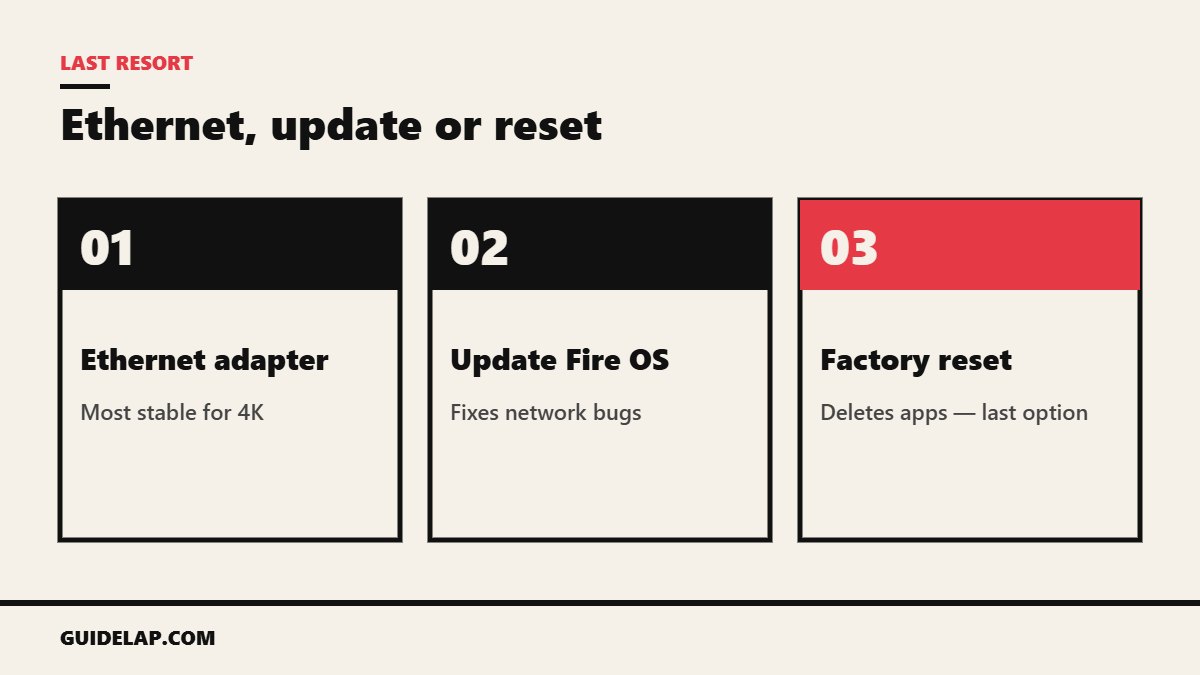
An Amazon Ethernet adapter gives the most stable connection for 4K and live sports. See internet speed for IPTV for how much speed you need.
10. Update or factory reset
Once connected, update your Firestick. If nothing works, a factory reset clears corrupted network settings — it deletes your apps, so use it last.
Remote stopped working too? The Fire TV phone app needs Wi-Fi, but the physical remote does not. Hold Home for 10 seconds to re-pair it — full steps in Firestick remote not working.
Related guides
- Connected but still buffering? Try our IPTV buffering fixes and these Firestick settings to change.
- Lost the remote after changing Wi-Fi? See use Firestick without remote (hotspot trick).
- Router too old? See the best router for streaming.
- Want a faster or more private DNS? See how to change DNS on Firestick.
- Tired of Wi-Fi problems? Switch to a cable: Firestick Ethernet guide.
Frequently asked questions
Why is my Firestick not connecting to WiFi?
The most common causes are a router glitch, a wrong password, a weak signal behind the TV, combined 2.4/5 GHz bands or an old security type like WEP.
How do I reset the Wi-Fi on my Firestick?
Go to Settings → Network, highlight your network, press the Menu button and choose Forget, then join it again.
Why does my Firestick say connected but no internet?
The Firestick reaches the router but the router has no internet. Restart the router and check if other devices work.
Can I use a Firestick without Wi-Fi?
Yes, with an Ethernet adapter. A Firestick needs an internet connection to stream.
Should I connect my Firestick to 2.4 GHz or 5 GHz?
Use 5 GHz for speed when the router is close, and 2.4 GHz when the router is far away or behind walls.
Final thoughts
Most cases of a Firestick not connecting to WiFi are fixed by restarting the router, forgetting and re-joining the network, and improving the signal with the HDMI extender. Work through the fixes in order and keep a factory reset as your last option.



