
Smart IPTV (often called SIPTV) is a lightweight player made for Samsung and LG smart TVs. It does not use a login screen — instead you upload your playlist to its website using your TV’s MAC address. This Smart IPTV app setup guide shows how to install it, add your M3U playlist, activate the app and fix common errors.
Smart IPTV is only a player and includes no channels. Use it with a licensed IPTV provider.
Smart IPTV at a glance
| Details | |
|---|---|
| Devices | Samsung (Tizen), LG (webOS), Android TV |
| Login | MAC address — playlist uploaded on the website |
| Playlist | M3U URL or file (EPG optional) |
| Price | Free trial (usually 7 days), then a small one-time activation per TV |
| Official site | siptv.app |
Smart IPTV app setup: step by step
Step 1: Install Smart IPTV
On Samsung open Apps; on LG open the LG Content Store. Search for Smart IPTV and install it. Availability depends on your TV model and country.
Step 2: Write down the MAC address
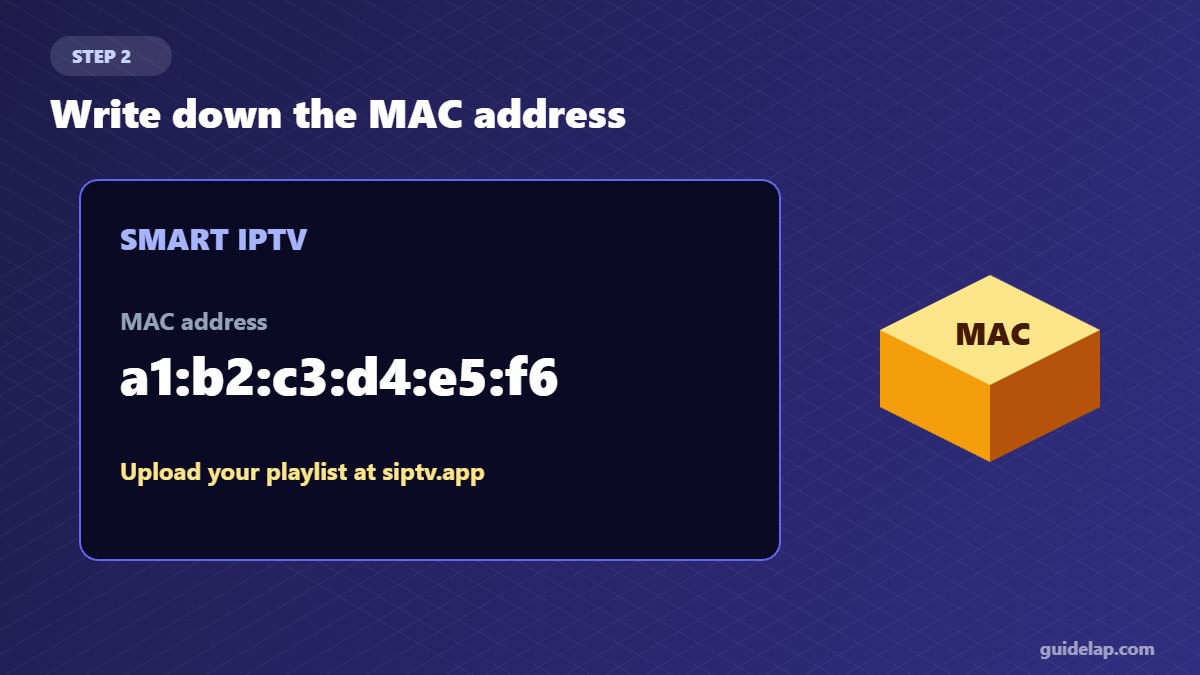
Open the app. Your TV’s MAC address appears on screen (for example a1:b2:c3:d4:e5:f6). Write it down exactly.
Step 3: Upload your playlist on the website
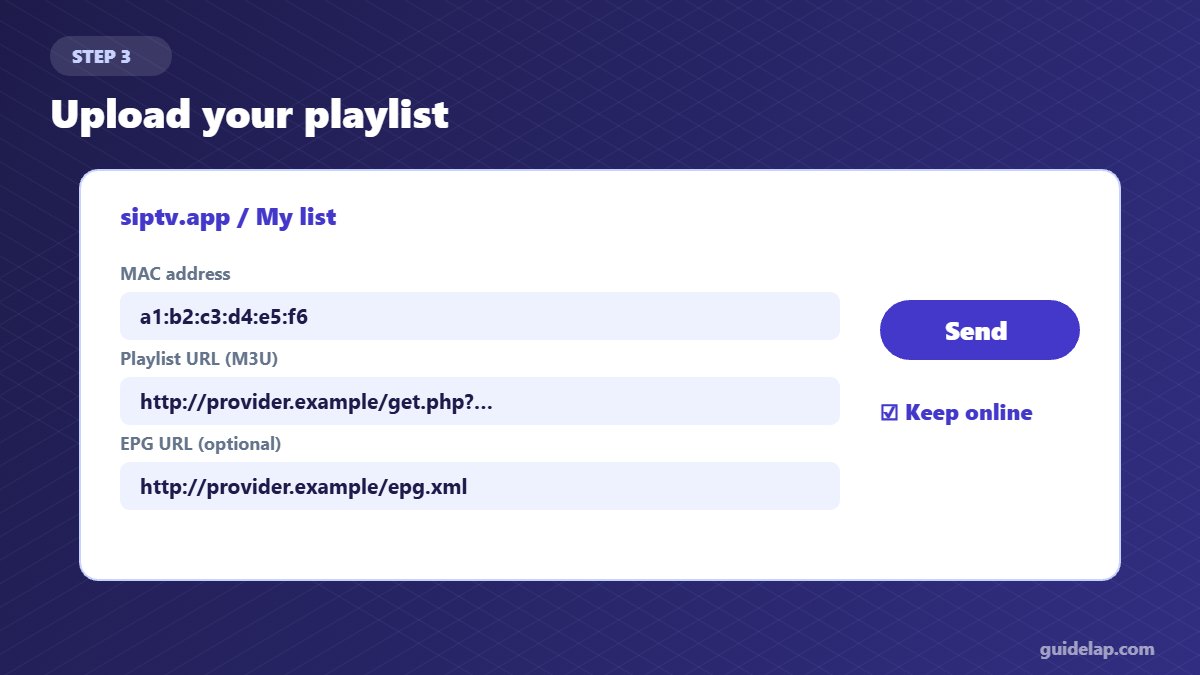
- On a phone or computer, open the official Smart IPTV playlist page.
- Enter your TV’s MAC address.
- Paste your M3U link (or upload an M3U file). Add an EPG link if your provider gives one.
- Tick Keep online if you want the playlist to update automatically.
- Click Send.
Only have Xtream Codes details? Convert them to an M3U link — see M3U vs Xtream Codes.
Step 4: Restart the app
Close Smart IPTV completely and open it again. Your channel groups appear on the left; use the arrow keys to browse and OK to play.
How to activate Smart IPTV
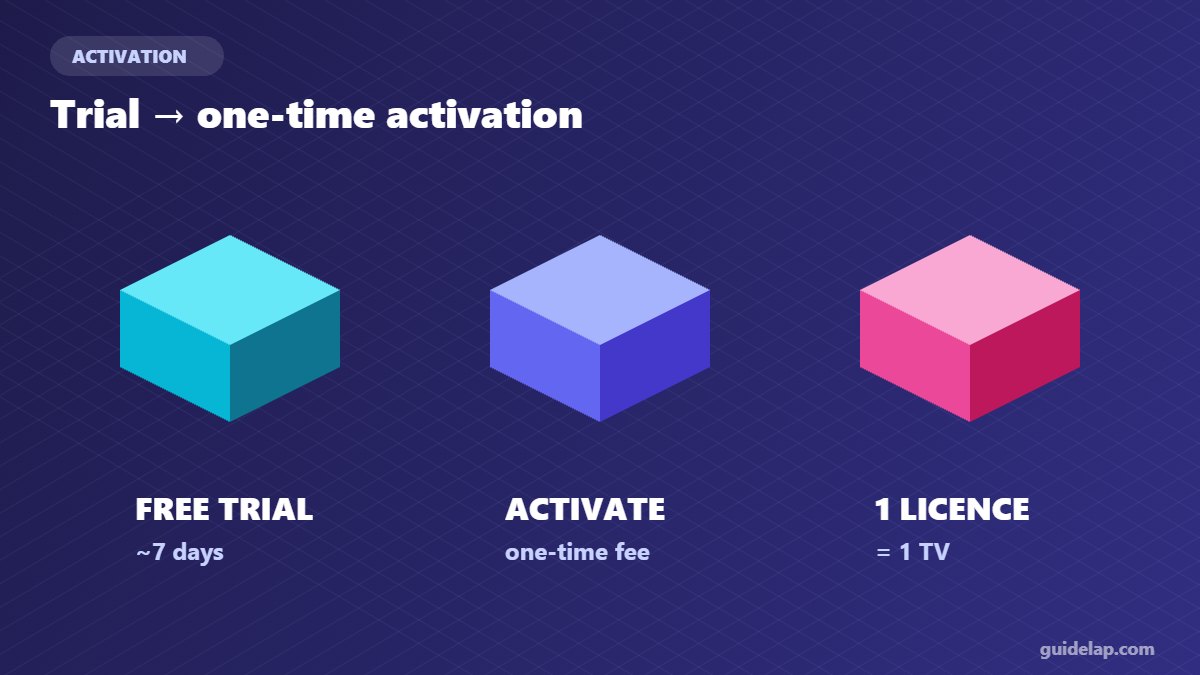
After the free trial, the app asks for activation. Pay the one-time fee on the official website using the same MAC address. The licence is linked to that TV only, so a new TV needs a new activation.
Safety tip: only pay on the official Smart IPTV website. Ignore sellers offering “activation codes”.
Smart IPTV vs other smart TV players
| App | Login | Best for |
|---|---|---|
| Smart IPTV | MAC + website | Lightweight, simple playback |
| IBO Player Pro | MAC + device key | Modern interface, movies and series |
| IPTV Smarters | Login in the app | Free use where available |
Smart IPTV troubleshooting
- “No playlist” / empty list: check the MAC address, upload again, then restart the app.
- Channels do not play: try the other player in the app settings, and make sure the subscription is active.
- Buffering: use Ethernet or 5 GHz Wi-Fi — see internet speed for IPTV and IPTV buffering fixes.
- App not in the store: some newer TVs no longer list it; use IBO Player Pro or a streaming stick instead.
Related guides
- Want more choice? Compare the best IPTV player apps or add a streaming device to your TV.
- Learn how TV guides work in what is EPG in IPTV.
- Model-specific guides: Samsung TV · LG TV.
- Also works on some Hisense VIDAA TVs — see IPTV on Hisense TV.
Frequently asked questions
Is the Smart IPTV app free?
It has a free trial (usually 7 days). After that you pay a small one-time activation per TV on the official website.
How do I add a playlist to Smart IPTV?
Open siptv.app on your phone or computer, enter your TV’s MAC address, paste your M3U link, click Send and restart the app.
Where do I find the Smart IPTV MAC address?
It is shown on the screen when you open the app on your TV.
Does Smart IPTV support Xtream Codes?
It works with M3U playlists. Most providers can give you an M3U link for your Xtream Codes account.
Can I use one activation on two TVs?
No. Activation is linked to one TV’s MAC address.
Final thoughts
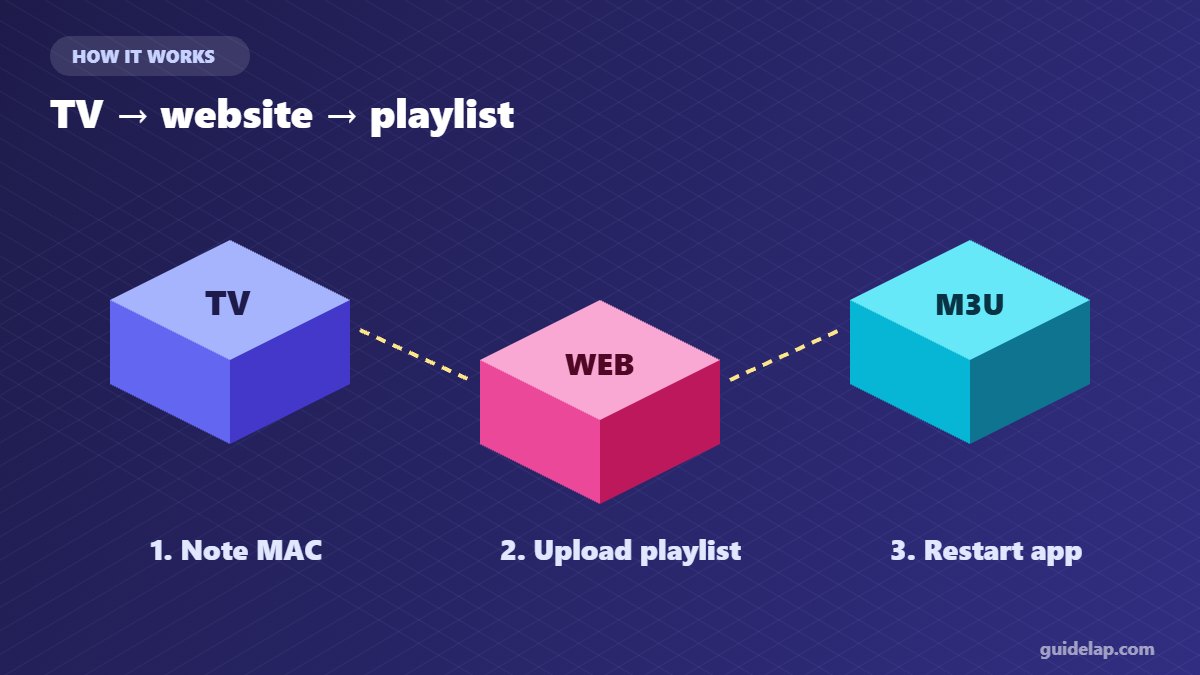
Smart IPTV app setup takes about five minutes: install the app, note the MAC address, upload your M3U playlist on siptv.app and restart the TV. If you want a more modern interface, IBO Player Pro is a good alternative.



