
Want to install IPTV Smarters Pro on Android TV or a Google TV device such as the Google TV Streamer, a Chromecast with Google TV, a Sony, TCL or Hisense smart TV, or an Android TV box? Good news: on these devices it is usually easier than on a Firestick, because the app can be installed straight from the Google Play Store.
In this guide we cover two methods: the official Google Play Store method (recommended) and the Downloader APK method for boxes without the Play Store. We also explain how to spot fake copies of the app and what Google’s new 2026–2027 sideloading rules mean for you.
Note: IPTV Smarters Pro is a media player only. It does not come with channels. You need a subscription from an IPTV provider, and you should only use services that are licensed to distribute their content.
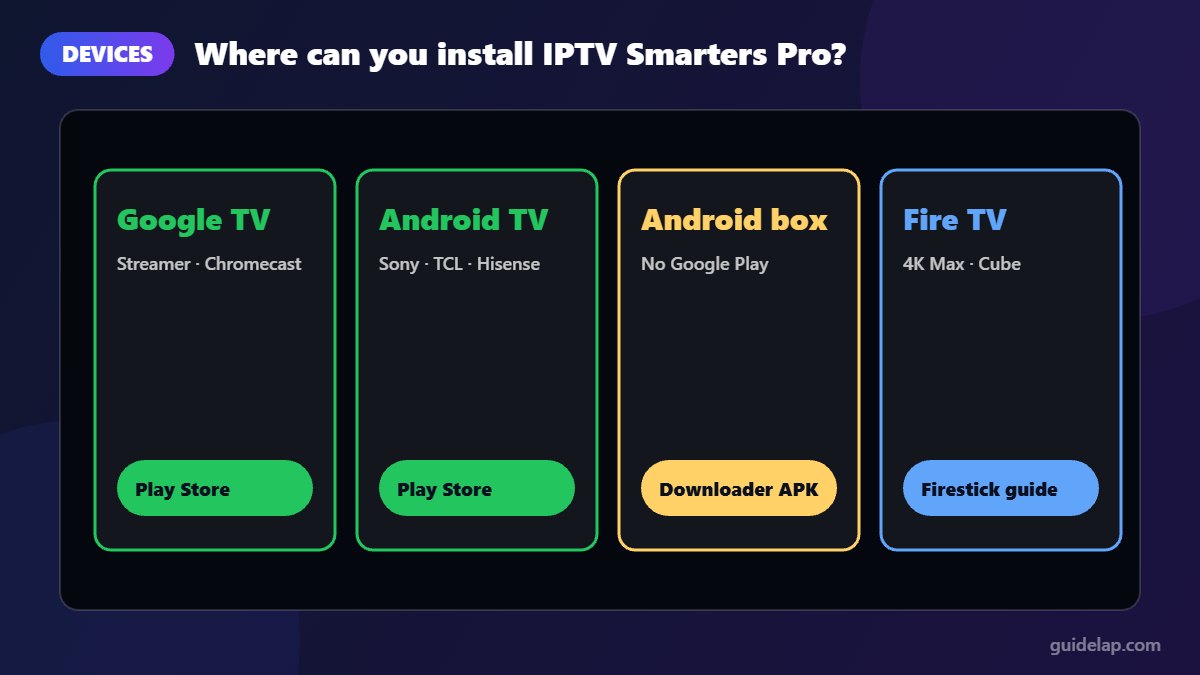
Which devices can install IPTV Smarters Pro?
| Device type | Examples | Best install method |
|---|---|---|
| Google TV devices | Google TV Streamer, Chromecast with Google TV, onn 4K Pro | Google Play Store |
| Android TV smart TVs | Sony, TCL, Hisense, Philips (Android TV / Google TV models) | Google Play Store |
| Certified Android TV boxes | Nvidia Shield, Xiaomi Mi Box | Google Play Store |
| Uncertified Android boxes | Generic boxes without Google Play | Downloader APK method |
| Amazon Fire TV | Fire TV Stick 4K Max, Fire TV Cube | Firestick guide |
Method 1: Install IPTV Smarters Pro from Google Play (recommended)
This is the safest way to install IPTV Smarters Pro on Android TV, because updates arrive automatically through the Play Store. It takes about two minutes.
- Press the Home button on your remote and open the Apps tab (on Google TV) or the Google Play Store (on Android TV).
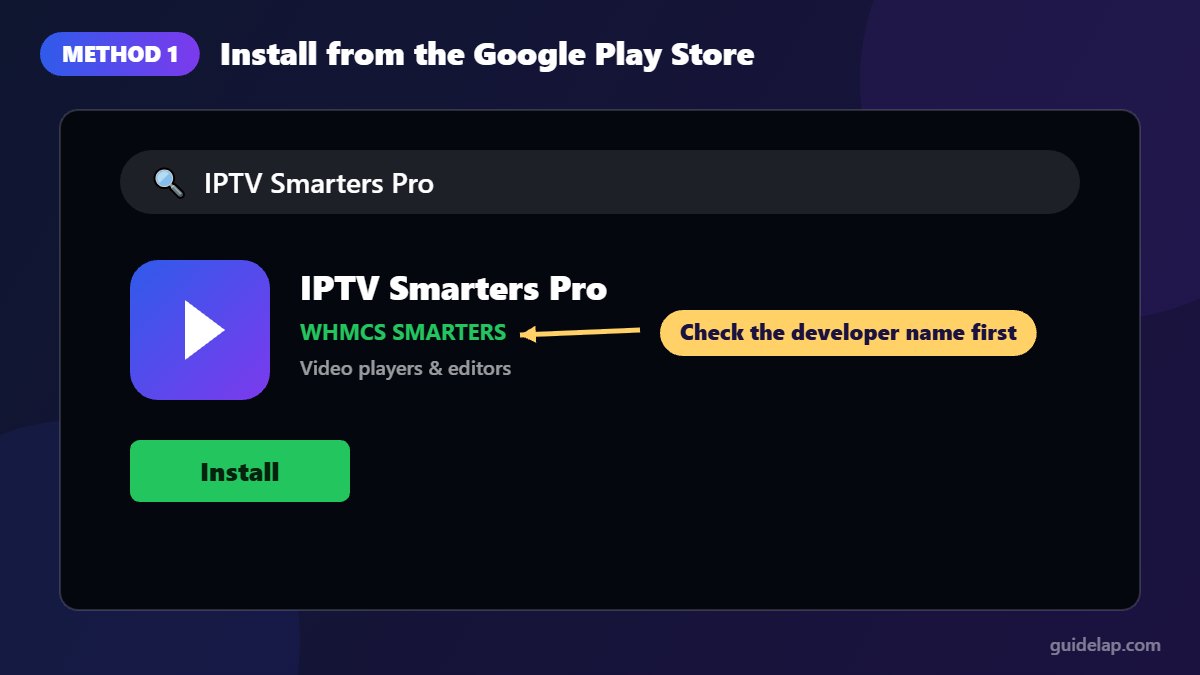
- Select Search and type IPTV Smarters Pro.
- Open the listing and check the developer name before installing (see the next section).
- Select Install and wait for the download to finish.
- Select Open, accept the terms of use and continue to the login screen.
How to recognise the official app
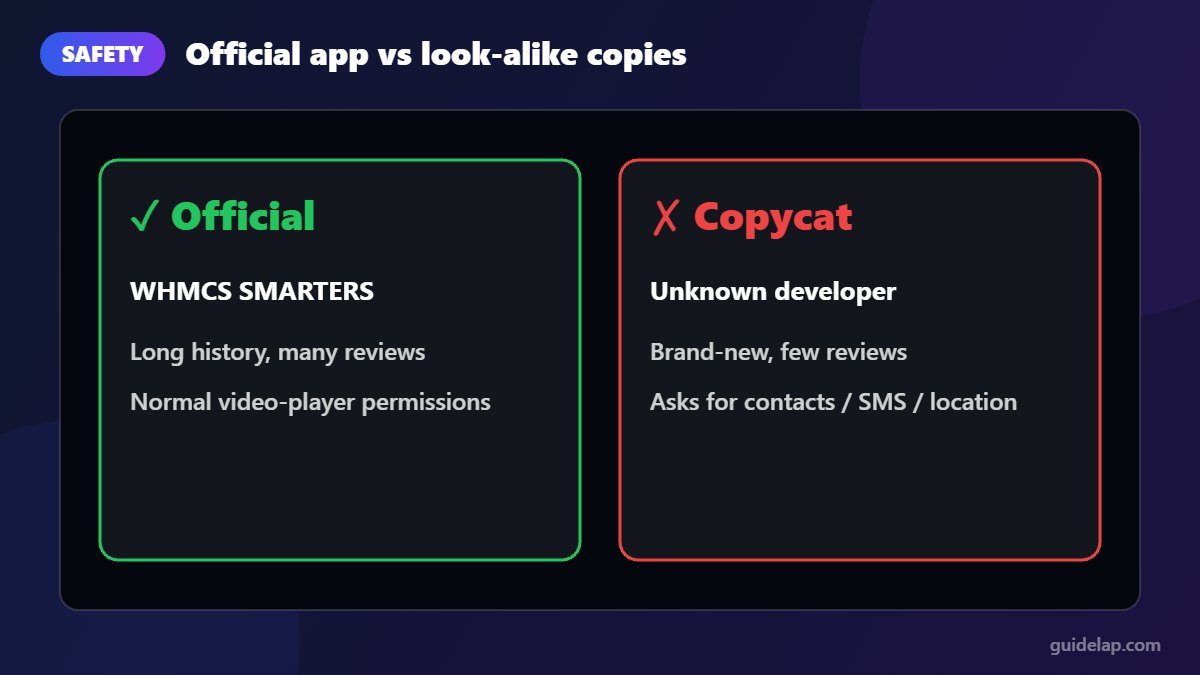
Because IPTV Smarters is so popular, the Play Store contains many look-alike apps with almost the same name and icon. Some are harmless, others are full of ads or ask for unnecessary permissions. Before you install, check:
- The developer name. The long-standing official listing is published by WHMCS SMARTERS. Apps from unrelated companies that simply copy the name are not the original.
- Downloads and reviews. The real app has a long history and a large number of reviews. A brand-new app with almost no reviews is a red flag.
- Permissions. A video player does not need access to your contacts, SMS or location.
Method 2: Install IPTV Smarters Pro with Downloader (APK)
Use this method to install IPTV Smarters Pro on Android TV boxes that do not have the Google Play Store, or if the app is not available in your country’s Play Store.
Step 1: Install Downloader
- Open the Play Store (or your box’s app store) and search for Downloader by AFTVnews.
- Install it and open it once. Choose Allow if it asks for access to files. (More tips in our Downloader guide.)
Step 2: Download the IPTV Smarters Pro APK
- In Downloader, select the URL field on the Home tab.
- Type the official address
https://www.iptvsmarters.com/smarters.apk, or typeiptvsmarters.comto open the official website and choose the latest Android APK. - Select Go and wait for the download to finish.
Step 3: Allow the install and finish
- When the security message appears (“For your security, your TV is not allowed to install unknown apps from this source”), select Settings.
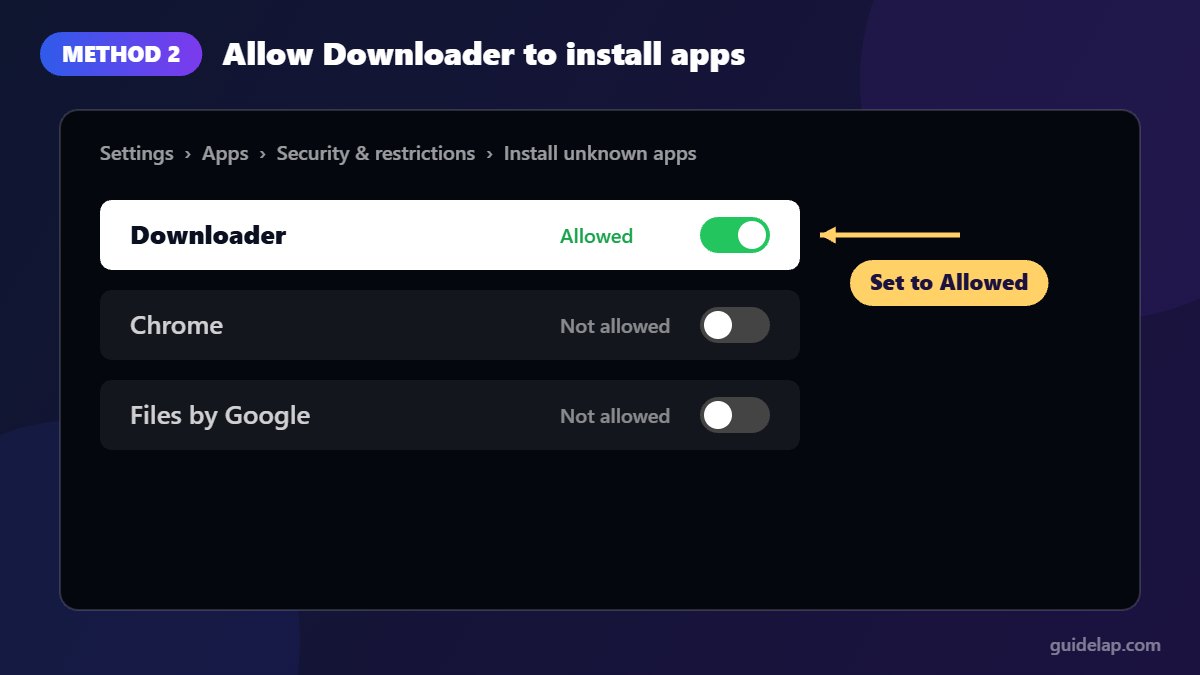
- Switch Downloader to Allowed on the “Install unknown apps” screen.
- Press Back and select Install, then Done.
- Delete the APK file in Downloader to free up storage.
If you never see the prompt, open Settings → Apps → Security & restrictions → Unknown sources (the exact path varies by brand) and turn Downloader on.
Google’s new sideloading rules (2026–2027)
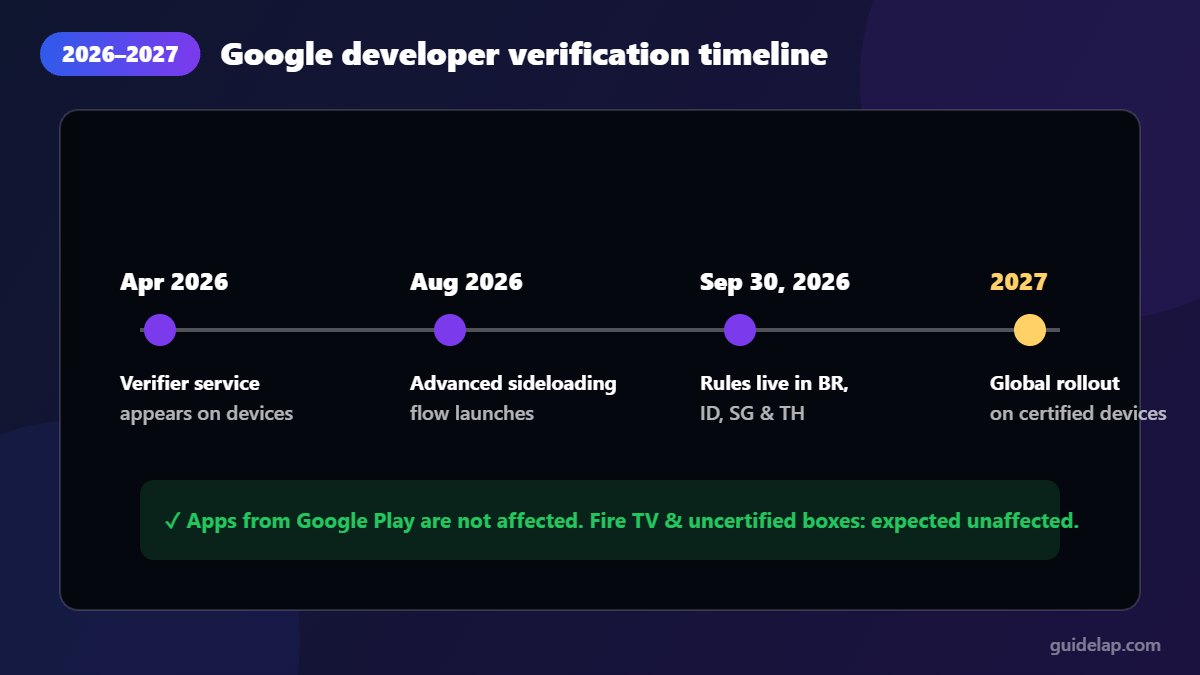
Google has introduced Android developer verification. On certified Android devices (devices that ship with Google Play), apps must be registered to a verified developer to install through the normal flow. The rules took effect on September 30, 2026 in Brazil, Indonesia, Singapore and Thailand, and Google plans to expand them worldwide in 2027 (Android Authority has a good summary).
What this means for you:
- Installing IPTV Smarters Pro from the Google Play Store is not affected.
- APKs from unverified developers will need an extra “advanced” sideloading step (with a waiting period) or a computer with ADB.
- Devices without Google Play, such as Fire TV and uncertified boxes, are expected to remain unaffected.
This is one more reason to install IPTV Smarters Pro on Android TV through Method 1 whenever the app is available in your Play Store.
Log in to IPTV Smarters Pro
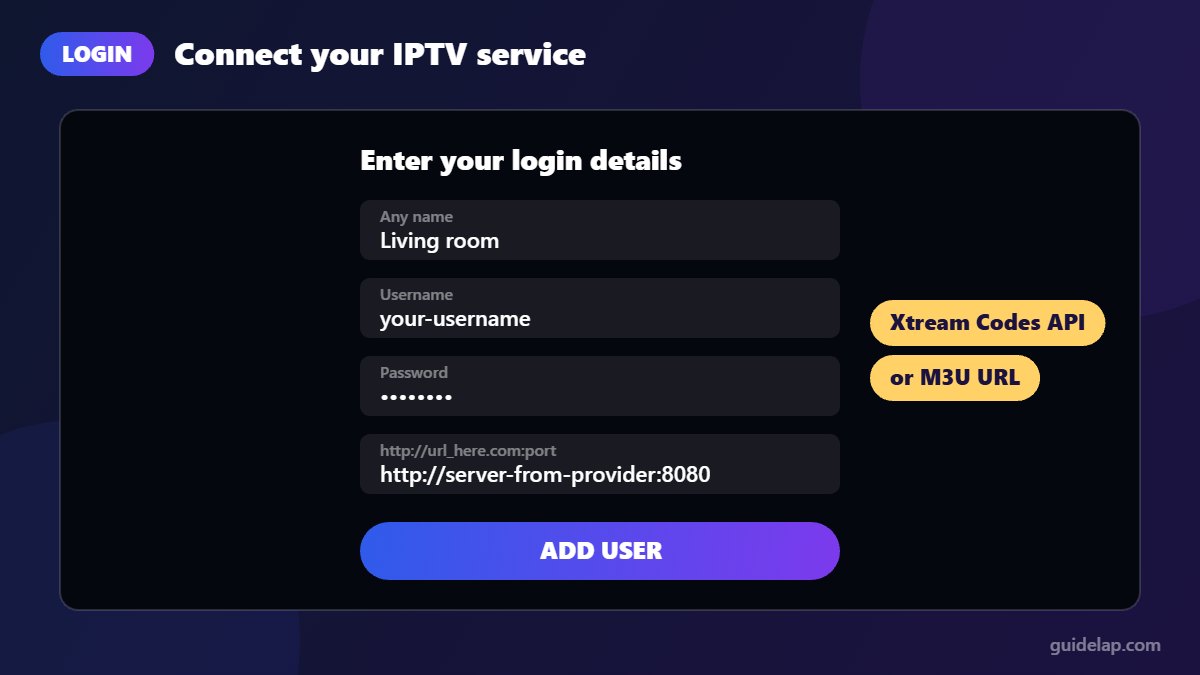
Once you install IPTV Smarters Pro on Android TV, open the app and choose one of these login options:
Xtream Codes API (recommended)
- Select Login with Xtream Codes API.
- Enter any name, then the username, password and server URL from your provider (include
http://and the port). - Select Add User.
M3U playlist
- Select Load Your Playlist or File/URL.
- Choose M3U URL and paste the link from your provider.
- Select Add User.
Tips after you install IPTV Smarters Pro on Android TV
- Use Ethernet if your TV or box has a network port, or a 5 GHz Wi-Fi band. See our guide on how to fix IPTV buffering.
- Try a different stream format (Default, MPEGTS or HLS) in the app settings if channels stutter.
- Refresh the EPG from the home screen when program information is missing.
- Keep the app updated through the Play Store.
- Set up the TV guide: follow our tutorial to add EPG in IPTV Smarters Pro.
- Have a Samsung or LG TV too? See IPTV Smarters Pro on Samsung & LG.
- Not sure Smarters is right for you? Compare it with other players in our best IPTV players roundup.
Troubleshooting
IPTV Smarters Pro is not in the Play Store
If you cannot install IPTV Smarters Pro on Android TV from the Play Store, availability in your country or on your device may be the reason. Use Method 2 (Downloader) and download the APK from the official website only.
“App not installed” or “Package appears to be invalid”
Uninstall any older or fake copy of the app first, check you have free storage, and download the APK again from the official site.
The app opens but channels do not load
Double-check your login details and server URL, and confirm that your subscription is active. If only some channels fail, the problem is usually on the provider’s side.
Related guides
- Using Google TV? See how to sideload apps on Google TV.
- Errors in the app? See IPTV Smarters not working.
- Same app on your phone: IPTV on Android phone.
Frequently asked questions
Is IPTV Smarters Pro free on Android TV?
Yes. The app is free to download from Google Play. You only pay your IPTV provider for the subscription.
Can I install IPTV Smarters Pro on Google TV Streamer?
Yes. The Google TV Streamer runs Google TV with the Play Store, so you can install the app directly from Google Play.
Is it safe to install the IPTV Smarters APK?
It is safe when the file comes from the official IPTV Smarters website. Avoid modified or “premium unlocked” APKs from unknown sites.
Will Google block IPTV Smarters Pro in 2027?
Apps installed from Google Play are not affected by developer verification. Only APKs from unverified developers face extra steps.
Does IPTV Smarters Pro work on Samsung or LG TVs?
Samsung (Tizen) and LG (webOS) TVs do not run Android, so this guide does not apply to them. Check your TV’s own app store instead.
Final thoughts
On most devices, the quickest way to install IPTV Smarters Pro on Android TV is the Google Play Store. Just make sure you pick the official listing. If your box has no Play Store, the Downloader method works in a few minutes. Using a Firestick instead? Follow our step-by-step IPTV Smarters Pro Firestick guide.



