
Menus lagging, apps freezing, the remote feels slow? You can usually speed up a slow Firestick in 10 minutes without buying anything. Below are 12 fixes ordered from the quickest to the most drastic — try them one by one and test after each.
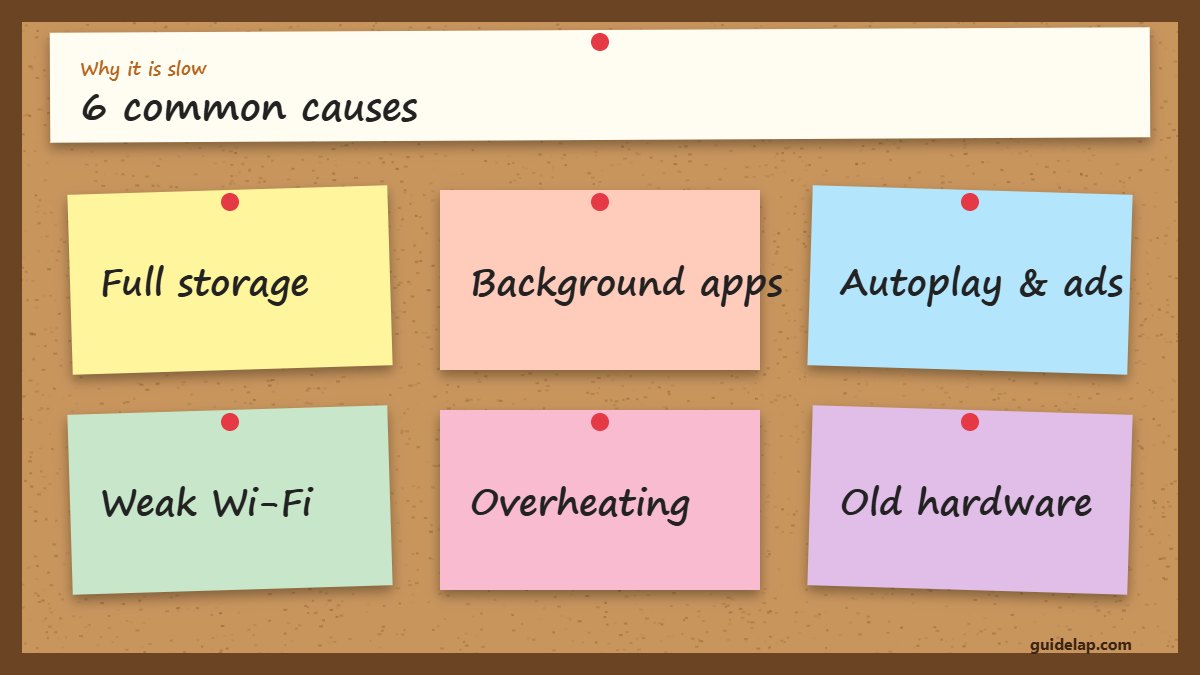
Why is my Firestick so slow?
- Full storage — apps and cache fill the 8–16 GB quickly.
- Too many background apps and services.
- Autoplay and ads on the home screen.
- Weak Wi-Fi that makes everything feel slow.
- Overheating behind the TV.
- Old hardware — first-generation sticks struggle with modern apps.
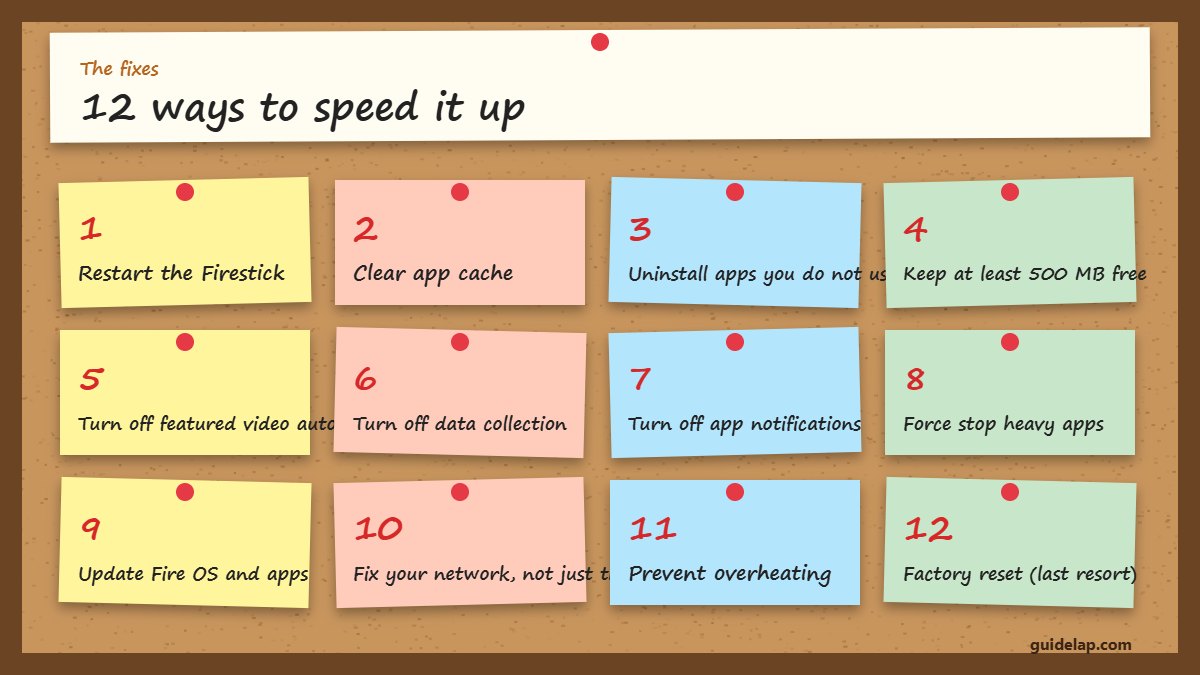
12 ways to speed up a slow Firestick
1. Restart the Firestick
Settings → My Fire TV → Restart (or hold Select + Play/Pause for 5 seconds). Clears memory instantly.
2. Clear app cache
Settings → Applications → Manage Installed Applications → app → Clear cache. Full guide: clear cache on Firestick.
3. Uninstall apps you do not use
Unused apps take storage and run background services — see how to delete apps on Firestick.
4. Keep at least 500 MB free
Check Settings → My Fire TV → About → Storage. Low storage is the #1 cause of a laggy Firestick.
5. Turn off featured video autoplay
Settings → Preferences → Featured Content → Allow Video Autoplay → Off.
6. Turn off data collection
Settings → Preferences → Privacy Settings and Data Monitoring → Off. More in 10 Firestick settings to change.
7. Turn off app notifications
Settings → Preferences → Notification Settings → turn off apps you do not need.
8. Force stop heavy apps
Manage Installed Applications → app → Force stop, for apps that keep running in the background.
9. Update Fire OS and apps
Settings → My Fire TV → About → Check for Updates. See update Firestick.
10. Fix your network, not just the stick
Use 5 GHz Wi-Fi or Ethernet — slow internet feels like a slow Firestick. See Firestick WiFi fixes.
11. Prevent overheating
Use the HDMI extender so the stick is not trapped behind a hot TV, and power it from the wall adapter.
12. Factory reset (last resort)
Removes everything and starts fresh — see factory reset Firestick.
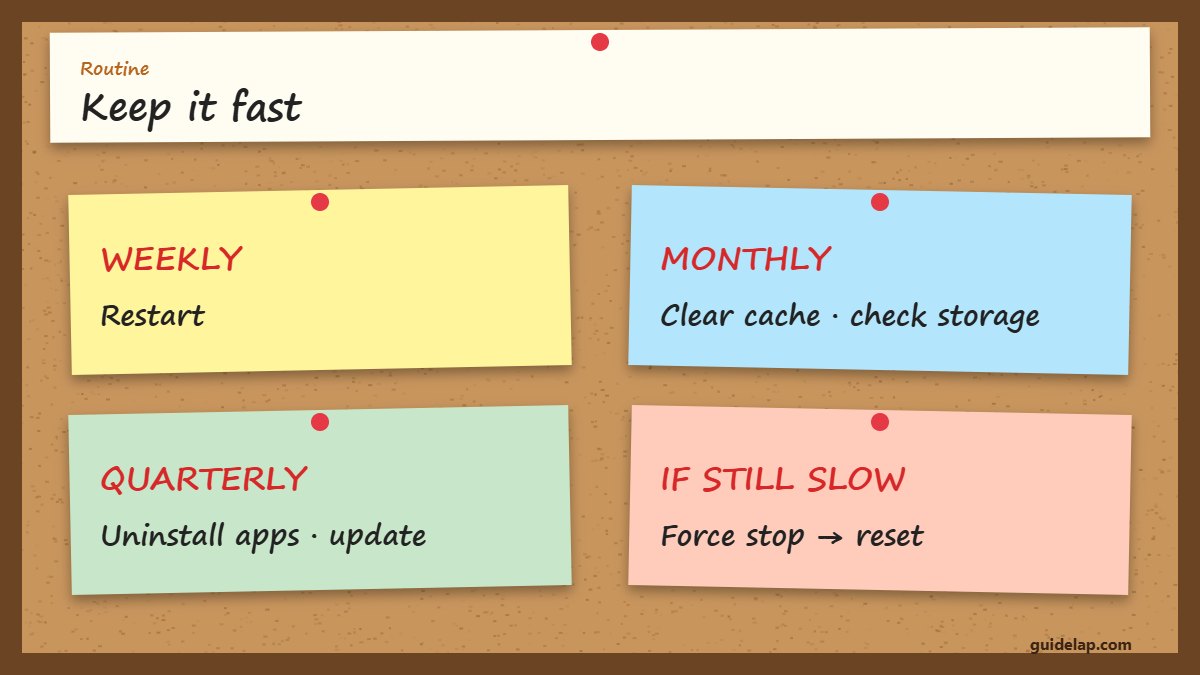
Quick routine: keep your Firestick fast
| How often | What to do |
|---|---|
| Every week | Restart the Firestick |
| Every month | Clear cache of big apps, check storage |
| Every few months | Uninstall unused apps, check for updates |
| When very slow | Force stop apps, then factory reset if needed |
When is it time to upgrade?
If you have a 1st or 2nd-generation Fire TV Stick or the Lite model and it is still slow after these fixes, newer hardware will make a big difference. Compare the Fire TV Stick 4K Max vs Google TV Streamer or read our best devices for streaming 2027 guide — and check Vega OS vs Fire OS before buying if you sideload apps.
Buffering only inside one app? That is usually the stream, not the stick — see how to fix IPTV buffering and internet speed for IPTV. For background on the device, see Amazon Fire TV on Wikipedia.
Low on space? See Firestick storage full: 7 fixes.
Slow and hot? Read Firestick overheating.
Frequently asked questions
How do I speed up a slow Firestick?
Restart it, clear app cache, uninstall unused apps, keep 500 MB+ free, turn off autoplay and data collection, and use 5 GHz Wi-Fi or Ethernet.
Why does my Firestick keep freezing?
Usually low storage, too many background apps or overheating. Clear cache, uninstall apps and use the HDMI extender.
Does clearing cache delete my data?
No. Clear cache only removes temporary files. Clear data resets the app and signs you out.
Will a factory reset make my Firestick faster?
Often yes, because it removes all apps and junk, but you will need to set everything up again.
How often should I restart my Firestick?
About once a week keeps memory fresh and the system responsive.
Final thoughts
Most of the time you can speed up a slow Firestick with three steps: restart, clear cache and uninstall what you do not use. Add a better network connection and a few settings changes, and your Fire TV will feel new again.



