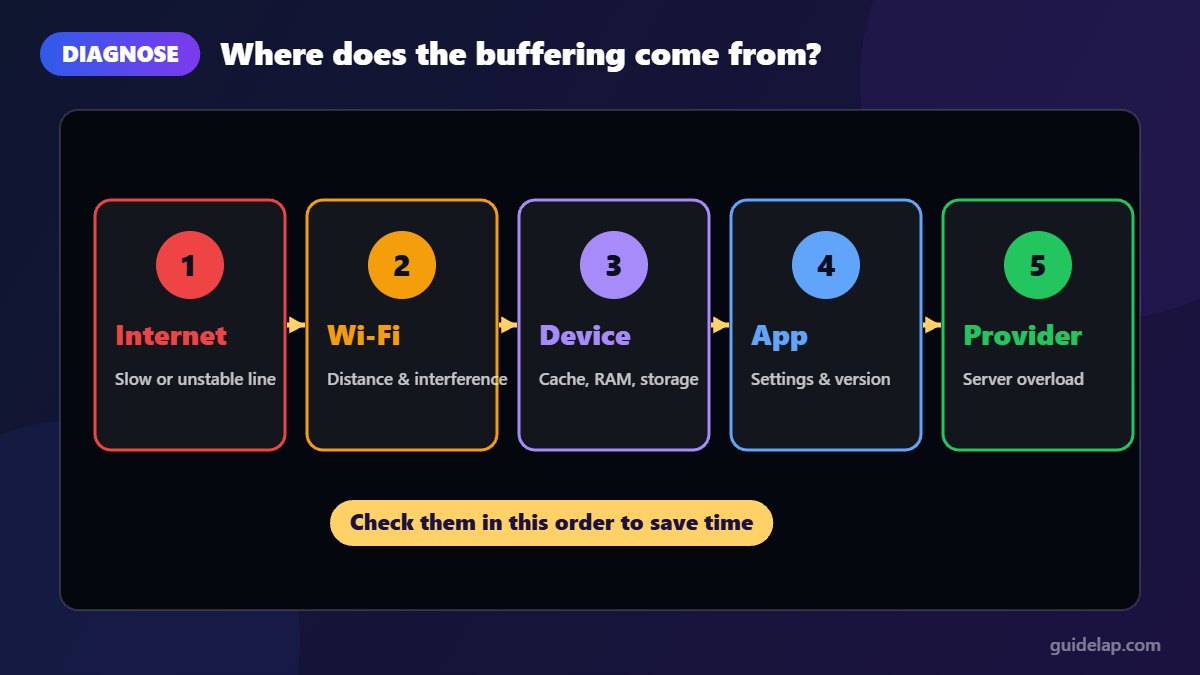
Nothing is more frustrating than a spinning wheel in the middle of a match or a movie. The good news is that you can fix IPTV buffering in most cases yourself, without buying new equipment. The key is to find out where the problem comes from first: your internet, your Wi-Fi, your device, your app, or your provider.
In this guide you will learn how to diagnose the cause in two minutes and apply 12 proven fixes, with special tips for Firestick and Android TV users.
Step 1: Find the cause of the buffering
Before changing settings, look at when and where the buffering happens. This table points you to the most likely cause:
| What you notice | Most likely cause | Go to fix |
|---|---|---|
| Buffering on all channels and apps | Slow internet or weak Wi-Fi | Fixes 1–4 |
| Buffering only on 4K channels | Not enough speed for 4K | Fixes 1 and 9 |
| Buffering mostly in the evening | Network congestion or ISP throttling | Fixes 5, 6 and 11 |
| Only one channel buffers | Problem with that stream on the server | Fix 12 |
| App freezes, then crashes | App cache or low device memory | Fixes 7 and 8 |
| Netflix/YouTube fine, IPTV buffers | Player settings or provider server | Fixes 9, 10 and 12 |
How much internet speed do you need for IPTV?
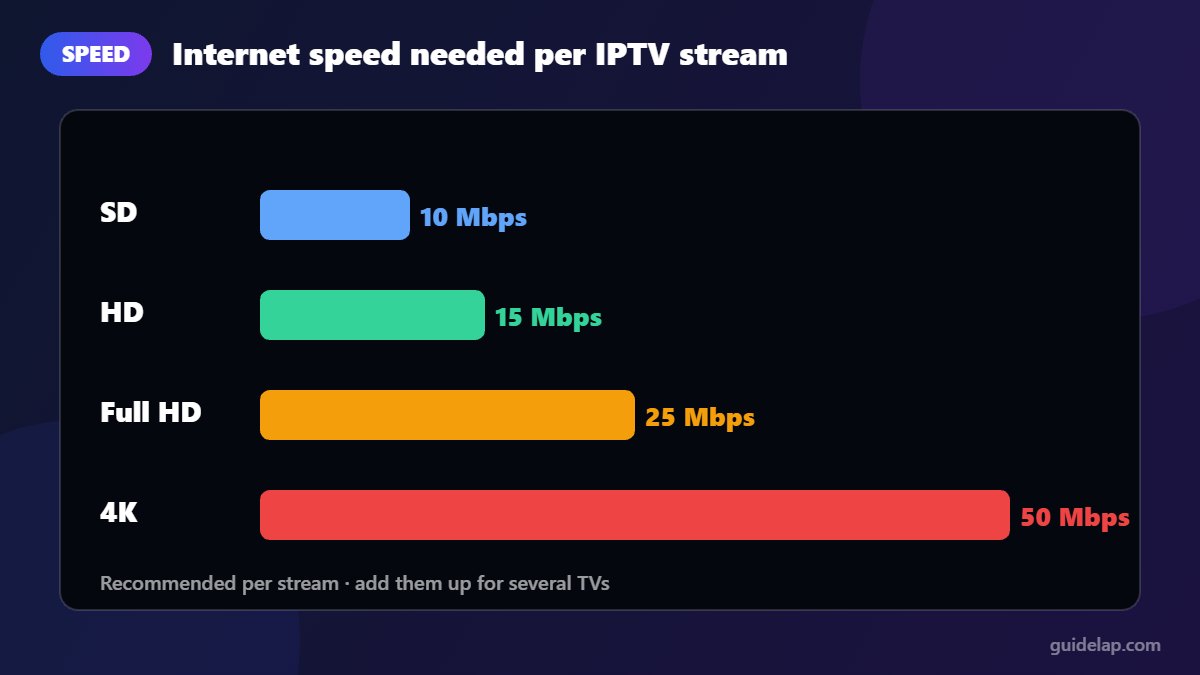
IPTV needs a stable connection more than a fast one, but there are minimum speeds per stream. Use these figures as a guide and add them up if several TVs stream at the same time:
| Quality | Minimum per stream | Recommended for no buffering |
|---|---|---|
| SD (480p) | 3–5 Mbps | 10 Mbps |
| HD (720p) | 5–10 Mbps | 15 Mbps |
| Full HD (1080p) | 10–15 Mbps | 25 Mbps |
| 4K UHD | 25 Mbps | 35–50 Mbps |
12 ways to fix IPTV buffering
1. Test your speed on the streaming device itself
Run a speed test at fast.com or speedtest.net directly on your Firestick or TV (using the Silk browser or a speed-test app), not on your phone. Your phone may sit next to the router while your TV is two rooms away. If the result is below the table above, the connection is your bottleneck.
2. Switch to a wired Ethernet connection
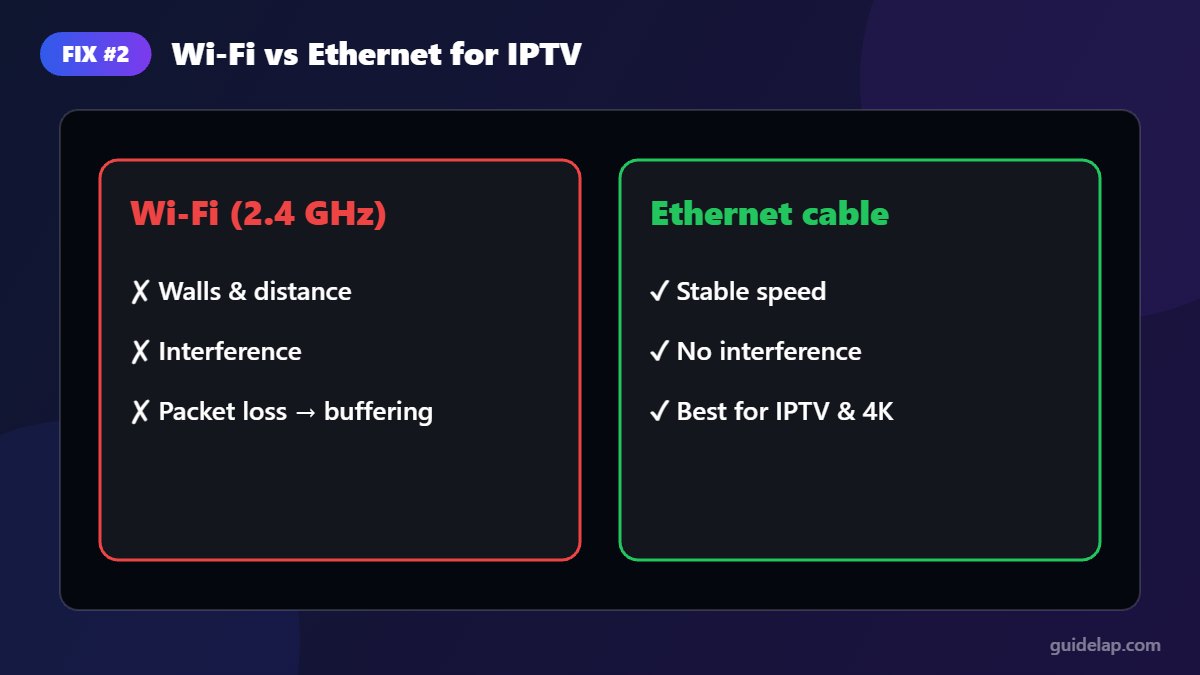
Wi-Fi is the number one cause of IPTV buffering. Walls, distance, neighbours’ networks and microwaves all cause interference and packet loss. A cable from your router to your device removes all of that. Firesticks do not have a network port, but an official or third-party Ethernet adapter for Fire TV costs little and often solves buffering instantly.
3. Use the 5 GHz Wi-Fi band and move your router
If a cable is not possible, connect to your router’s 5 GHz network (it is faster and less crowded than 2.4 GHz at short range). Place the router high, in the open, and as close to the TV as possible. A mesh Wi-Fi system or a Wi-Fi extender with a wired backhaul helps in large homes.
4. Restart your router and streaming device
Unplug the router for 30 seconds, plug it back in, then restart your device (if your remote stops responding, see Firestick remote not working) (on Firestick: Settings → My Fire TV → Restart). This clears temporary glitches. If buffering returns quickly, keep going with the next fixes.
5. Reduce other traffic on your network
Large downloads, game updates, cloud backups and other people streaming in 4K all compete for bandwidth. Pause them while you watch, or enable QoS (Quality of Service) on your router to give your TV priority.
6. Change your DNS servers
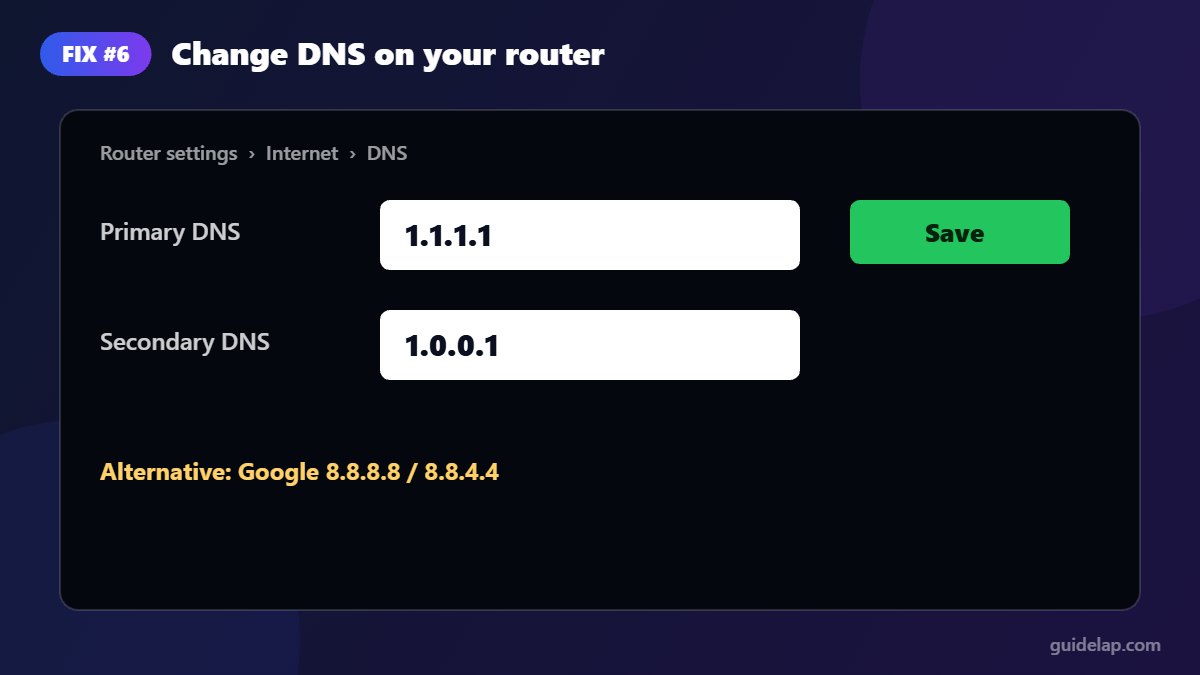
Slow DNS servers from your ISP can delay channel loading. Switching to a fast public DNS on your router, such as Cloudflare (1.1.1.1 / 1.0.0.1) or Google (8.8.8.8 / 8.8.4.4), can make channels start faster. Change it on the router so every device benefits.
7. Clear the app cache
Over time, IPTV apps store a lot of temporary data. On Firestick go to Settings → Applications → Manage Installed Applications → [your IPTV app] → Clear cache. Do not select “Clear data” unless you want to log in again, because it deletes your settings. Step-by-step screenshots: how to clear cache on Firestick.
8. Free up storage and memory on your device
Firesticks have limited storage and RAM. Uninstall apps you do not use, close apps running in the background, and keep at least a few hundred MB free. If you use an older or Lite model, a lighter player can help; see our list of the best IPTV players for Firestick.
9. Adjust your player settings
- Stream format: in IPTV Smarters Pro, try switching between Default, MPEGTS and HLS.
- Buffer size: players like TiviMate and OTT Navigator let you increase the buffer. A bigger buffer adds a few seconds of delay but absorbs small network drops.
- Quality: if your speed is limited, choose the HD version of a channel instead of 4K.
- Hardware decoder: keep hardware decoding enabled for smoother playback on weak devices.
10. Update or reinstall your IPTV app
Old app versions can have playback bugs. Update to the latest version from the official source, and keep your device updated too (how to update Firestick). If the problem continues, uninstall and reinstall the app. Our guides for Firestick and Android TV show how.
11. Check for ISP throttling
If buffering appears mostly in the evening while other streaming services work, your network may be congested or your provider may be slowing down certain traffic. Contact your internet provider first. Some people use a reputable paid VPN to check whether the problem disappears, but a VPN also adds overhead, so it does not help on slow connections.
12. Contact your IPTV provider
If only some channels buffer, or the problem appears for everyone at the same time (for example during a big live event), the issue is almost certainly on the provider’s servers. Report the channel names and times to your provider’s support. Reliable, licensed services monitor their servers and usually fix stream problems quickly.
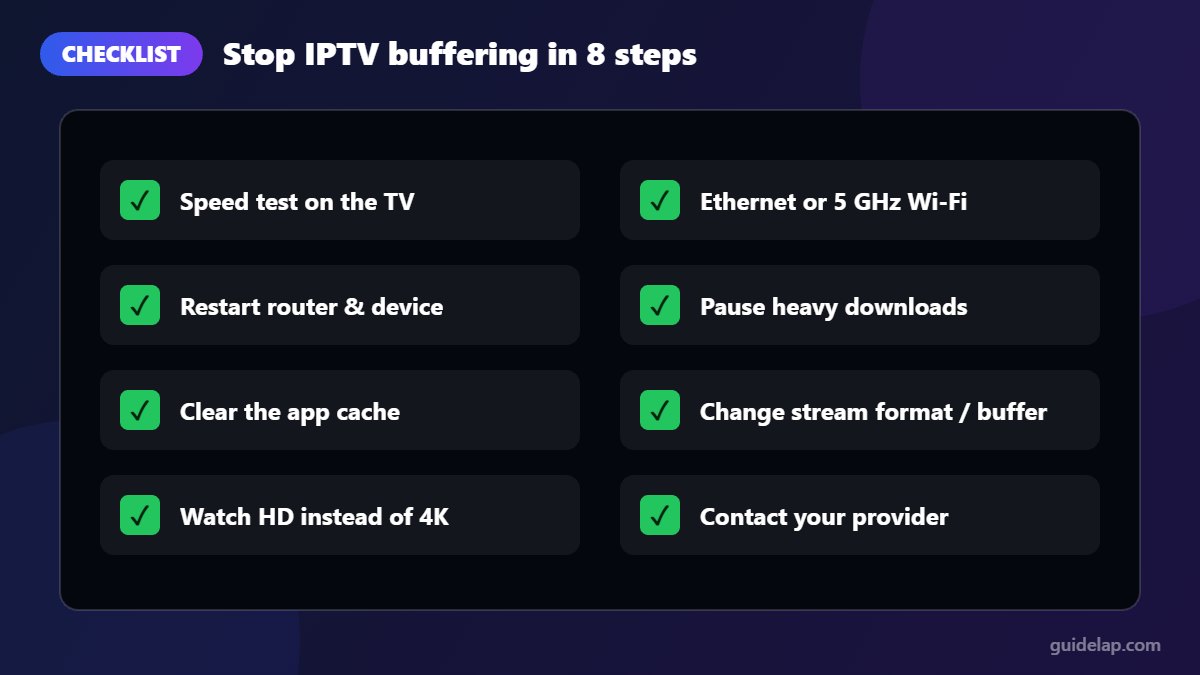
Quick checklist to stop buffering
- Run a speed test on the TV itself
- Use Ethernet or 5 GHz Wi-Fi
- Restart the router and the device
- Pause other heavy downloads
- Clear the IPTV app cache
- Try another stream format or a bigger buffer
- Watch the HD version instead of 4K
- Contact your provider if only some channels buffer
If your internet provider throttles streaming, it may help to install a VPN on Firestick.
Choosing a VPN? See our best VPN for IPTV comparison.
Frequently asked questions
Why does my IPTV keep buffering?
The most common causes are weak Wi-Fi, an internet connection that is too slow for the stream quality, a full app cache, an underpowered device, or overloaded provider servers. Use the diagnosis table in this guide to find yours.
What internet speed do I need for IPTV without buffering?
Plan for about 15 Mbps per HD stream, 25 Mbps per Full HD stream and 35–50 Mbps per 4K stream, and add them up for several TVs.
Does a VPN fix IPTV buffering?
Only in specific cases, such as when your internet provider slows down streaming traffic. On a slow or unstable connection, a VPN can make buffering worse.
Will an Ethernet adapter help my Firestick?
Yes. A wired connection removes Wi-Fi interference and packet loss, and is one of the most effective fixes for Firestick buffering.
Why does only one channel buffer?
When a single channel buffers and others play fine, the issue is usually the stream on the provider’s server, not your setup. Report it to your provider.
Final thoughts
To fix IPTV buffering for good, start with the basics: a fast, stable, preferably wired connection and a healthy device. Then fine-tune your player settings. If buffering only affects certain channels, it is time to contact your provider. Still choosing a player? Read our comparison of the best IPTV players for Firestick.