A factory reset is the “last resort” fix for a Fire TV Stick that keeps freezing, crashing or running slowly, and it is the first thing to do before selling or giving away your stick. In this guide you will learn how to factory reset Firestick devices in two ways, what gets deleted, and what to do afterwards.
Warning: a factory reset erases everything on the Firestick: apps, logins, settings and downloads. You will need to set it up again from scratch.
Before you reset: try these first
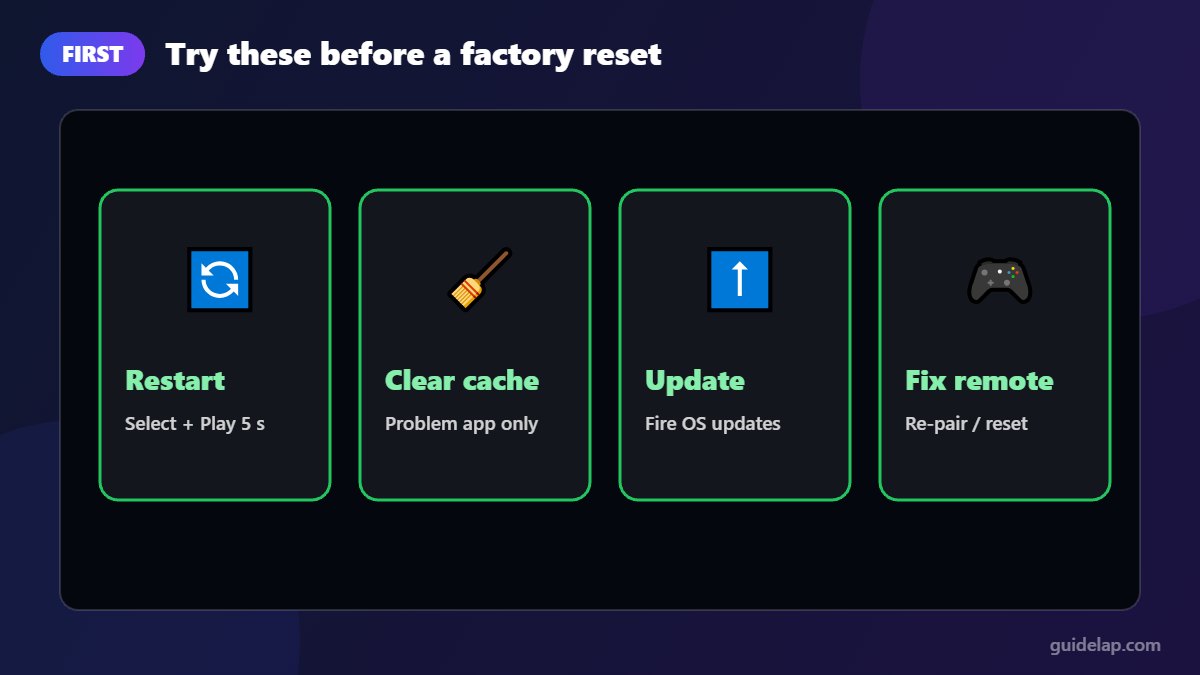
Many problems are fixed without losing your data:
- Restart the Firestick: Settings → My Fire TV → Restart, or hold Select + Play/Pause for about 5 seconds.
- Clear the cache of the problem app (how to clear cache on Firestick).
- Install updates (how to update Firestick).
- Fix the remote if it is the remote that does not respond (Firestick remote not working).
What gets deleted in a factory reset?
| Deleted | Kept |
|---|---|
| All downloaded and sideloaded apps | Your Amazon account and purchases (re-download them) |
| App data, logins and IPTV playlists | Apps you bought (available again after login) |
| Settings, Wi-Fi passwords, parental controls | The Fire OS system version installed |
| Downloaded files (APKs, etc.) | Nothing stored on your phone or other devices |
Write down the IPTV login details and any app settings you want to keep before you start.
Method 1: Factory reset Firestick from Settings
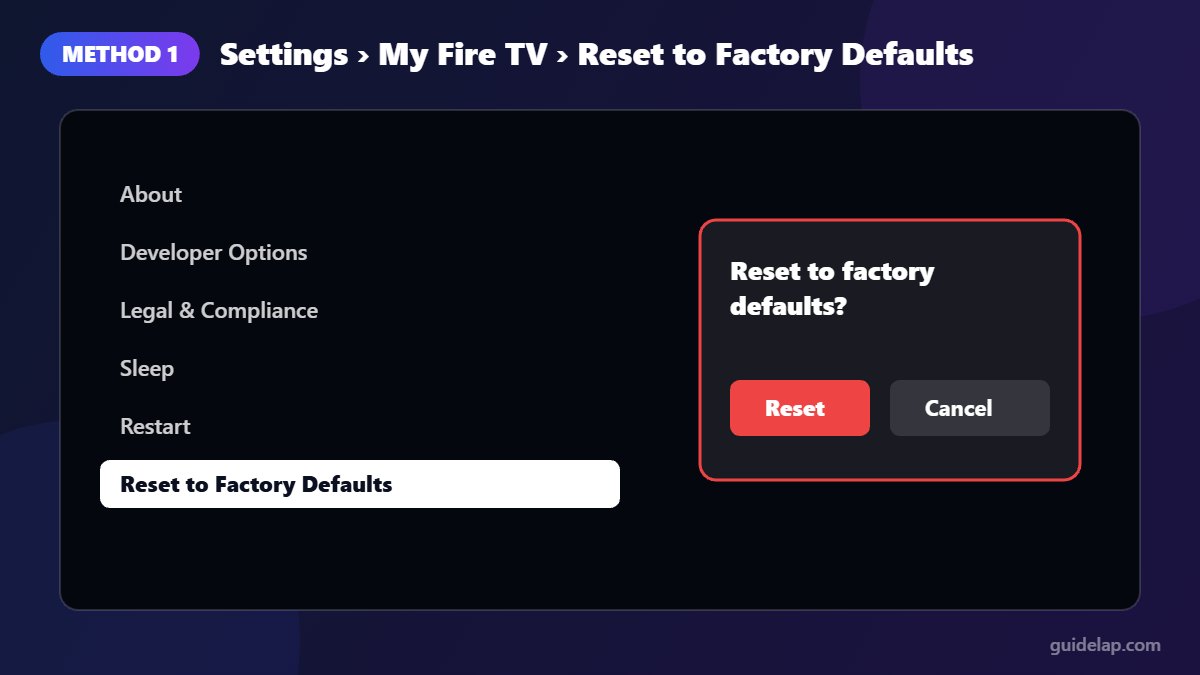
- Press Home and open Settings (gear icon).
- Select My Fire TV (on some older models: Device or System).
- Scroll down and select Reset to Factory Defaults.
- Enter your PIN if asked, then select Reset.
- Wait a few minutes. The Firestick restarts and shows the first-time setup screen.
Method 2: Factory reset Firestick with the remote
Use this if the menus are frozen or you cannot reach Settings:
- Make sure the Firestick is on and showing a picture.
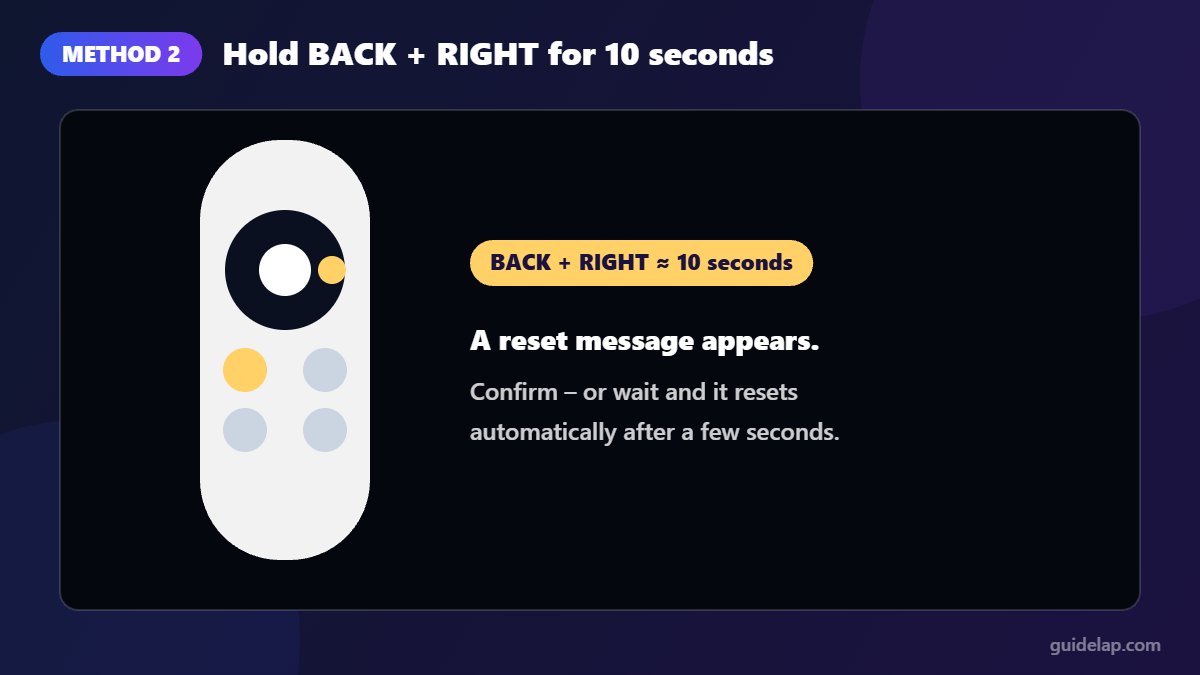
- Press and hold Back and the right side of the navigation circle together for about 10 seconds.
- A reset message appears. Choose to continue, or simply wait: if you do nothing, the reset starts automatically after a few seconds.
These are the same steps described on Amazon’s own help page for Fire TV devices and in How-To Geek’s reset guide.
After the reset: set up your Firestick again
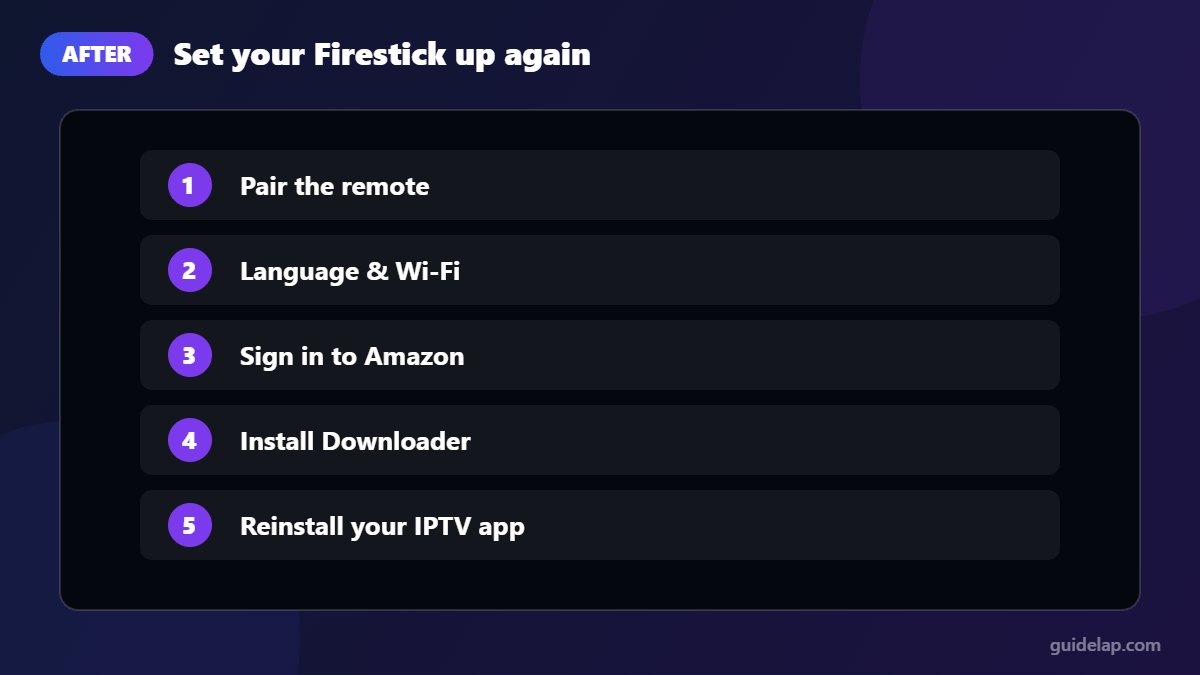
- Pair the remote (hold Home for 10 seconds if needed).
- Choose your language and connect to Wi-Fi.
- Sign in with your Amazon account.
- Reinstall your apps. For sideloaded apps, first install Downloader and enable Install Unknown Apps again.
- Reinstall your IPTV player (IPTV Smarters Pro on Firestick) and log in again.
What if the Firestick will not reset?
- Unplug the power for 60 seconds, plug it back in and try Method 2 again as soon as the picture appears.
- Use the power adapter that came in the box; weak USB ports on TVs can cause boot loops.
- If the device keeps restarting on the logo, contact Amazon support; the hardware may be faulty.
Frequently asked questions
How do I factory reset my Firestick without the remote?
Use the free Amazon Fire TV app on your phone as a remote, open Settings, My Fire TV, Reset to Factory Defaults. The Back + Right shortcut needs a working remote.
Does a factory reset remove my Amazon account?
It signs the Firestick out and erases local data. Your Amazon account and your purchases stay safe and can be used again after you sign in.
How long does a Firestick factory reset take?
Usually a few minutes, followed by the normal first-time setup.
Will a factory reset fix buffering?
Sometimes, if the device was overloaded. Buffering is more often caused by the network, so try our buffering fixes first.
Should I factory reset before selling my Firestick?
Yes. It removes your account, apps and personal data. Also remove the device from your Amazon account’s device list.
Final thoughts
To factory reset Firestick devices, go to Settings → My Fire TV → Reset to Factory Defaults, or hold Back + Right on the remote for 10 seconds. Try a restart and a cache clean first, save your logins, and you will be back up and running within minutes.