
Looking for a free IPTV player with a great TV guide? OTT Navigator is one of the most powerful players for Android TV, Google TV and Firestick. This OTT Navigator setup guide shows how to install it, add your playlist with Xtream Codes, M3U or a portal, and set up the EPG.
What is OTT Navigator?
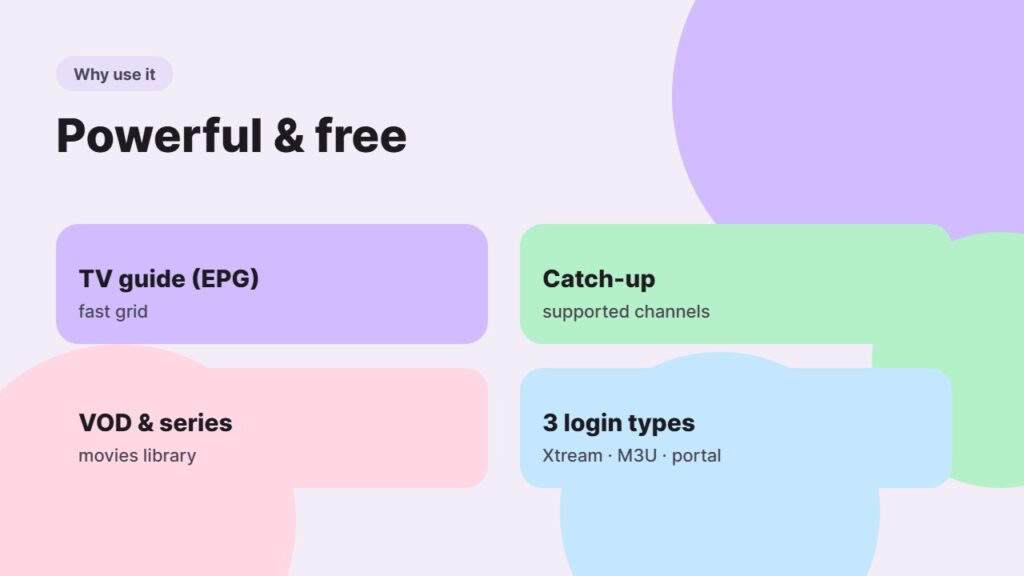
OTT Navigator is an IPTV player for Android devices. It supports M3U playlists, Xtream Codes logins and MAC portals, with a TV guide, catch-up, favourites and VOD. The main features are free, with an optional premium upgrade.
OTT Navigator does not include channels. Use it with a licensed IPTV provider.
How to install OTT Navigator
- Android TV / Google TV: install OTT Navigator from the Google Play Store.
- Firestick: install the Downloader app and download it from the developer’s official page — see how to install Downloader.
- Android phone or tablet: Google Play Store.
OTT Navigator setup step by step
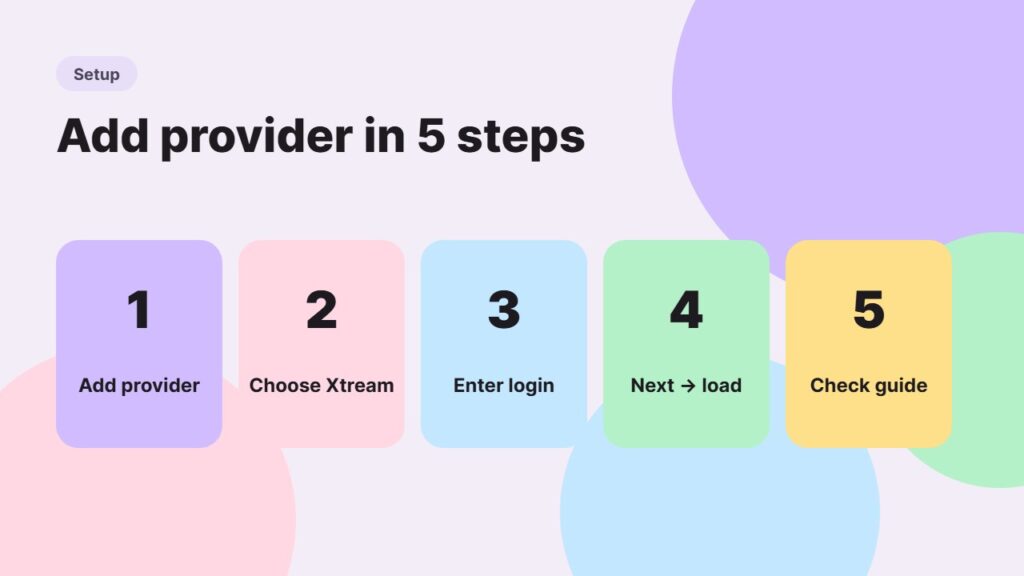
- Open OTT Navigator and choose Add provider (or Settings → Provider → Add).
- Pick the login type: Xtream Codes (recommended), M3U playlist or Stalker portal.
- For Xtream: enter server URL, username and password. For M3U: paste the full link.
- Select Next and let OTT Navigator load channels and the guide.
- Open the TV guide to check that programme data appears.
Add or fix the EPG
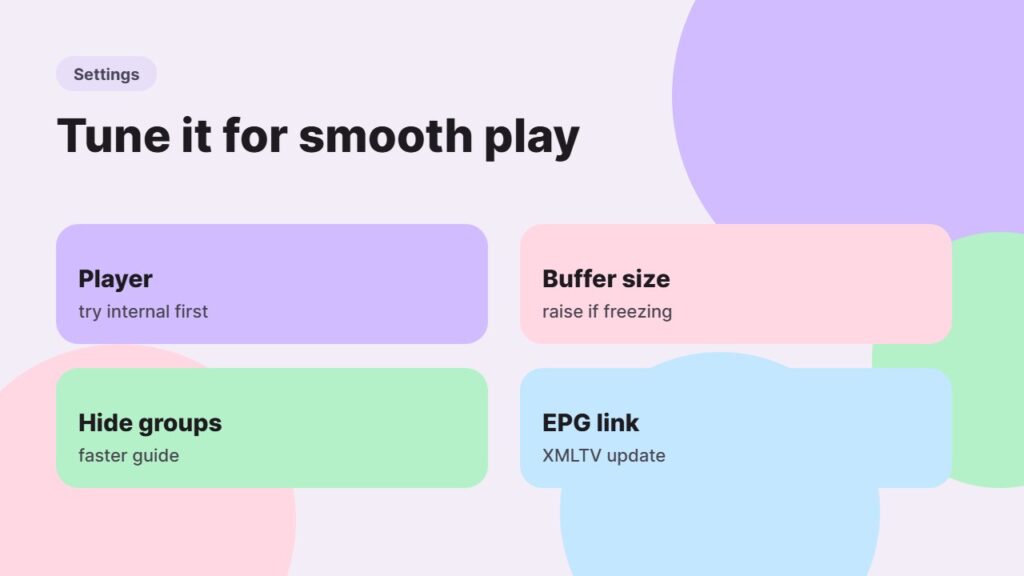
If the guide is empty, go to the provider settings → EPG and add the XMLTV link from your provider, then update. Learn more in what is EPG in IPTV.
Best OTT Navigator settings
- Player: try the internal player first; switch to another if a channel will not play.
- Buffer size: increase it if streams freeze.
- Hide groups you never watch to make the guide faster.
- Catch-up: works automatically on supported channels — see IPTV catch-up.
OTT Navigator vs TiviMate vs IPTV Smarters
| OTT Navigator | TiviMate | IPTV Smarters | |
|---|---|---|---|
| Price | Free + premium | Free + premium | Free |
| Logins | Xtream, M3U, portal | Xtream, M3U, portal | Xtream, M3U |
| TV guide | Very good | Excellent | Good |
| Ease of use | Medium | Easy | Easy |
Compare all players in best IPTV player apps, or read TiviMate vs IPTV Smarters. Having trouble? See IPTV not working. You can also check the app listing on Google Play.
Who should use OTT Navigator?
This player is ideal if you want lots of free features, several login types and a detailed TV guide on Android TV. If you prefer the simplest possible menus, TiviMate may suit you better. Try both with your provider’s free trial and keep the one you like.
Also works great on phones — see IPTV on Android phone.
Protect children with IPTV parental controls.
Frequently asked questions
Is OTT Navigator free?
Yes. The main features are free, and there is an optional premium version with extra features.
How do I add a playlist in OTT Navigator?
Open Add provider, choose Xtream Codes, M3U or Stalker portal, enter the details from your provider and select Next.
Can I install OTT Navigator on Firestick?
Yes. Use the Downloader app to install it from the developer’s official page, then set it up like on Android TV.
Why is the OTT Navigator guide empty?
The EPG link may be missing. Add the XMLTV link from your provider in the provider settings and update the EPG.
Is OTT Navigator better than TiviMate?
OTT Navigator has more free features, while TiviMate is easier to use and has the most polished guide. Both are excellent choices.
Final thoughts
An OTT Navigator setup takes just a few minutes: install the app, add your licensed provider with Xtream Codes, and check the EPG. It is one of the best free IPTV players for Android TV and Firestick.



