
Want to show photos, a video or an app from your phone on the big screen? Screen mirroring to TV copies your phone or laptop screen to your television without cables. This guide shows the exact steps for Android, iPhone, Windows and Mac, and for Fire TV, Google TV, Roku, Samsung and LG TVs — plus fixes when it does not connect.
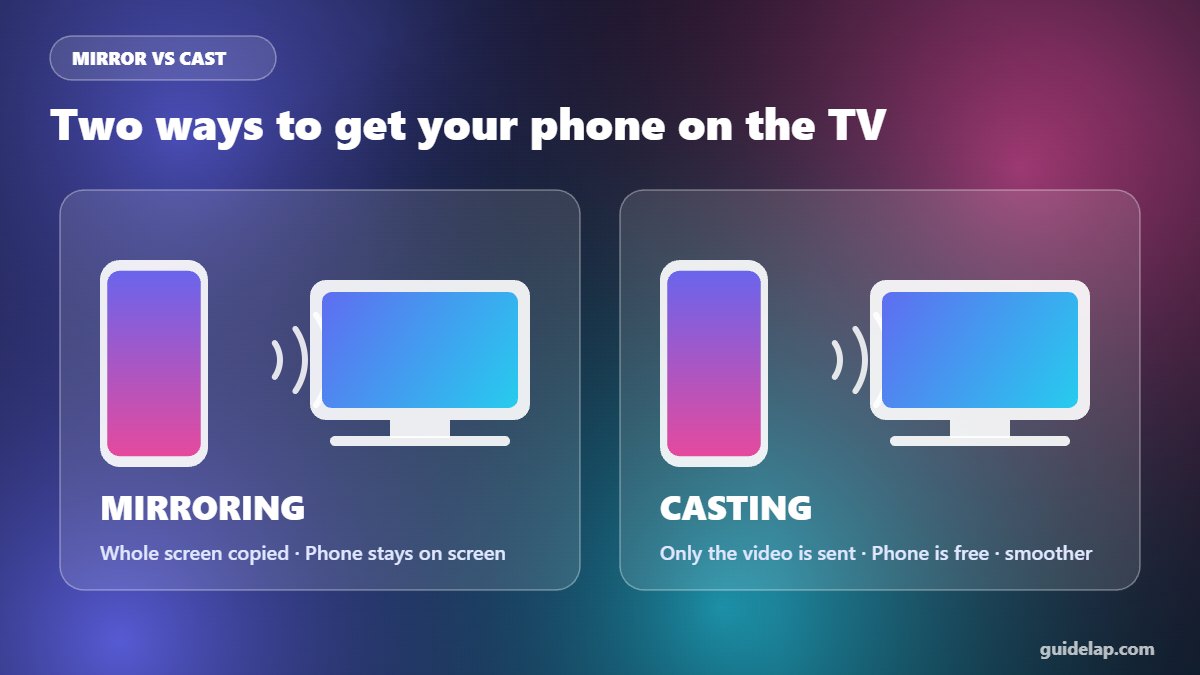
Mirroring vs casting: what is the difference?
| Screen mirroring | Casting | |
|---|---|---|
| What it does | Copies your whole screen | Sends only the video to the TV |
| Phone during playback | Must stay on the same screen | Free to use for other things |
| Quality | Depends on Wi-Fi, small delay | Usually better and smoother |
| Technologies | Miracast, AirPlay, Smart View | Google Cast (Chromecast), AirPlay |
If the app has a Cast button (YouTube, many streaming apps), use it — it is smoother. Use screen mirroring for anything else.
Screen mirroring to TV from Android
- Connect the phone and the TV/streaming device to the same Wi-Fi.
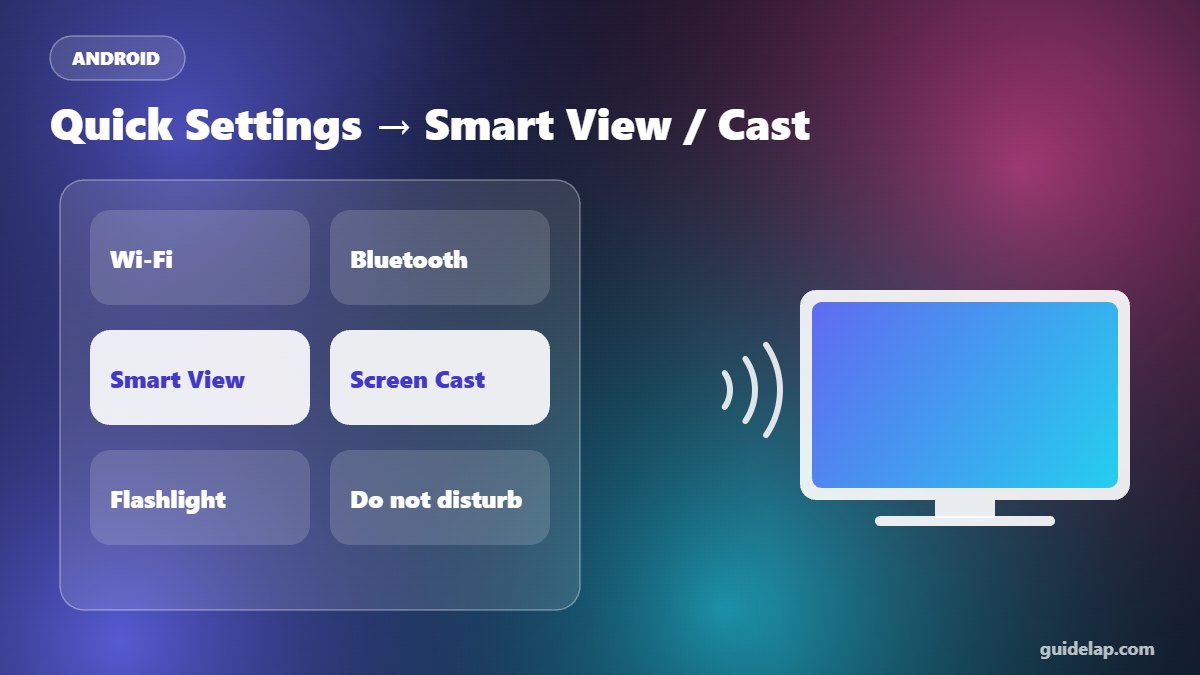
- Swipe down twice to open Quick Settings.
- Tap Smart View (Samsung), Screen Cast, Cast or Wireless display — the name depends on the brand.
- Choose your TV from the list and accept the prompt on the TV.
For Chromecast or Google TV, you can also open the Google Home app → select the device → Cast my screen.
Screen mirroring to TV from iPhone or iPad
- Make sure your Apple TV or AirPlay-compatible TV (many Samsung, LG and Roku models) is on the same Wi-Fi.
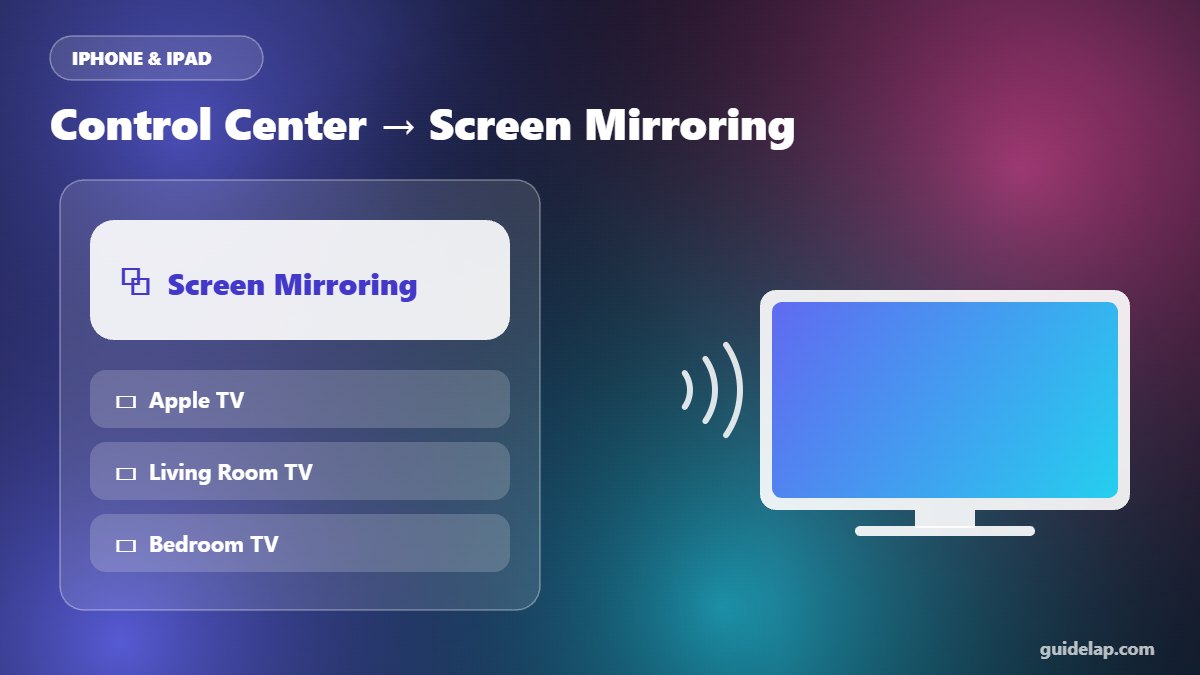
- Open Control Center (swipe down from the top-right corner).
- Tap Screen Mirroring.
- Choose your TV and enter the code shown on the screen if asked.
Screen mirroring from Windows and Mac
- Windows 10/11: press Win + K (or open Quick Settings → Cast) and choose your TV or Fire TV.
- Mac: click Control Center → Screen Mirroring and choose your Apple TV or AirPlay TV.
- Chrome browser: menu (⋮) → Cast to send a tab to a Chromecast or Google TV.
How to prepare your TV or streaming device
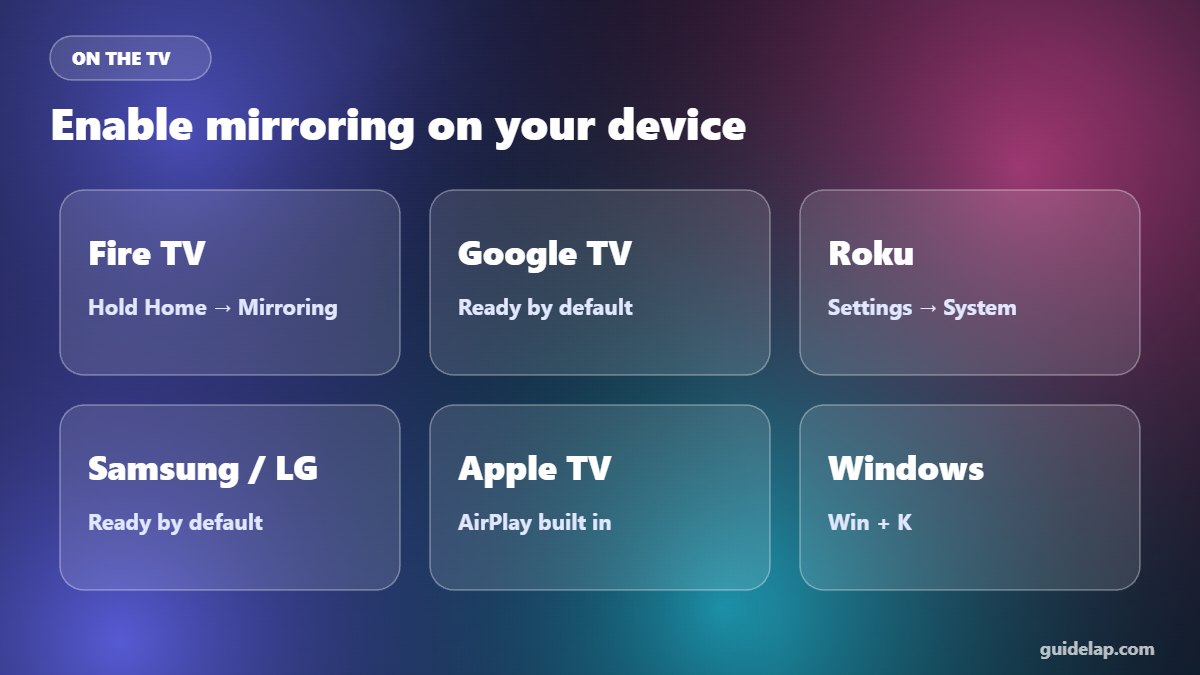
| Device | How to enable mirroring |
|---|---|
| Fire TV (Fire OS) | Hold Home → Mirroring, then connect from your phone |
| Google TV / Chromecast | Ready by default — cast from Google Home or Quick Settings |
| Roku | Settings → System → Screen mirroring → Prompt or Always allow |
| Samsung TV | Ready by default for Smart View and AirPlay on supported models |
| LG TV | Ready by default; use Screen Share or AirPlay on supported models |
| Apple TV | Ready by default for AirPlay |
Want to watch IPTV this way on a Roku? See IPTV on Roku, method 2.
Screen mirroring not working? Try this
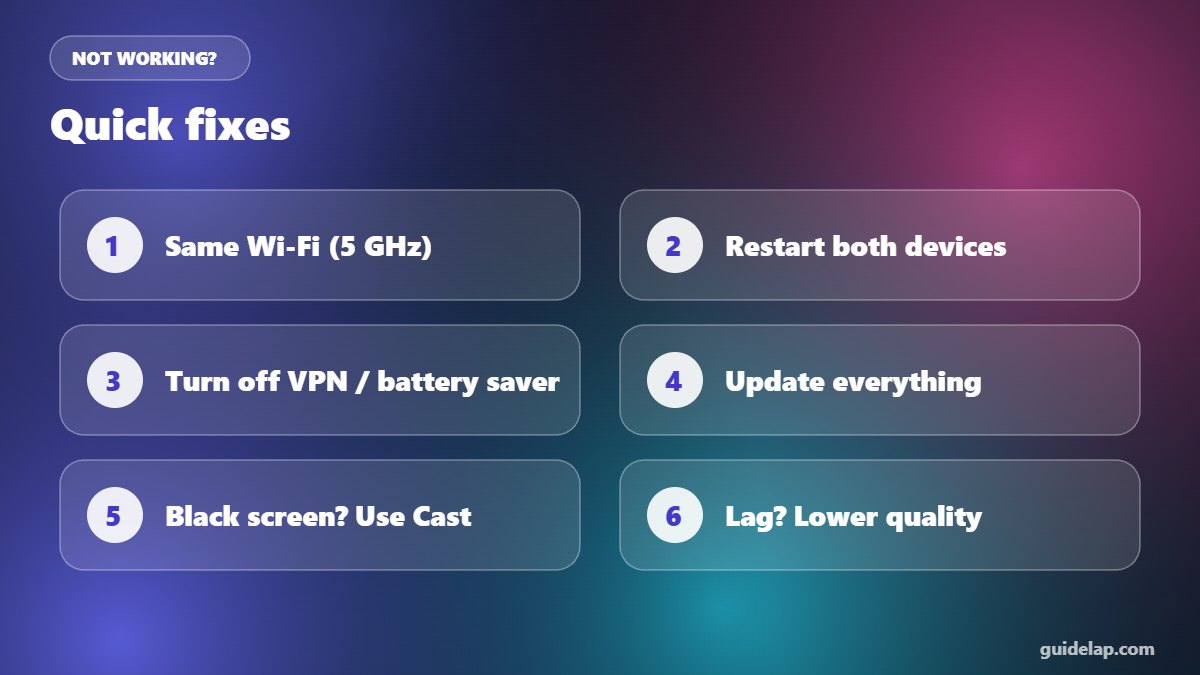
- Put both devices on the same Wi-Fi network (5 GHz is best) — and check our Firestick Wi-Fi fixes.
- Restart the phone and the TV/streaming device.
- Turn off VPN or battery saver on the phone while mirroring.
- Update the TV, the streaming device and the phone.
- Some apps block mirroring for copyright reasons (black screen with sound) — use the app’s own Cast button or the TV app instead.
- If the picture lags, lower the video quality or improve your network speed.
Related guides
- Prefer apps directly on the TV? See the free streaming apps for Firestick and the best streaming device for your setup. Apple’s official steps are on Apple Support.
- Remote missing? See use Firestick without remote.
- For IPTV, casting from the app gives a better picture — see how to cast IPTV to TV.
Frequently asked questions
How do I do screen mirroring to my TV?
Connect both devices to the same Wi-Fi, open Smart View / Screen Cast on Android or Screen Mirroring on iPhone, and choose your TV.
Can I mirror my iPhone to a Fire TV Stick?
Not natively — Fire TV does not support AirPlay. Use a third-party AirPlay receiver app from the Appstore, or an Apple TV or AirPlay-compatible TV.
Why is my screen black when mirroring?
The app is blocking mirroring to protect copyrighted content. Use the app’s Cast button or the TV app instead.
Does screen mirroring need internet?
It needs a local Wi-Fi network between the devices. The content itself may also need internet.
Is casting better than screen mirroring?
Yes, for video. Casting sends the stream directly to the TV, so quality is better and your phone stays free.
Final thoughts
Screen mirroring to TV takes less than a minute: same Wi-Fi, open Smart View or Screen Mirroring, pick your TV. For videos, use the Cast button when it is available for smoother playback.



