
Just unboxed a Fire TV Stick? This guide shows how to set up Firestick step by step — from plugging it in to signing in, choosing your apps and changing the first settings — so you are watching in about 15 minutes. It works for Fire TV Stick HD, 4K, 4K Plus, 4K Max and 4K Select.
What you need before you start
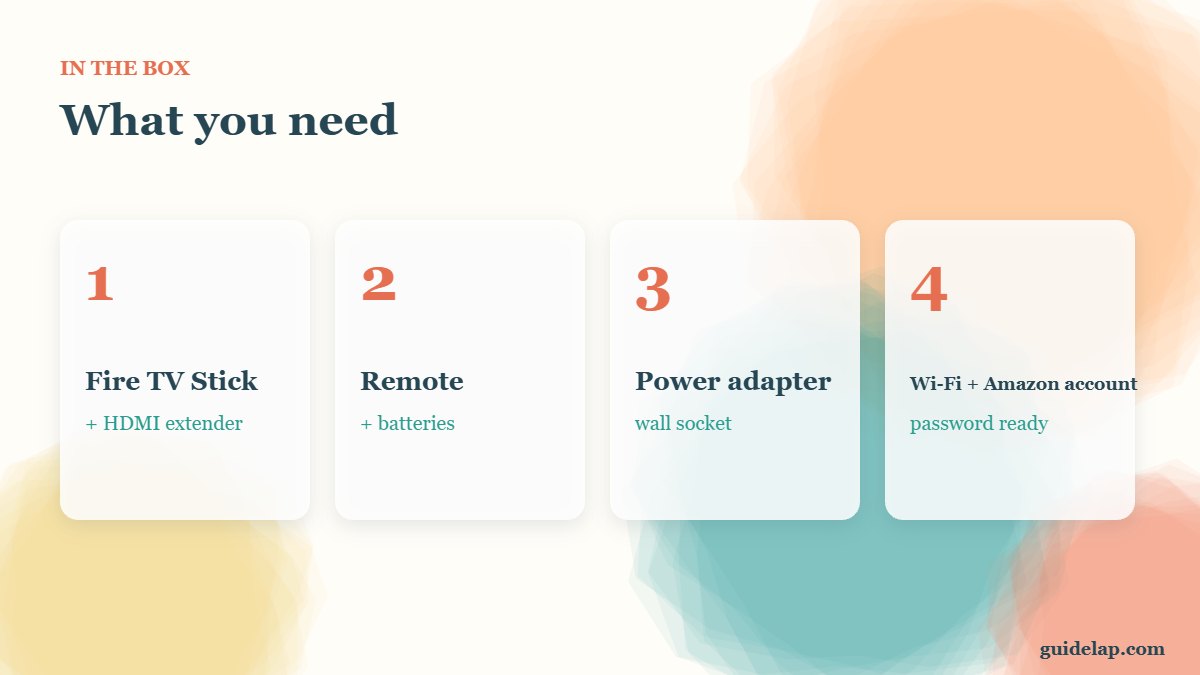
- Your Fire TV Stick, remote, batteries, power cable and adapter (all in the box).
- A TV with a free HDMI port (HDCP-compatible for 4K).
- Your Wi-Fi name and password.
- An Amazon account (you can create one during setup).
- Enough speed: at least 5 Mbps for HD and 15+ Mbps for 4K — see internet speed for streaming.
How to set up Firestick: step by step
Step 1: Plug it in
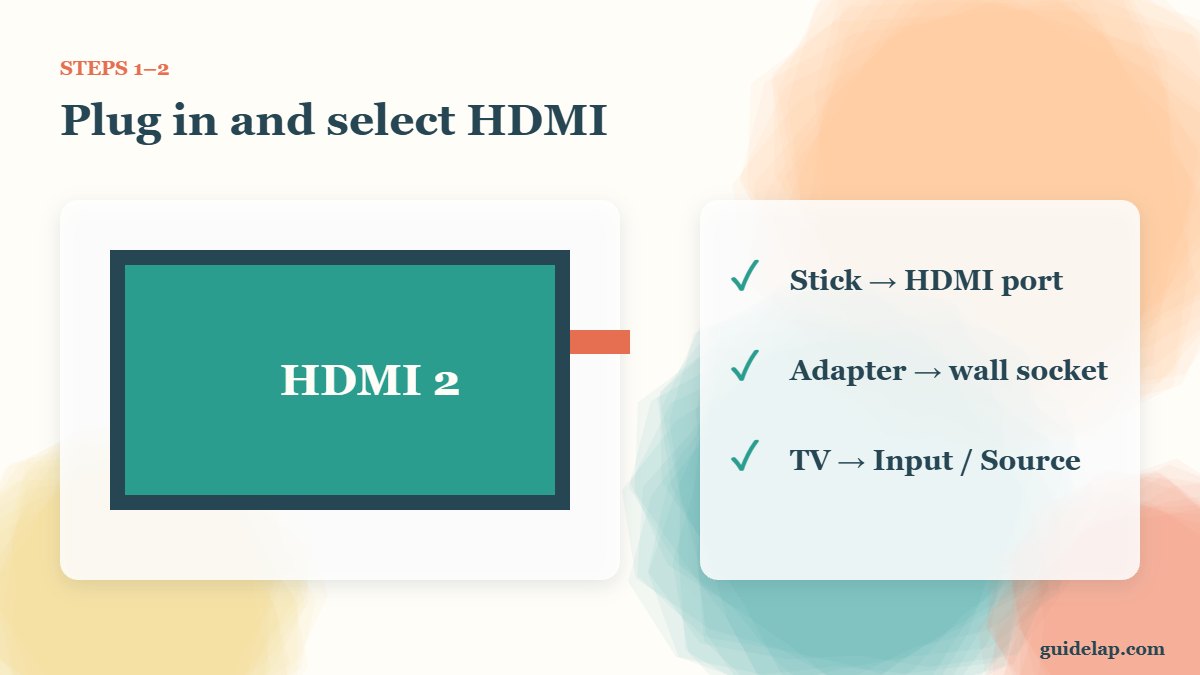
Connect the stick to an HDMI port (use the HDMI extender if space is tight). Plug the USB power cable into the stick and the Amazon power adapter into a wall socket — not the TV’s USB port, which may not give enough power.
Step 2: Select the HDMI input
Turn on the TV and press Input / Source on the TV remote until you see the Fire TV logo.
Step 3: Pair the remote
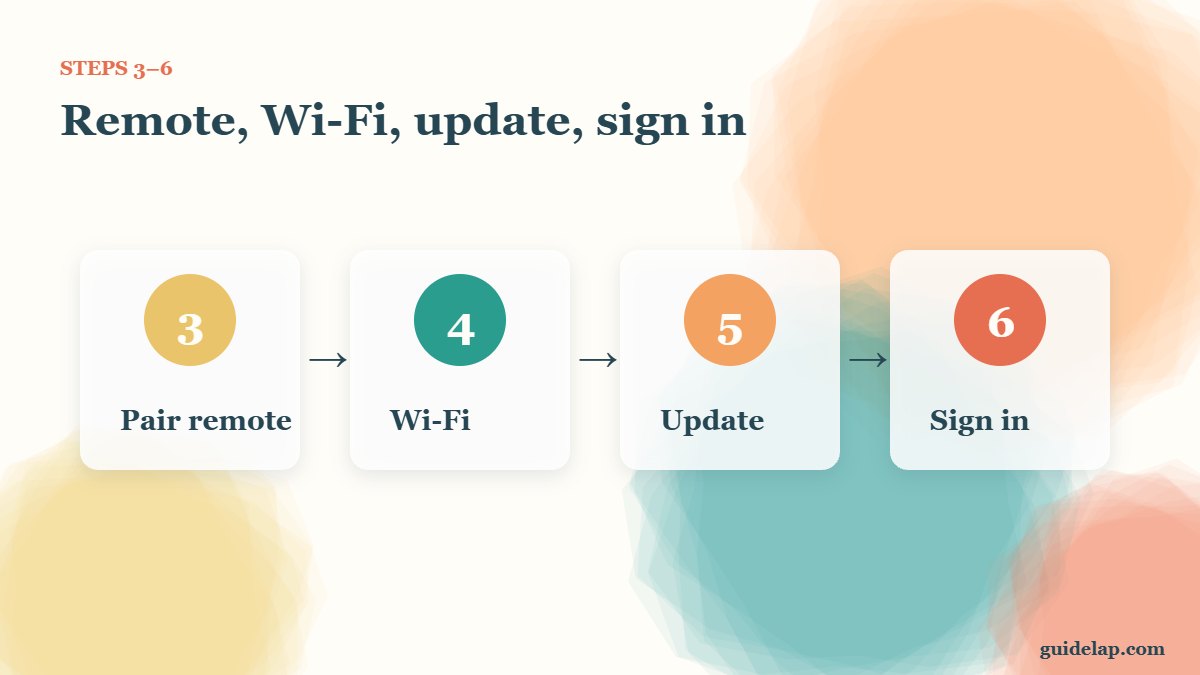
Insert the batteries. The remote usually pairs automatically; if not, hold Home for 10 seconds. Problems? See Firestick remote not working.
Step 4: Choose language and connect to Wi-Fi
Select your language, then your Wi-Fi network and enter the password. If it will not connect, follow Firestick not connecting to WiFi.
Step 5: Install updates
The Firestick downloads the latest software automatically. Leave it on — this can take a few minutes.
Step 6: Sign in to Amazon
Sign in with your Amazon account using the remote, or follow the on-screen instructions to sign in from your phone with the code shown on the TV. If you bought the stick from Amazon, it may already be registered to you.
Step 7: Set parental controls and choose apps
Choose whether to turn on parental controls (you can change this later — see Firestick parental controls), then pick apps such as Netflix, YouTube or Prime Video to install.
Step 8: Set up TV controls
Let the Firestick test the remote’s power and volume buttons with your TV, so one remote controls everything.
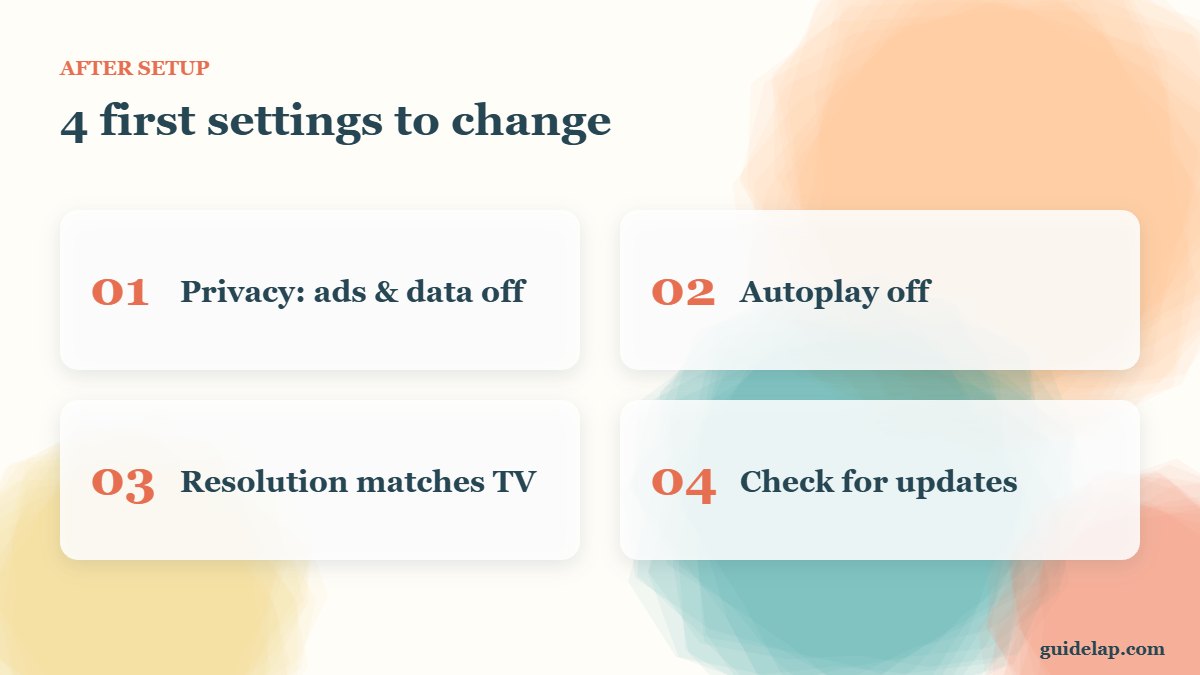
First settings to change after setup
| Setting | Where |
|---|---|
| Turn off data collection & interest-based ads | Settings → Preferences → Privacy Settings |
| Turn off featured video autoplay | Settings → Preferences → Featured Content |
| Match display resolution to your TV | Settings → Display & Sounds → Display |
| Check for updates | Settings → My Fire TV → About |
Full list: 10 Firestick settings to change.
Fire OS or Vega OS?
Newer sticks such as the 4K Select run Vega OS and only install apps from the Amazon Appstore. Check yours in Settings → My Fire TV → About and read Vega OS vs Fire OS. On Fire OS models you can install extra apps with Downloader.
Related guides
- What to install next: free streaming apps for Firestick, a VPN for privacy, or a player from our best IPTV player apps list. Background on the platform: Amazon Fire TV on Wikipedia.
- Haven’t bought one yet? Compare Fire TV Stick 4K Max vs Google TV Streamer.
- After setup: connect Bluetooth headphones and delete apps you don’t need.
- No picture after plugging in? Read Firestick black screen. For the most stable connection, use Firestick Ethernet.
Frequently asked questions
How long does it take to set up a Firestick?
About 10–15 minutes, including software updates.
Can I set up a Firestick without an Amazon account?
No. You need an Amazon account, but you can create a free one during setup.
Why does my Firestick show no signal?
Check that the TV is on the correct HDMI input and that the stick is powered from the wall adapter.
Do I need to pair the remote?
It usually pairs automatically. If not, hold Home for 10 seconds.
Can I set up a Firestick on a hotel Wi-Fi?
Usually yes, but networks with a login page can be tricky. A phone hotspot is an easy alternative.
Final thoughts
Now you know how to set up Firestick: plug it into HDMI and a wall socket, pair the remote, connect to Wi-Fi, update, sign in and pick your apps. Spend two more minutes on the privacy and display settings and your Fire TV is ready.



